

Introducing Shortcuts: Your Fast Lane to Prompts in Comet
Meet Shortcuts, a new feature in Comet designed to further enable your productivity by turning your favorite and most-used workflows into quick prompts you can call up anywhere in Comet.
What Are Shortcuts?
Shortcuts in Comet are like mini AI agents—custom, reusable prompts that handle everything from simple tasks to complex workflows. Instead of typing out a big instruction (or multitasking between sites and tools), you can:
Trigger pre-written commands in seconds
Combine multiple steps into one easy prompt
Point prompts at specific sources or data (use @ mentions, files, or tabs)
Boost productivity by letting the AI handle repetitive stuff for you
Example Shortcuts:
/update-tabs: “Close all tabs I haven’t used in the past day. Sort all remaining tabs by app.”/fact-check: “Examine the claims in the tab and check credible sources to fact check the claims. Put results in an easy-to-read tabular format.”/order-lunch: “Go to DoorDash and order my usual Wednesday lunch with a $1 tip—no approvals needed.”/demoprep tomorrow’s meetings: “Prepare a personalized demo briefing for all relevant meetings tomorrow.”/yesterdays-product-performance: “Report key performance stats from your favorite analytics dashboard for yesterday.”
Start using shortcuts and let Comet’s AI handle your daily workflows. Just type /, choose your shortcut, add any extra info if needed, and watch shortcuts boost your productivity
How Do Shortcuts Work?
Trigger Anywhere: Type
/to see your shortcuts in the search bar or sidecar
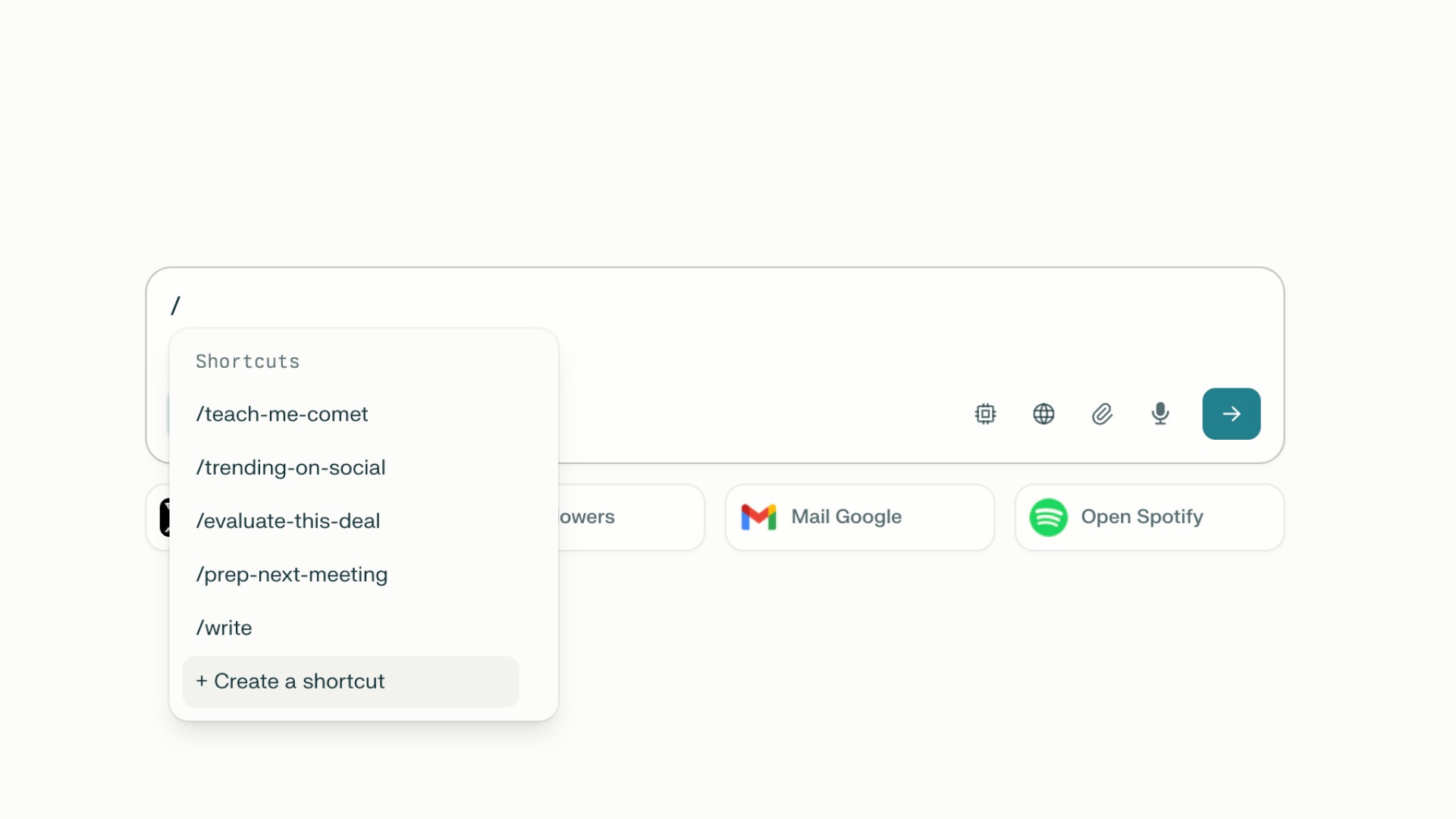
No Auto-Execute: Entering a shortcut won’t auto-run it. You can add extra details or context after the shortcut before submitting. When ready, click submit and the shortcut will expand into its full prompt.
Combine shortcuts: Use multiple shortcuts together, building layered, complex workflows in a single command.
Smart Inputs: As you type
/, a selector with your available shortcuts pops up, so you can quickly find, edit, or use the prompt you need.Configuration-Friendly: Set up shortcuts with custom research modes, data sources, or fact-checking steps—tailor each prompt to your workflow.
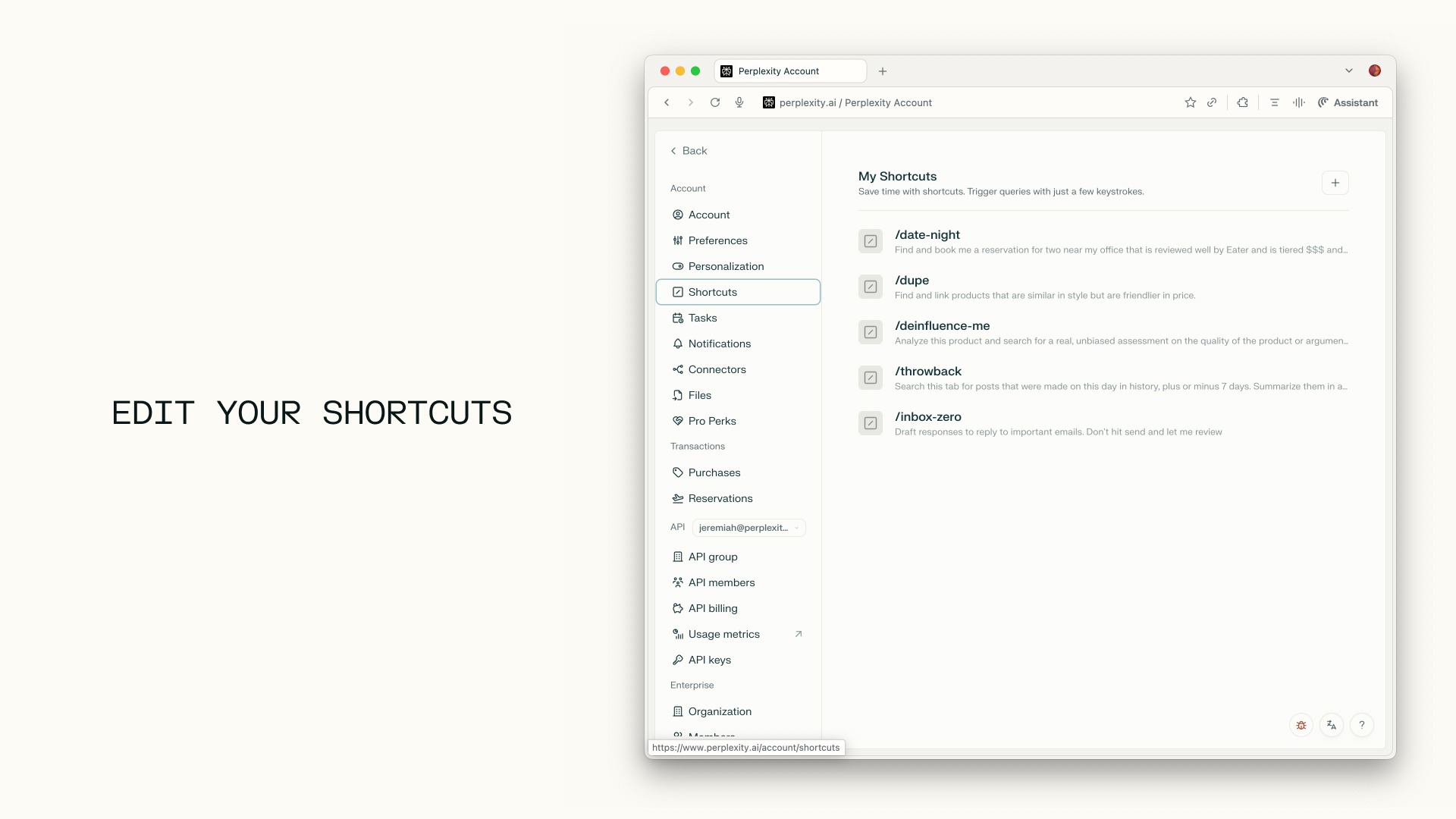
Easy Management: Find and edit all your shortcuts on your Settings screen.
Default + Custom: You’ll have a basic set of shortcuts by default, with more available in our library (coming soon) and the option to create your own custom triggers.
Share link: share shortcuts with others through a share link. Users that are not yet Comet users are asked to install Comet to adopt the shortcut.
Homepage widget: Add a dedicated shortcut widget to the new tab page for easy access.
How to create and edit a shortcut:
Type
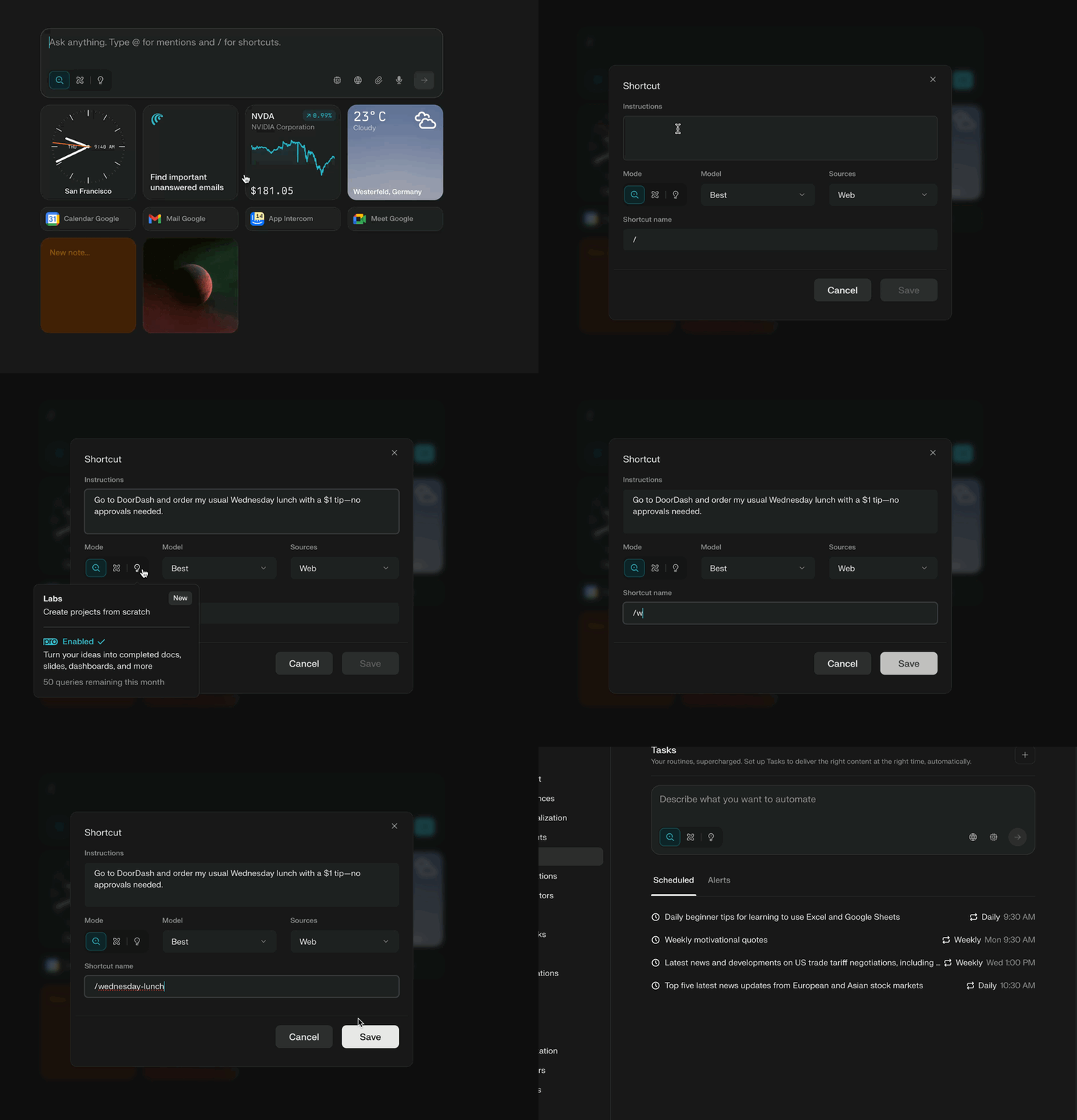
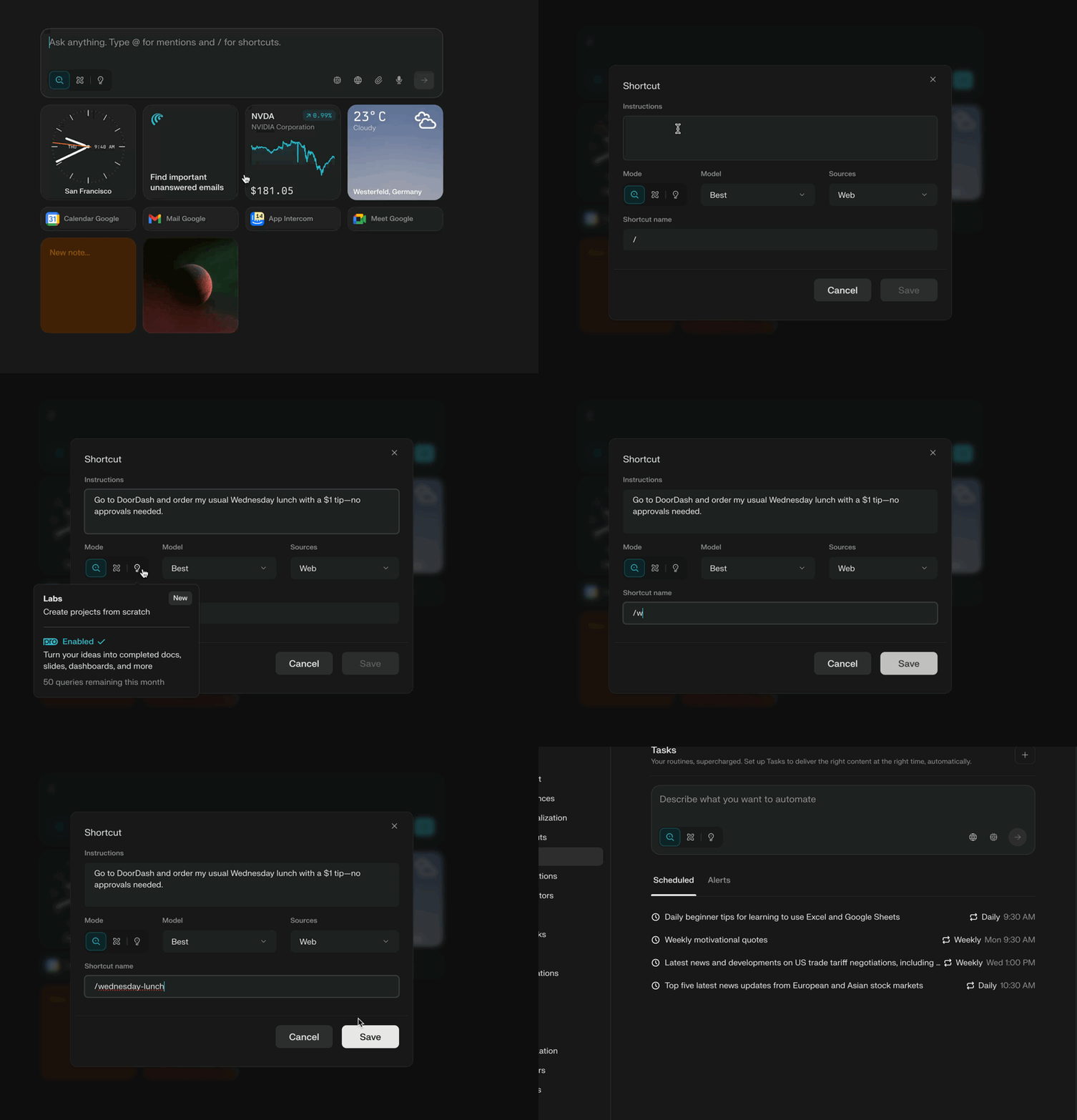
/in the search bar or in the sidecarClick “Create a shortcut”
The shortcuts modal will open up where you can enter your instructions (prompt), select a Search Mode, Model, Source
Name your Shortcut and click Save
To edit:
Open your Settings bar and go to Shortcuts
Click on the shortcut you want to edit and the modal will open up
Make changes in the modal and click Save
Frequently Asked Questions about Shortcuts
Q: Will my shortcut execute as soon as I enter it?
A: No—this is intentional! You can add more input after the shortcut and then submit.
Q: Can I use shortcuts anywhere in Comet?
A: Yes, whether you’re in the search bar, sidecar, or in a new tab, shortcuts work across all inputs. Enter your prompt where it makes sense for you.
Q: Will shortcuts show up in the prompt title or chat?
A: Nope, when you click submit, the shortcut “code” transforms into the full prompt behind the scenes, so your workspace stays readable.
Q: Can I use more than one shortcut in a single prompt?
A: Yes, mix and match to stack workflows. Each shortcut translates to its designated task.
Q: How advanced can shortcuts be?
A: Shortcuts can run simple text commands, trigger smart research, interact with human-in-the-loop steps, or pull from apps/files you specify.
Q: Where do I manage my shortcuts?
A: Head to your Account Settings screen to find, organize, and edit your shortcuts.
Browser button hotkeys / shortcuts
Comet also provides hotkey combinations to quickly trigger certain buttons without using a cursor. Exact combinations are outlined in tooltips on hover.
You can learn other combinations and re-assign different ones to specific buttons via shortcut menu in Settings -> Shortcuts (or by typing comet://settings/shortcuts in address bar)