.%20Same%20paths%20and%20fill;%20only%20the%20viewBox%20is%20cropped%20to%20the%20file's%20own%20clip%20rect%20so%20the%20bar%20sets%20the%20clear%20space.%20--%3e%3csvg%20width='480.615'%20height='97.3693'%20viewBox='97%2078%20480.615%2097.3693'%20fill='none'%20xmlns='http://www.w3.org/2000/svg'%3e%3cg%20clip-path='url(%23clip0_1709_25672)'%3e%3cpath%20d='M507.64%20157.772C497.197%20157.772%20490.907%20152.963%20490.907%20141.818V78H503.605V97.3565H530.187L547.394%20137.712L562.584%2097.3565H577.062L544.784%20175.369H530.424L540.63%20151.907L521.406%20108.501H503.605V139.941C503.605%20144.751%20505.741%20146.628%20510.725%20146.628H522.236V157.772H507.64Z'%20fill='%23121516'/%3e%3cpath%20d='M467.845%20157.772V97.3565H480.543V157.772H467.845ZM467.489%2091.139V78H480.899V91.139H467.489Z'%20fill='%23121516'/%3e%3cpath%20d='M404.356%20157.772L425.005%20126.215L405.899%2097.3566H421.089L433.549%20118.004L446.128%2097.3566H461.318L442.212%20126.215L462.861%20157.772H447.671L433.549%20134.779L419.546%20157.772H404.356Z'%20fill='%23121516'/%3e%3cpath%20d='M377.834%20159.532C359.915%20159.532%20348.285%20146.745%20348.285%20127.271C348.285%20108.501%20360.034%2095.5968%20377.122%2095.5968C394.329%2095.5968%20405.84%20107.445%20405.84%20125.16C405.84%20127.858%20405.722%20129.852%20405.366%20131.494H361.458C362.17%20142.874%20367.747%20148.974%20377.953%20148.974C385.31%20148.974%20390.176%20145.689%20391.956%20139.237H404.891C402.043%20151.907%20391.837%20159.532%20377.834%20159.532ZM361.458%20121.64H392.905C392.193%20111.317%20386.853%20106.155%20377.122%20106.155C367.984%20106.155%20362.288%20111.903%20361.458%20121.64Z'%20fill='%23121516'/%3e%3cpath%20d='M328.431%20157.772V78H341.128V157.772H328.431Z'%20fill='%23121516'/%3e%3cpath%20d='M263.88%20175.369V97.3565H276.578V103.457C280.375%2098.4123%20287.021%2095.5968%20294.853%2095.5968C311.111%2095.5968%20321.316%20107.915%20321.316%20127.506C321.316%20147.097%20311.111%20159.532%20294.853%20159.532C287.021%20159.532%20280.375%20156.717%20276.578%20151.672V175.369H263.88ZM292.123%20148.035C302.685%20148.035%20308.263%20140.997%20308.263%20127.506C308.263%20114.132%20302.685%20107.093%20292.123%20107.093C281.443%20107.093%20275.866%20114.132%20275.866%20127.506C275.866%20140.997%20281.443%20148.035%20292.123%20148.035Z'%20fill='%23121516'/%3e%3cpath%20d='M224.479%20157.772V97.3566H237.176V103.809C239.55%2099.7028%20244.178%2097.3566%20249.874%2097.3566H258.181V109.322H249.874C241.092%20109.322%20237.176%20113.546%20237.176%20122.931V157.772H224.479Z'%20fill='%23121516'/%3e%3cpath%20d='M188.82%20159.532C170.9%20159.532%20159.271%20146.745%20159.271%20127.271C159.271%20108.501%20171.019%2095.5968%20188.107%2095.5968C205.315%2095.5968%20216.825%20107.445%20216.825%20125.16C216.825%20127.858%20216.706%20129.852%20216.35%20131.494H172.443C173.155%20142.874%20178.733%20148.974%20188.938%20148.974C196.296%20148.974%20201.161%20145.689%20202.941%20139.237H215.876C213.028%20151.907%20202.823%20159.532%20188.82%20159.532ZM172.443%20121.64H203.891C203.179%20111.317%20197.838%20106.155%20188.107%20106.155C178.97%20106.155%20173.274%20111.903%20172.443%20121.64Z'%20fill='%23121516'/%3e%3cpath%20d='M97%20175.369V97.3565H109.698V103.457C113.495%2098.4123%20120.141%2095.5968%20127.973%2095.5968C144.231%2095.5968%20154.436%20107.915%20154.436%20127.506C154.436%20147.097%20144.231%20159.532%20127.973%20159.532C120.141%20159.532%20113.495%20156.717%20109.698%20151.672V175.369H97ZM125.244%20148.035C135.805%20148.035%20141.383%20140.997%20141.383%20127.506C141.383%20114.132%20135.805%20107.093%20125.244%20107.093C114.563%20107.093%20108.986%20114.132%20108.986%20127.506C108.986%20140.997%20114.563%20148.035%20125.244%20148.035Z'%20fill='%23121516'/%3e%3c/g%3e%3cdefs%3e%3cclipPath%20id='clip0_1709_25672'%3e%3crect%20width='480.615'%20height='97.3693'%20fill='white'%20transform='translate(97%2078)'/%3e%3c/clipPath%3e%3c/defs%3e%3c/svg%3e)
Role-based access controls, API credentials, and Brain for Max
Control Enterprise access with custom roles and SCIM groups
Perplexity Enterprise now includes role-based access controls in the admin settings. Admins can create custom roles with granular permissions, sync groups from an identity provider through SCIM, and set credit usage limits per group. Custom roles, SCIM group sync, and group credit limits are available to Enterprise orgs on an annual sales contract.
Try Enterprise roles and permissions to:
- Scope a team’s access: Create a custom role that grants a specific team access to only the permissions they need.
- Sync groups from your IdP: Sync engineering, sales, and support groups from an identity provider through SCIM and assign permissions per team.
- Cap group spend: Set a monthly credit usage limit for a group to keep spending predictable across the organization.
Learn more: Enterprise roles and permissions
Connect Computer to any API securely
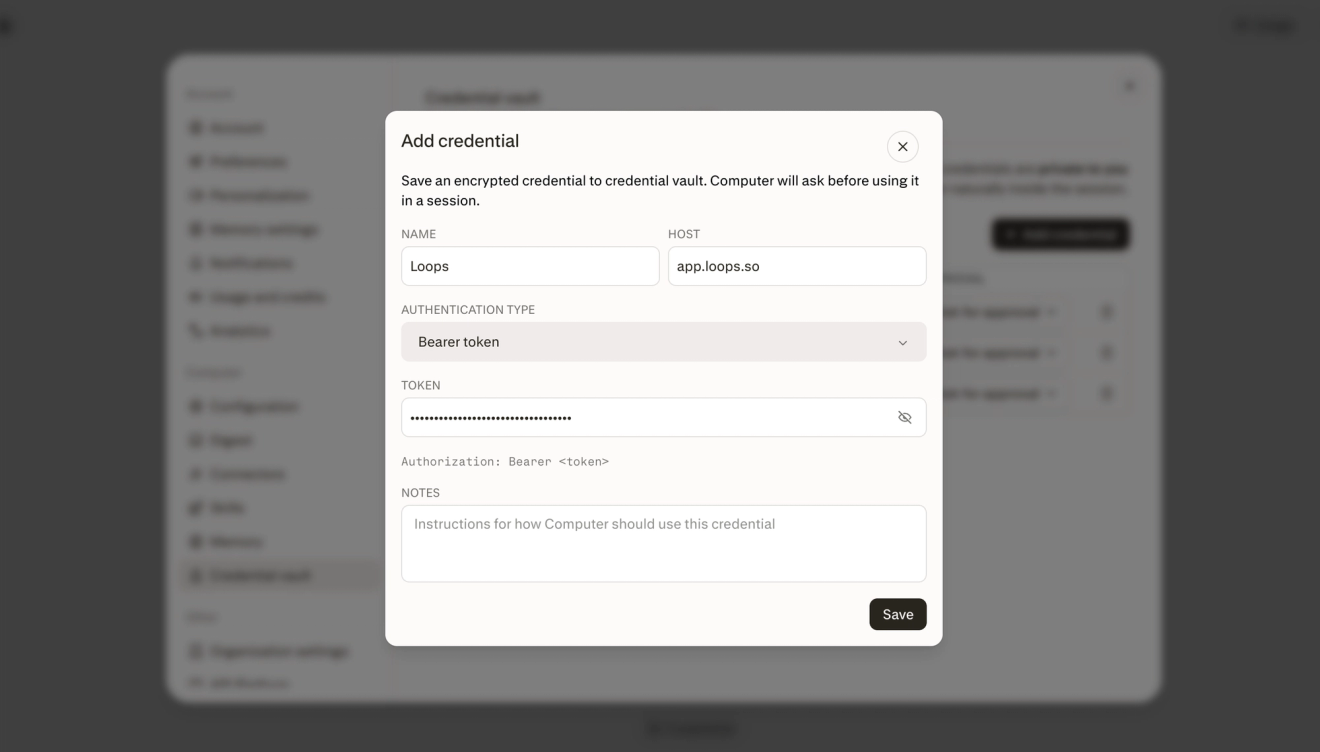
Computer can securely authenticate to third-party APIs even when no built-in connector exists. Add a credential for one task, save it to your personal credential vault, or share it with a project while keeping the raw secret out of the agent’s activity and sandbox.
Try custom API credentials to:
- Reach any API: Connect an unsupported service and pull current data from its API.
- Save it once: Save a personal credential once and reuse it across future tasks with your approval.
- Share safely with a project: Add a shared project credential so teammates can use the same API without seeing the raw key.
Learn more: Use custom API credentials in Computer
Brain available to Perplexity Max subscribers globally
Brain, our self-improving memory system, is now available to Perplexity Max subscribers globally. Brain writes wiki pages about the people, projects, and preferences you care about in your dominant language, with support for 15 languages covering roughly 90% of Max users.
Computer also now prefills the wiki catalog into every session, so it reaches for the right page at the right moment — driving a 10 percentage-point lift on memory benchmarks and cutting internal dissatisfaction on memory-heavy tasks by about 6%, with an 18% reduction at the high end.
Try Brain to:
- Work in your language: Bring your work context along in your native language, from Japanese product notes to Spanish research threads, without switching how you write.
- Recall a person or project: “What’s the latest on our Q3 pricing project, and who owns each open thread?”
- Skip the re-briefing: Start a new task and inherit your established preferences, decisions, and references from earlier sessions — no re-briefing required.
Learn more: What Brain does · How self-improving memory works
Claude Opus 5 now powers Perplexity and Perplexity Computer
Claude Opus 5 is live across Perplexity Search and Computer. On the WANDR benchmark, it outperformed every model tested except Fable 5, while costing 57% less per task.
Try Claude Opus 5 to:
- Work on the frontier: Tackle demanding reasoning and agentic tasks with frontier-level quality.
- Run long workflows for less: Run longer Computer workflows at a lower cost per task than the previous flagship.
- Weigh cost vs quality: Compare model performance and cost trade-offs using the WANDR benchmark results.
Learn more: What advanced AI models are included in my subscription?
Build specialized agents with Skills
Developers can give Perplexity Agent API agents specialized, composable expertise with Skills. Combine built-in capabilities such as document generation with inline instructions for your own workflows, and the agent loads each skill only when it is needed.
Try Agent API Skills to:
- Style your outputs: Pair a built-in PDF skill with an inline design system to generate polished reports in your organization’s style.
- Encode a workflow: Add inline instructions for a specialized research, support, or operations process without expanding every prompt.
- Mix built-in and custom: Combine built-in and custom skills so one agent can research, analyze, and produce the right deliverable for each task.
Learn more: Agent API Skills documentation
Task Computer from the Comet Assistant
Computer is now available directly inside the Comet Assistant, so you can hand off research, multi-step workflows, and build without leaving the page you’re on. Rolling out to everyone now.
Try Computer in Comet Assistant to:
- Run deep research in place: “Draft me a competitive teardown of the three vendors mentioned on this page.”
- Build from what you’re seeing: “Make amends to my car rental website using this page as a good example.”
- Escalate to a full session: “Pull the last 10 earnings calls for this company, extract every mention of pricing, and give me a table.”
Learn more: The Comet Assistant panel · What is Computer
Check whether answers are supported by their sources
Check how well a Search or Computer answer is supported by its cited sources. Check Sources verifies claims against the underlying evidence and summarizes how well they’re supported, helping you spot statements that deserve a closer look.
Try Check Sources to:
- Vet before you share: Vet a research summary before sharing an answer that combines claims from many publications.
- Check the high-stakes claim: Review whether a consequential medical, legal, or financial statement is directly supported by cited evidence.
- Find weak spots: Use claim-level checks to find where an answer needs deeper verification.
Learn more: How Perplexity Search supports source verification
Explore sources beside your Search answer
Explore the sources behind a Search answer while staying in context. The new side panel keeps citations and supporting sources alongside the response, making it easy to inspect the evidence behind each claim, compare sources, and continue your research without leaving the conversation.
Try the sources side panel to:
- Read sources side-by-side: Open cited sources beside a complex answer and compare the evidence without jumping between tabs.
- Inspect a single citation: Select a citation and inspect its supporting passage while keeping the surrounding answer visible.
- Follow up on the evidence: Review several sources, then ask a follow-up grounded in the strongest evidence.
Learn more: Explore sources in Perplexity Search
Organize your sessions by prompt
Computer can now start, organize, and clean up your own Perplexity sessions from a conversation. Ask it to find past sessions and summarize what they decided, fork one into a focused follow-up, rename them, and pin or archive the ones you’re done with.
It can also turn one request into parallel workstreams you can follow independently: ask Computer to open a session per task, work each one, and report back while the original session coordinates.
Try Computer session management to:
- Split work in parallel: “Create one session per engineering ticket, have each investigate a solution, and bring back a plan and clarifying questions.”
- Clean up your library: “Find all my sessions about Q3 pricing, pin the most useful and up-to-date sessions, and propose stale duplicates to archive. Show me the plan first.”
- Pick up where you left off: “Read and summarize this session, summarize the decisions, and create a new session focused on launch messaging.”
Learn more: How Perplexity sessions work