

What is Computer?
Computer is an independent digital worker that completes tasks and workflows for you. Instead of just providing information, it takes action: synthesizing large amounts of information across the web and in your own work context through hundreds of app connectors. Using this rich context, it can craft assets, create functioning apps, manage emails, conduct research, and more — all in your preferred style. It can monitor and act on schedule too, so it’s always-on even when you’re off the clock.
Computer unifies every current AI capability into a single worker, including:
Search-native intelligence for accurate, cited information
Tool execution to complete tasks across platforms
Rich media generation for creating visual content
Document creation for reports and presentations
Authenticated integrations with Gmail, Outlook, GitHub, Linear, Slack, Notion, and more
Persistent memory that retains context across sessions
Scheduling and automation for recurring tasks
Secure cloud/isolated sandbox to protect your data
Universal access with no complicated local install
Built on Perplexity’s core strengths of accurate AI, superior deep research, advanced assistants (agents), multi-model orchestration, and safety and security, Computer represents the next evolution of AI.
How does Computer work?
Computer combines several powerful capabilities to complete complex tasks on your behalf:
Asynchronous Execution
Computer runs tasks in the background while you’re away. It can monitor your email, calendar, flight status, and files with condition-based triggers, and supports scheduled jobs and proactive actions like morning briefings and deadline reminders.
Wide Research & Parallel Web Search
Computer can handle queries that require researching multiple items simultaneously, making it ideal for comprehensive market research and competitive analysis.
Sub-Agents
Computer uses domain-specific assistants that handle distinct task types:
Market research agents for competitive intelligence
Financial analysis agents for earnings reports and stock monitoring
News monitoring agents for breaking updates
Coordination agents that orchestrate handoffs between specialists
Premium Data Integrations
Computer connects with the tools you already use, including Gmail, Outlook, GitHub, Linear, Slack, Notion, Snowflake, Databricks, and Salesforce, along with finance tools and premium data connectors. Plugins bundle connectors and/or skills that Computer can use in your sessions.
Personal Cloud Sandbox
Your data is kept in a secure, isolated environment with persistent memory across all sessions and platforms. Computer retains context from long conversations and automatically stores your preferences.
Multi-Tool Orchestration
Computer coordinates multiple tools and capabilities seamlessly, retrieving and synthesizing real-time information while handling multi-step reasoning and complex task automation.
What’s the difference between Perplexity and Computer?
Perplexity answers your questions. Computer does your work.
Perplexity = search + knowledge. You ask, it finds and synthesizes information.
Computer = an agent with tools. You ask, it actually does things — writes docs, builds slides, sends emails, browses the web, writes code, connects to your apps, and chains multi-step workflows together.
One gives you answers. The other takes action.
The key differentiator: Composition
Capabilities chain together naturally. A single prompt can trigger research → analysis → document creation → email delivery → scheduled follow-up, all without you lifting a finger between steps.
Example workflow:
“Research our top 5 competitors, compare their pricing, create a slide deck with the findings, and email it to the team.”
Computer will run parallel web searches, build a comparison table, generate a branded PPTX, and send it via your connected Gmail — all in one session.
Running Computer on your own hardware
Computer normally runs in a secure cloud sandbox. On supported NVIDIA hardware, Portable Computer runs the model, orchestrator, scheduler, and sandbox on your own device instead, so files and agent activity stay local and the work does not consume credits. Steps that need the web or a frontier model are escalated to the cloud only with your permission.
See What is Portable Computer? for requirements and capabilities.
How to access Computer?
Computer is available on paid plans, with no setup or installation needed. Some free accounts also include a limited number of free Computer turns so you can try it. See Using Computer on a free account.
Computer is available on web desktop, iOS, and Android.
To access Computer:
Go to the Home page.
Select the Computer icon.
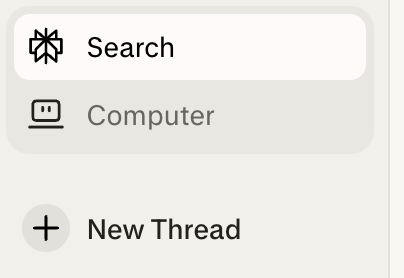
3. In the Computer panel, select the Start a task field to create a new task.
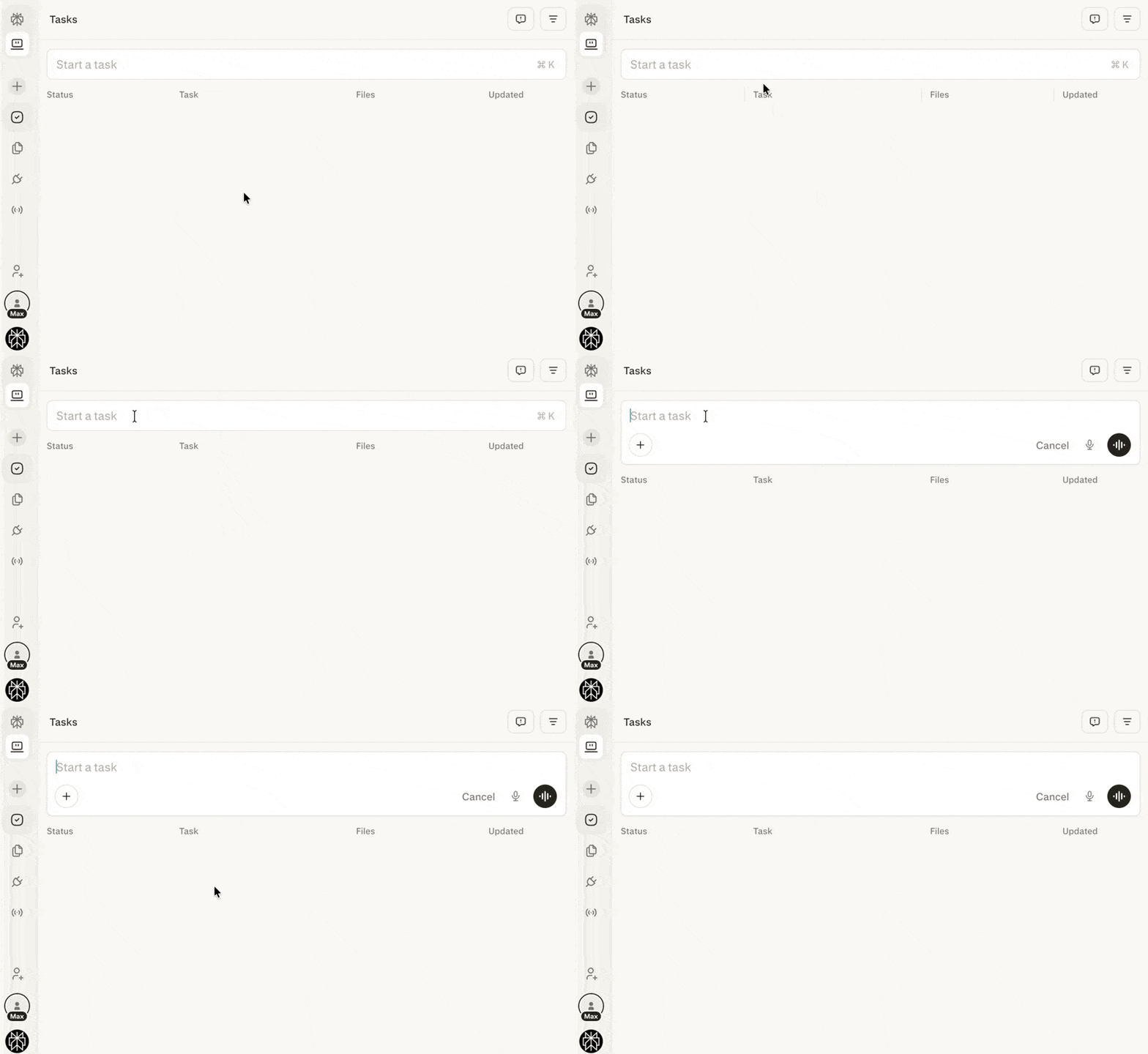
4. To exit Computer before you send a task, select Search (the magnifying glass icon) in the mode toggle in the input box. After a Computer task starts, you can’t switch that session to Search. Start a new session from the Home page instead.
There’s no account setting to turn off Computer, but on the web the Home page remembers the mode you last used to send a request from it. If your organization uses Perplexity Enterprise, an admin can turn off Computer for the organization. Before you send a request, check that the mode toggle in the input box shows the mode you want. See If you don’t want to use Computer.
Using Computer on a free account
Some free accounts include a limited number of free Computer turns so you can try Computer before you upgrade. A turn is one message you send to Computer and Computer’s reply to it. Free turns are a one-time allowance. They don’t reset, and they don’t use credits.
Every message counts. Each message you send to Computer uses one free turn. That includes follow-ups and replies to Computer’s questions in the same task.
Usage is limited. Free turns may also have a total usage limit, so they can run out before a long or multi-step task is finished.
One agent at a time. On free turns, Computer can’t run multiple agents in parallel.
If your free turns run out partway through a task
Computer stops the task and shows a message that you’ve used your free Computer turns, with an option to upgrade.
Your task is kept. Open it to see what Computer finished before it stopped.
Changes in connected apps stay in place. Computer doesn’t undo work it already did in a connected app, such as edits to an online store. Check those changes before you continue.
You can resume after you upgrade. Return to the task on your paid plan. When you see You can now resume your session., select Resume to continue where Computer stopped. Sometimes the task resumes on its own.
Before you start a big task on a free account
For multi-step work in a live system, such as changes to an online store, ask Computer for a plan first or split the work into smaller tasks. Put everything Computer needs in your first message, since each message you send uses a free turn.
How to connect apps and services
Open Plugins in the sidebar (or Customize → Connectors if you don’t see Plugins yet) to view available apps and services.
Find the connector on Discover or by search, open its page, and select Connect.
To install a plugin, select Install on its page.
To disconnect, select the three dots next to the connected app, then choose Disconnect.
How Computer uses credits
Computer uses a credit-based system to power its advanced capabilities:
What you get:
Max subscribers receive 10,000 credits monthly
Consumer Pro plans do not include monthly credits
Limited-time bonus:
Additional 35,000 credits for paid Max subscription users (one-time, expire in 30 days)
4,000 credits for paid Pro subscription users (one-time, expire in 30 days)
Your Perplexity Ask searches remain unlimited and don’t use credits
How credits work:
Credits are used only for Computer tasks, including the Comet Assistant in Work mode
Credit consumption varies based on task complexity
Managing your credits:
View your credit balance and usage at perplexity.ai/account/usage
Enable auto-refill to automatically purchase more credits when your balance drops below 500 credits on Pro or 2,500 credits on Max. Auto-refill is off until you turn it on.
Set spending limits to control your monthly credit purchases
If your credits run out, active tasks pause (not cancel) and resume automatically when credits are available
For complete details about credit pricing, renewals, refund policies, and spending limits, see our Help Center article here: How Credits Work on Perplexity
Need more help?
Contact us via Help > Contact Support. Include the task link if your question is about a specific Computer task.