

Capabilities
Teammates build on the capabilities of Perplexity Computer, including Connectors, files, and code; see What is Computer? for an introduction. They add capabilities for ongoing work and large projects:- Multi-agent orchestration: A teammate breaks a goal into tasks, runs them in parallel across multiple agents, and adds agents as the work grows.
- Desktop and browser use: Each teammate has its own desktop computer and browser. It can work with apps and websites, including sites without a Connector, and test your website from start to finish. When needed, you can take over and steer its work.
- Proactive monitoring: Teammates watch the tools you connect, such as Slack, GitHub, and Linear. They can start work when something arrives and follow up on it, such as responding to review comments after opening a pull request.
- Ongoing responsibility: A teammate keeps its assigned role until you change it, schedules follow-ups, and retains memory between conversations.
- Model choice: You can choose the model each teammate uses and direct it to use different models for different tasks.
- Shared context in Projects: Teammates in the same Project share context, files, and instructions, while keeping their own roles and responsibilities. They can message each other when new information arrives.
- Apps in Slack, GitHub, Linear, and more: You can tag teammates as apps in the tools where you work.
Set up a teammate
Before you start
- Use an individual Max subscription with access to the research preview.
- Sign in to Perplexity on the web.
- Have access to the accounts and tools your teammate will need.
Upgrade to Max if needed
If you’re on the Free or Pro plan, upgrade to Max before creating a teammate. See Perplexity Max for plan details.- Open your profile menu.
- Select All settings > Account.
-
Under Your subscription, choose the option for your plan:
- If you’re on Free, select Upgrade plan, then Get Max.
- If your Pro subscription is billed through the website and Upgrade to Max is available, select Upgrade next to it.
- Follow the on-screen instructions to review and complete your upgrade.
Create your teammate
- Hover over Teammates in the sidebar.
-
Select the plus button (+), labeled Create teammate.
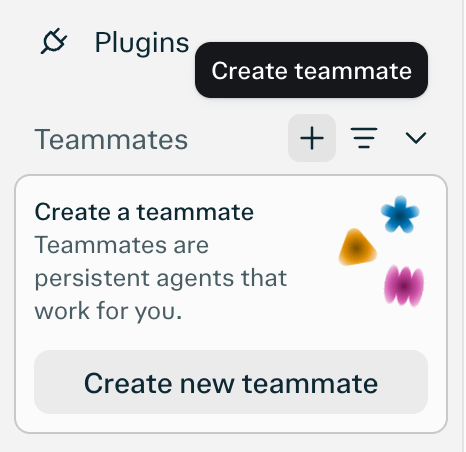
Figure 1: Select the plus button beside Teammates to start creating a teammate.
- Enter a name in Name or role.
-
Choose your teammate’s appearance.
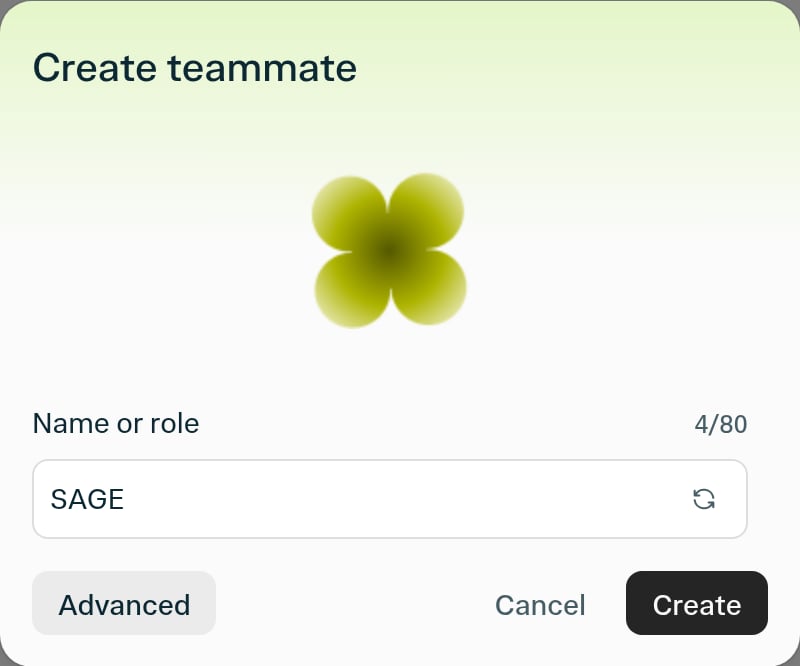
Figure 2: Enter a name in Name or role and choose your teammate's appearance.
Finish setup
- Open Advanced if you want to add instructions or starting tasks during setup.
- Describe the teammate’s job, including a schedule if the work should repeat.
- Click Create.
-
Finish setting up your teammate in the chat that opens.
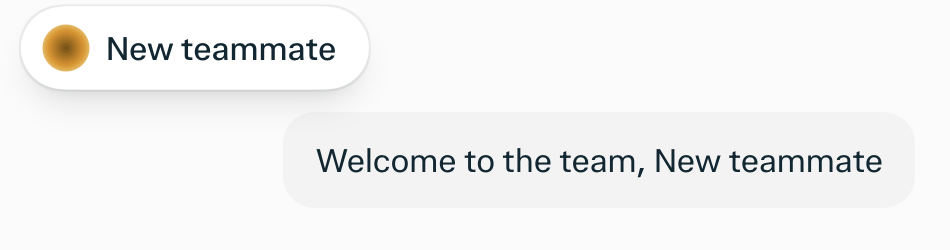
Figure 3: The chat shows the teammate name and welcome message.
Connect tools
Connect a new service from your teammate’s chat. If it’s already connected, go to Use a connected tool.- Open your teammate’s chat.
- Ask your teammate to connect the service you need, such as “Connect Slack.”
- Follow the connection prompt to sign in to the account you want to use.
- Review the requested permissions before approving access. If GitHub asks which repositories to allow, select only those your teammate needs.
Use a connected tool
- Expand Plugins in the right-hand sidebar of your teammate’s chat.
- Select Use a plugin.
-
Search for the tool you want to use, such as Slack, GitHub, or Gmail.
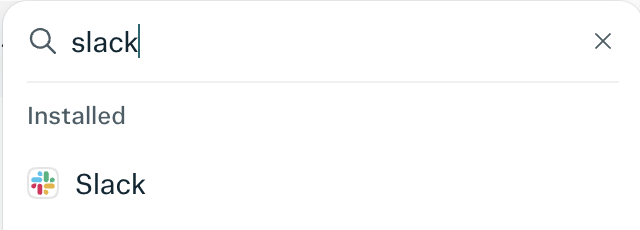
Figure 4: Find Slack from the Plugins panel in your teammate's chat.
- Select the tool under Installed to add it to your message.
- Describe the task and send your message.
Assign a role
You can create multiple teammates, each with a separate responsibility. A job description can include:- The source of the work: A Slack channel, an inbox, or a repository.
- The expected output: A reply, a report, or a pull request.
- The schedule or trigger: Every Monday or whenever a new message arrives.
- The audience: You, a channel, or a team.
- “Monitor #acme-alerts. Reply to each bug report with a likely cause and a suggested fix.”
- “Watch Linear for updates in my areas and send me a weekly summary of my work. Flag stale projects and refresh their tickets.”
- “File action items in Linear from the feedback posted in #product-feedback.”
Orchestration and complex projects
Teammates can work on projects with many steps or ongoing monitoring. By coordinating multiple agents at the same time, a teammate can work on several tasks in parallel.How a teammate runs a project
When you give a teammate a large goal, it:- Breaks the goal into tasks and identifies which can run in parallel.
- Starts additional agents for those tasks. Each agent has its own computer and works on its task from start to finish.
- Collects the results and checks them before deciding on next steps.
- Adds agents as the project grows and redirects them when new information arrives.
- Returns finished work for your review, such as a report, a pull request, or a configuration change.
Example projects
- Research: “Map the competitive landscape for creative AI tools and write a report with projections. Identify where my product can gain a foothold.”
- Issue resolution: “Watch GitHub, Linear, and Datadog for new issues. Investigate likely causes in parallel, reproduce the issue, and open a pull request with a fix. Respond to automated checks and review feedback until the pull request is ready for review.”
- Optimization: “Reduce the latency of this service. Test several approaches in parallel and report the results with measurements.”
Usage and credits
Max subscriptions include a monthly credit allocation that teammates can use. Complex projects can use more credits, particularly when agents run in parallel, work with large files or codebases, or run frequent automations. Review your credit usage on the Usage page. You can also manage credit purchases and auto-refill there; see How credits work on Perplexity for details.Models
You can choose a model for each teammate and change it as needed. Balance quality and cost by using a stronger model for planning and difficult decisions, and a faster, lower-cost model for routine work. New teammates use Claude Opus 5.5 by default. Agents started by a teammate use that teammate’s model unless you specify otherwise.Security and permissions
Teammates use the plugins and skills you have already installed. Their access follows the permissions of those plugins and Projects:- Plugins and skills: Teammates use your installed plugins with the same permissions and can use your installed skills.
- Saved credentials: Credentials are encrypted and entered securely. Teammates cannot view them.
- Isolated computers: Each teammate runs on its own isolated computer, with its own desktop and browser.
- Browsing sessions: Browsing sessions and local cookies are limited to that teammate.
- Project permissions: Teammates working in a Project follow its permissions and can message other teammates in that Project.
Rolling out as a research preview
Teammates are available in a research preview for individual Max subscribers on the web. The feature is still under development, and behavior may change.- Plans: The initial preview is for individual Max subscriptions, not Pro. Enterprise Pro and Enterprise Max are not included by default.
- Platforms: Use teammates on the Perplexity website.
- Shared chats: A teammate’s chat is visible to its owner. Shared chats are read-only for others; people can also work with a teammate in the Slack channels it monitors.
- Enterprise access: Enterprise accounts are not included by default in the initial launch. To get access, ask your organization admin.