
Effort Mode, GPT-6 Astra, and Skills Marketplace
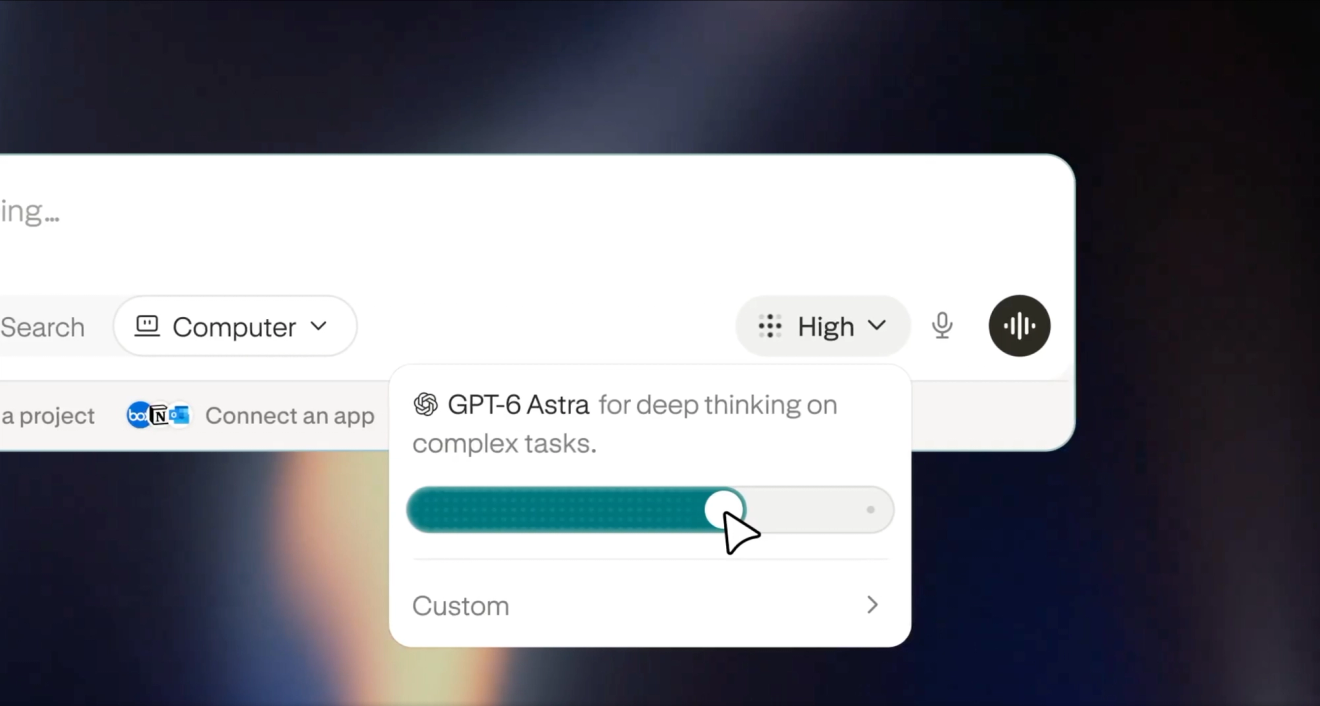
Effort Mode: balance intelligence and cost with one slider
Choose Light, Standard, High, or Ultra to match Computer’s effort to the task while Perplexity selects the model and reasoning level. Custom controls still let you choose both yourself. Effort Mode is available on the web for personal accounts, with mobile and desktop apps to follow.
Try Effort Mode to:
- Complete routine tasks: Choose Light, then ask: “Organize these vendor invoices into a spreadsheet.”
- Tackle complex decisions: Choose Ultra, then ask: “Evaluate entering this market under different growth assumptions.”
- Customize your settings: Open Custom to choose a specific model and reasoning level yourself.
Learn more: Choosing Computer’s effort level
GPT-6 Astra: power Computer tasks and supporting agents for eligible subscribers
Eligible Pro and Max subscribers can use GPT-6 Astra for Computer tasks and supporting agents. Availability depends on the account’s plan and data-retention eligibility.
Try GPT-6 Astra to:
- Plan complex projects: “Turn this brief into a plan with milestones, risks, and owners.”
- Build and verify software: “Implement this feature, run the tests, and review the result for defects.”
- Coordinate deep research: “Research these options in parallel, compare the evidence, and recommend a path.”
Learn more: Computer model availability and subscription rules · How Computer works
Portable Computer: local-first Computer on NVIDIA DGX Spark and supported Windows or Linux PCs
Run Computer entirely on your Windows or Linux PC, with the orchestrator, models, tools, local search, and task queue all on device. Portable Computer is available to Pro and Max subscribers on NVIDIA DGX Spark and Windows or Linux PCs with NVIDIA RTX GPUs and at least 24 GB of VRAM; local work does not use credits, and cloud escalation requires approval.
Try Portable Computer to:
- Keep private analysis local: “Analyze these confidential files on this PC and keep the contents on device.”
- Coordinate connected apps: “Triage new GitHub issues against overnight bug reports in Gmail, then draft a Slack update with owners.”
- Add current research when needed: “Keep this term sheet local, but ask before using the cloud to find current market comps and recent precedent deals.”
Learn more: Portable Computer overview and setup
Hybrid compute on Mac: split tasks between cloud and private on-device models on Mac
Run Computer tasks across Perplexity’s cloud and a local model on your Mac. Computer starts in the cloud, delegates sensitive steps and private-file access to your Mac, checks outgoing content for personal information on your Mac, and lets you start or direct the same task from your iPhone. Hybrid compute on Mac is available to Pro, Max, and Enterprise subscribers on Apple silicon Macs with macOS 15 or later and at least 24 GB of unified memory.
Try Hybrid compute on Mac to:
- Protect sensitive work: “Review these tax documents on my Mac, keep personal data local, and use the cloud only for general research.”
- Continue from your phone: “Use my MacBook to update this deck from the files in my Documents folder.”
- Combine local and cloud work: “Use the local model on my Mac to review these files, and use a cloud model for general research.”
Learn more: Hybrid Compute on Mac
Skills Marketplace: discover, install, and govern reusable Computer capabilities
Browse reusable capabilities for Computer in the public Skills Marketplace, even without signing in. Enterprise teams can discover, install, and share skills within their organization, while admins control organization-skill creation and installation approvals. Existing organization skills and installs carry over automatically.
Try the Skills Marketplace to:
- Find a starting point: Browse the catalog by skill name or description, then install a skill that matches the work you want to do.
- Build a shared toolkit: Install and share skills across your Enterprise organization so teammates can reuse the same workflows.
- Keep deployment governed: Control who can create organization skills and whether installation requests are approved automatically.
Learn more: Browse the public Skills Marketplace · How to use Computer Skills
Side Chat: ask questions alongside a Computer task without interrupting it
Ask a quick question about a Computer task in a separate, read-only side chat while the main task keeps going. Start from /ask, /side, or /btw, the Ask menu, the thread menu, or highlighted answer text on the web; each side chat uses a snapshot of the task context and can read task files or search the web without changing the main task.
Try Side Chat to:
- Check a detail: “What does this acronym mean in the report you’re writing?”
- Explore a tangent: “Compare the two alternatives you mentioned without changing the main task.”
- Review source material: “Find the exact passage in the task files that supports this recommendation.”
Learn more: Computer capabilities and availability
Cmd+K history search: find previous Search and Computer work
Find previous Search threads and Computer tasks without leaving your current page. Press Cmd+K on Mac or Ctrl+K on Windows, or choose Search in the sidebar, then search by title or phrase.
Try Cmd+K history search to:
- Resume research: Find a previous research thread by searching for a phrase from the conversation.
- Return to a Computer task: Find a previous Computer task by title, such as your hiring plan.
- Stay on your current page: Open history search with Cmd+K on Mac or Ctrl+K on Windows.
Learn more: Technical capabilities of threads
Computer: included turns for eligible US non-paying accounts
Eligible non-paying accounts in the US can try Computer on the web with included turns before adding credits.
Try Computer to:
- Research a decision: “Compare these vendors, verify the key claims, and recommend the best option.”
- Build a deliverable: “Turn these notes into a polished presentation with sources and speaker notes.”
- Coordinate connected work: “Review my project updates, summarize the blockers, and draft a status message.”
Learn more: How Computer credits and usage work
Voice noise isolation: clearer calls and dictation on iPhone and Mac
Perplexity filters background noise during voice calls and dictation on iPhone and Mac, so your voice comes through more clearly in busy spaces. Noise isolation is available in public iOS and macOS releases.
Try voice noise isolation to:
- Call from busy spaces: Talk to Perplexity while background café noise is reduced.
- Dictate in busy spaces: Dictate on iPhone or Mac with less interference from nearby conversations.
- Stay clear on the move: Reduce background traffic noise during a voice conversation.
Learn more: Perplexity Voice Assistant on iOS
Computer for Builders: build, deploy, monitor, earn, and collaborate from one starting point
Use builder-focused connectors in Computer to build, deploy, monitor, earn, and collaborate. Pro and Max subscribers can move from code changes and deployment to production monitoring, growth reporting, and team updates through connected tools.
Try Computer for Builders to:
- Ship a feature: “Implement this feature in my GitHub repo, open a pull request, deploy it with Vercel, and monitor the release in Datadog.”
- Track the business: “Review Stripe cancellations and Supabase usage, then summarize the biggest churn signals and what to investigate.”
- Keep the team aligned: “Send a weekly growth report to Slack every Monday with revenue, product usage, and production health.”
Learn more: Computer for Builders workflows · Start with Computer for Builders
HP partnership: Perplexity comes to HP Windows PCs
HP will pre-install Perplexity on Windows PCs, putting sourced research and Computer a click away on the taskbar. The rollout starts with the HP ZBook Ultra G3a, expected in October 2026, with more HP Windows devices to follow.
Try Perplexity on Windows to:
- Start from the taskbar: Open the pre-installed app to research a question or start a Computer task.
- Work across files: “Update this spreadsheet with web research and turn the findings into a PowerPoint deck.”
- Keep work local: Run sensitive tasks on-device with Portable Computer on supported configurations.
Learn more: Perplexity on HP Windows PCs · HP ZBook Ultra G3a availability
Microsoft 365 in Ask: search SharePoint, OneDrive, and Excel with work or school accounts
Connect a Microsoft 365 work or school account in Ask on desktop web to search SharePoint and OneDrive files and read Excel workbooks. Pro, Max, Enterprise Pro, and Enterprise Max subscribers can use the connector by mentioning @Microsoft 365 in Ask. Personal Outlook and Live accounts are not supported.
Try Microsoft 365 in Ask to:
- Find work files: “@Microsoft 365 list the files in my team’s SharePoint project folder.”
- Read Excel data: “@Microsoft 365 open the latest budget workbook and summarize the totals on the Forecast sheet.”
- Review OneDrive documents: “@Microsoft 365 find the newest planning document in my work OneDrive and list the open decisions.”
Learn more: Microsoft 365 connector for SharePoint and OneDrive
Android Computer setup checklist: personalize, connect apps, and start faster
Set up Computer from a guided checklist on the Android home screen. The checklist tracks your progress as you personalize Computer, connect apps, create your first task, and turn on notifications. The checklist is available to everyone using version 2.97 or later of the Perplexity Android app.
Try the Android Computer setup checklist to:
- Make it yours: Choose preferences that help Computer tailor future work.
- Connect your apps: Link the services Computer can use to complete tasks.
- Start your first task: Launch a Computer task, then turn on notifications so you know when it finishes.
Learn more: Computer capabilities, access, and connectors
Connectors: Omnisend, Higgsfield, and Evernote workflows
Connect Omnisend and Higgsfield in Computer and Ask to work with ecommerce marketing data and generate images, video, and audio. Evernote is available in Computer for searching, reading, creating, and editing notes and working with attachments.
Try these connectors to:
- Run ecommerce marketing: “Search Omnisend for the latest campaign records, then create the next campaign draft.”
- Generate multimedia: “Use Higgsfield to create a product image, a short video, and an audio track for this launch.”
- Work with notes: “In Computer, find my Evernote planning notes, update the launch checklist, and attach this brief.”
Learn more: Computer connectors and workflows
Enterprise analytics: Search and Computer usage in the Overview tab and API
Enterprise admins can track organization-wide Search and Computer activity from the Overview tab, then pull daily query-volume and daily active users data into BI tools and internal reports through the Analytics API.
Try Enterprise analytics to:
- Compare product adoption: Review how query volume splits by features, like Search vs Computer, and orchestrator models.
- Spot usage trends: Track organization-wide activity over daily time windows.
- Build internal reporting: Pull query-volume and daily active users data into dashboards and BI tools with an API key for your organization.
Learn more: Analytics API for organization usage