Deep Research, command panel, and enterprise controls

Deep Research in Computer
Deep Research is now available inside Computer. Start with a complex research question, then keep working from the result by turning findings into a report, spreadsheet, deck, dashboard, website, or follow-up workflow in the same place. Deep Research in Computer outperforms other deep research products on the market on the latest benchmarks by utilizing Perplexity’s unique Search as Code infrastructure.
Try Deep Research in Computer to:
- Create a market brief: “Research the top five companies in AI data infrastructure, compare positioning and funding, and turn the results into a one-page strategy memo.”
- Build from research: “Run Deep Research on the enterprise browser market, then create a comparison table and draft a launch brief from the findings.”
- Go from answer to artifact: “Research recent AI agent launches, summarize the key patterns, and turn the results into a slide outline for a product review.”
Learn more: Deep Research in Computer · Perplexity Deep Research · Rethinking Search as Code Generation
Computer command panel menu
The new Computer command panel is a single place to discover and access everything Computer can do. Instead of remembering commands or navigating between modes, open the panel by typing / and quickly search across available modes and skills before starting a task.
The panel includes built-in modes like Deep Research and Plan Mode, alongside all available skills from the user, their space, and their organization, making it easier to find and use the right capability at the right time. To get started, simply type / in the search box while in Computer mode.
Learn more: What is Computer? · Custom Skills in Computer
Forking
Forking lets you ask a follow-up question or explore a new iteration in a fresh thread, while keeping full access to the previous thread's context and generated assets.
Improved confirmation UI
Computer now surfaces all required user actions — including confirmations, clarifying questions, and connector sign-ins — directly within the search box, giving you a single place to provide input and keep tasks moving forward.
Try inline actions to:
- Approve sensitive steps: “Draft the email first, then wait for my approval in the input box before sending.”
- Answer clarifying questions quickly: “If you need more context while building the report, ask me for direction before you keep going.”
- Connect any app: “Connect Google Drive and resume the task.”
Computer for Enterprise
Computer Analytics API
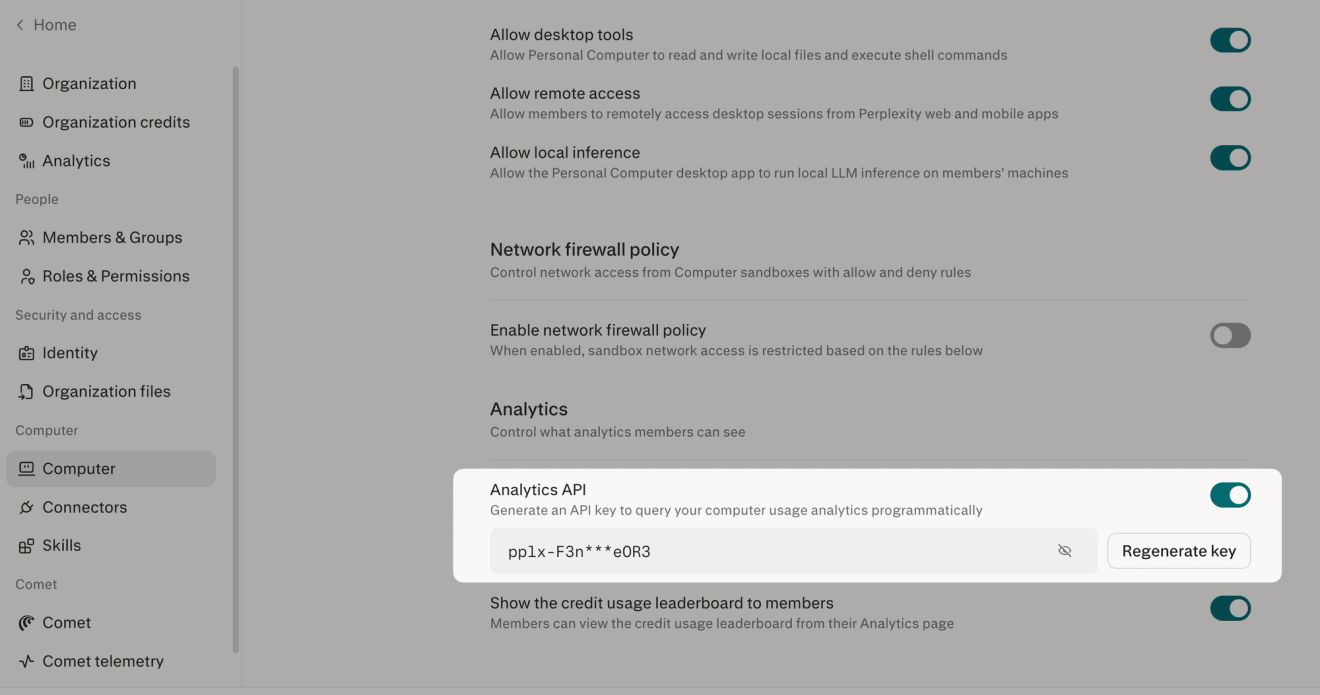
Org admins can now pull their organization's Computer usage analytics programmatically, so you can see exactly where your credits are going, by member and by day, and bring that data into the BI and reporting tools you already use.
The new endpoint returns the same analytics shown in the Computer dashboard (credits, connectors, artifacts, skills, spaces, workflows, and task durations) as a bucketed time series you can feed into Snowflake, Hex, Metabase, a spreadsheet, or your internal finance reporting.
Try the Computer Analytics API to:
- Build an internal usage dashboard: “Pull daily Computer credits, top connectors, and task duration into our BI dashboard.”
- Track adoption by team: “Compare Computer usage across departments and identify which teams are expanding usage fastest.”
- Forecast credit needs: “Export the last 90 days of usage and estimate next month’s credit needs by member.”
Learn more: Computer analytics for org admins · API docs · API reference
Custom credit limits
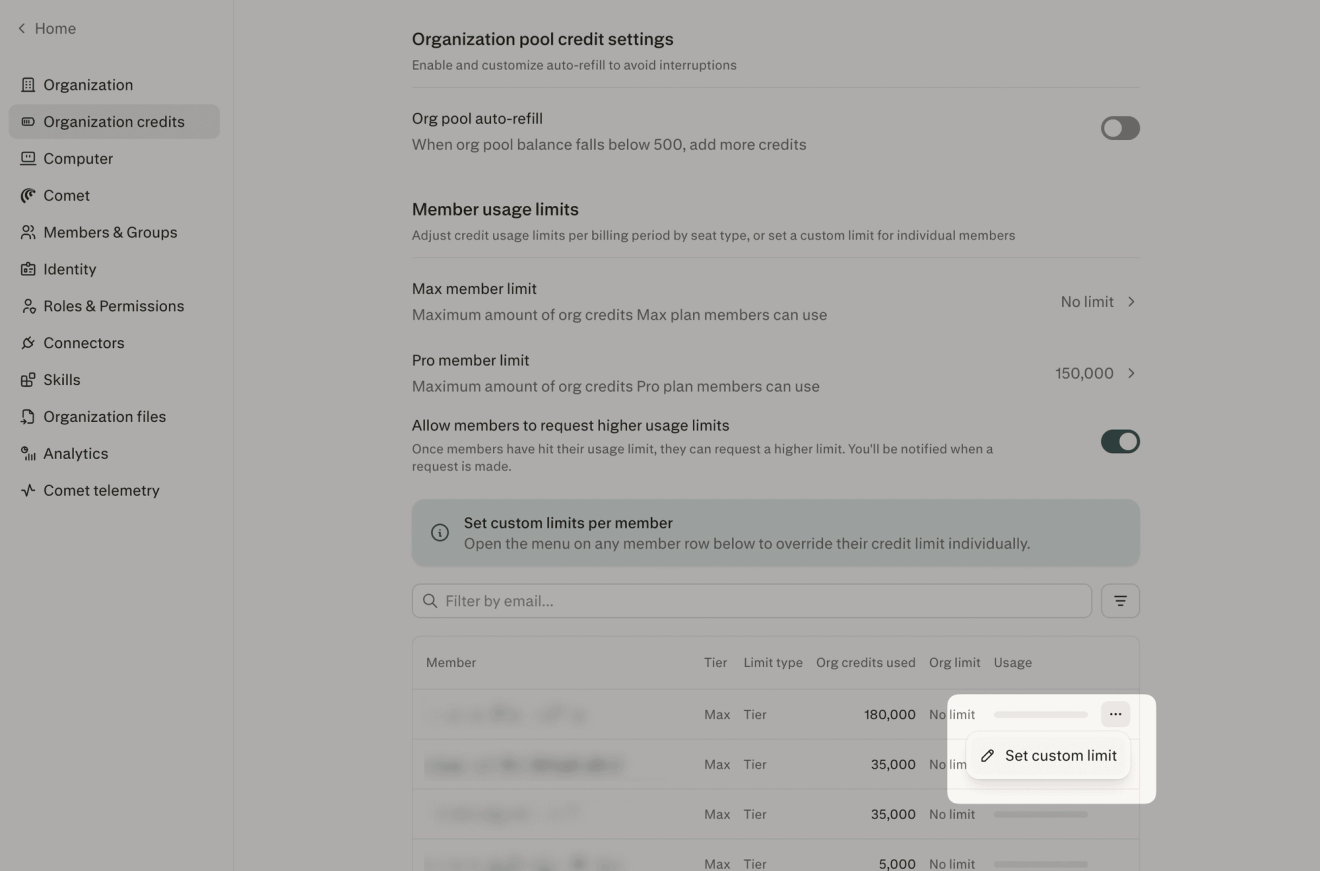
Org admins can now set custom credit limits for individual members, giving you finer control over how credits are distributed across your org. Raise limits for teams or roles that rely on Computer for critical, high-volume workflows, and set lower limits for members whose day-to-day work needs only moderate usage.
Set per-member limits from Organization credits and usage in admin settings.
Learn more: Setting custom usage limits