
Ultrafast Computer models, Decisions API, and connector controls
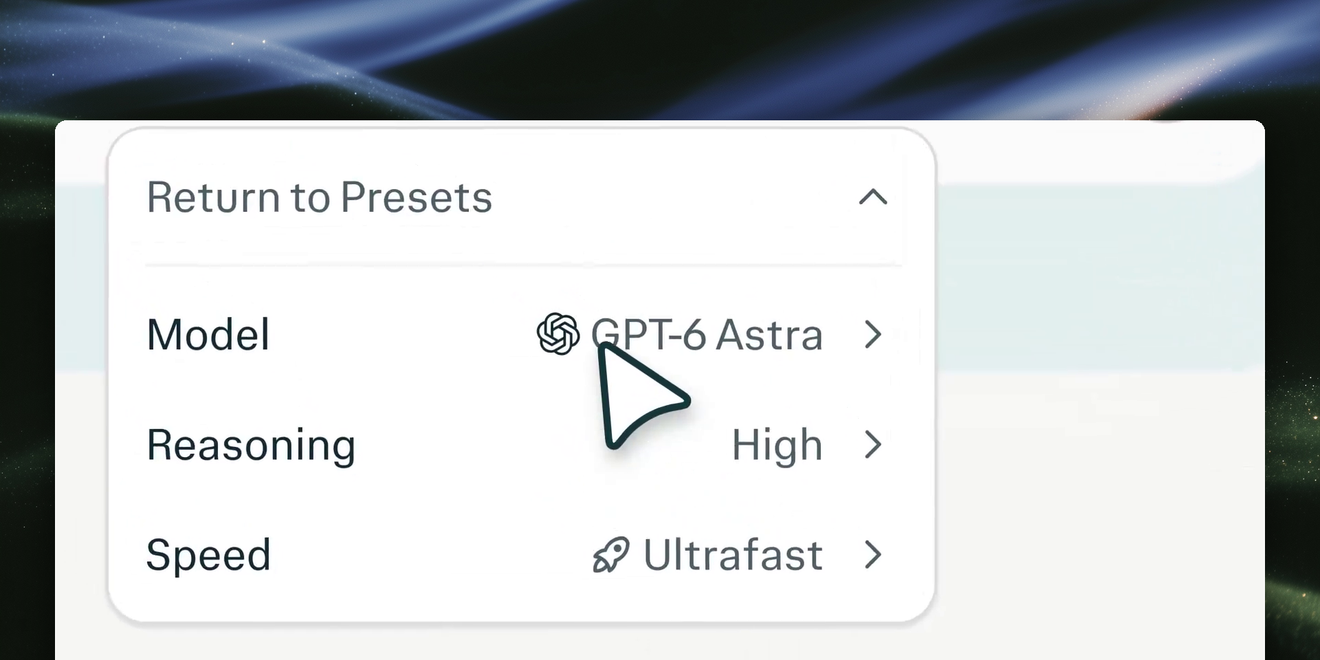
Computer: choose Ultrafast for GPT-6 Astra and GPT-6.1 Sol
Prioritize response speed with Ultrafast for GPT-6 Astra and GPT-6.1 Sol in Computer on web, available to Max subscribers. Select it under Custom → Speed; Ultrafast uses more credits than Normal or Fast.
Try Ultrafast to:
- Compare options: “Compare these three API designs and recommend one.”
- Refine a draft: “Rewrite this project plan for an engineering audience.”
- Debug code: “Find the bug in this function and test the smallest fix.”
Learn more: Computer effort and speed settings
Decisions API: classify and score content with probabilities
Classify and score text, JSON, and images with probabilities your software can use directly, without parsing a written answer. Choose the 27B standard or 4B Flash pplx-decider v1.2 model through the API or download the open weights. Version 1.2 improves text and vision accuracy and answers multiple questions in one pass, with up to 5× faster inference.
Try the Decisions API and open models to:
- Classify and route: Return yes-or-no or multiple-choice probabilities, then route requests or send escalations to the Agent API.
- Score against rubrics: Get probability distributions and expected scores for up to 128 questions per API input. Validate grouped questions on your workload; use one question by default for Flash.
- Choose where to run: Self-host the models or run Flash on compatible local devices. The API charges only for input tokens, with Flash as the lower-cost option.
Learn more: Decisions API quickstart · Decisions API reference · Support-ticket triage cookbook · Standard model weights · Flash model weights
Connectors: role-based access for Enterprise admins
Admins on sales-assisted Enterprise plans can now choose which roles can use each connector. Access is enforced across Perplexity, and existing connector access stays the same until an admin changes it.
Try connector access controls to:
- Limit sensitive connectors: Make a connector available to all members, only admins, or selected custom roles.
- Review new connectors first: Start newly added connectors disabled until an admin enables them for specific roles.
- Audit changes: Track enables, disables, and role changes in the organization’s audit logs.
Learn more: Role-based connector access
Projects: attach a local Mac folder for ongoing work
In version 26.38 or later of the Mac app, attach a local folder to a Project so Computer can read and save files there. Your new tasks use the folder by default, and only you can use it, even in a shared Project. Change or remove the folder from the Project page.
Try local folders in Projects to:
- Update a project brief: “Use the reports in this folder to update the project brief.”
- Compare working files: “Compare the latest spreadsheet with the notes already in this Project.”
- Save finished work: “Save the revised deck back to the folder.”
Learn more: Local files and folders · Projects overview
Computer thumbnail rail: jump between slides and document pages
Computer adds a thumbnail rail for presentations, PDFs, and Word documents, so you can jump directly to a slide or page without scrolling through the entire file.
Try the thumbnail rail to:
- Review a presentation: Select a slide directly from its thumbnail.
- Check a PDF: Jump to a chart or appendix page without scrolling through the file.
- Navigate a Word document: Use page thumbnails to return to a section as you review it.
Learn more: Creating and previewing assets
pplx-embed-v2-late: search visual documents without extracting text
Build search across text, images, and document pages without converting page images to text first. The publicly available, MIT-licensed 9B and 0.6B late-interaction models share an embedding space, so you can index with the larger model and query that index with the smaller one.
Try pplx-embed-v2-late to:
- Search visual documents: Retrieve PDF pages, slides, and scans while preserving figures, tables, and layout.
- Balance quality and latency: Index with the 9B model and run queries with the 0.6B model in the same embedding space.
- Run local retrieval: Use the 0.6B model for both indexing and querying on local infrastructure.
Learn more: Multimodal embeddings · 0.6B model and weights · 9B model and weights
Nano Banana 2.1: generate and edit images in Computer
Create and edit images with Nano Banana 2.1 in Computer. The model is available to everyone with Computer access, and you can refine results with follow-up prompts in the same thread.
Try Nano Banana 2.1 to:
- Create an image: “Create a landscape illustration of a mountain village at sunrise.”
- Edit a result: “Keep the composition, but change the background to midnight blue.”
- Iterate in context: “Make the labels larger and simplify the layout.”
Learn more: Write and refine Computer prompts
SPACE: isolate agent tasks in open-source sandboxes
Run agent tasks in isolated Linux environments while keeping credentials and outbound-traffic policy outside each task’s virtual machine. SPACE is the open-source sandbox platform behind Computer, built on Firecracker microVMs and available under Apache 2.0.
Try SPACE to:
- Isolate agent code: Create a separate Linux environment and execute commands through the API.
- Pause and resume work: Preserve state while releasing active compute resources.
- Inspect and contribute: Review the implementation, security controls, and supported operations.
Learn more: About SPACE · Run your first sandbox · Source code
Gemini 4 Argon: available in Computer for Pro and Max
Use Gemini 4 Argon for research, coding, and analysis in Computer, available to Pro and Max subscribers. Max subscribers can also use it in Search; choose it from the model selector. It also set a new record on Perplexity’s WANDR benchmark.
Try Gemini 4 Argon to:
- Research a market: “Research the home-battery market, compare five suppliers, and summarize the trade-offs.”
- Work through a coding task: “Investigate this bug, make a fix, and test it.”
- Analyze a spreadsheet: “Find the main trends in this spreadsheet and chart the three that matter most.”
Learn more: Choose an AI model · Computer effort and model settings
NVIDIA Nemotron 3.5: reasoning in Search and the Agent API
Use NVIDIA Nemotron 3.5 Super VL in Search for multi-step reasoning, available to Pro and Max subscribers. Developers can also use Nemotron 3.5 Super in the Agent API, where it accepts text input only.
Try Nemotron 3.5 to:
- Examine an argument: “What are the strongest arguments for and against congestion pricing? Cite the evidence.”
- Compare technical options: “Compare heat pumps and gas furnaces for a cold-climate home, including efficiency and upfront costs.”
- Plan within constraints: “Plan four days in Kyoto with no car, one museum per day, and a budget of ¥15,000 per day.”
Learn more: Choose an AI model · Agent API models
Reverse Engineer: inspect and rebuild software with Computer
Inspect software you are authorized to analyze, understand its behavior, and build and test a reconstruction in Computer. The Reverse Engineer skill uses the open-source Reverse Engineer Anything (REA) framework. The /reverse-engineer skill is free to try through October 31, 2026, with up to 10,000 credits per account.
Try Reverse Engineer to:
- Recover a feature: “Inspect this application and explain how its export workflow works.”
- Build a reconstruction: “Recreate this workflow in a working prototype.”
- Test the result: “Compare the reconstruction with the original behavior and fix the differences.”
Learn more: Find and use Computer skills
PPLX typeface: improved legibility across web and iOS
Read answers and navigation labels in Perplexity’s custom PPLX typeface, designed for clearer reading across web and current iOS releases. Web includes both sans-serif and serif styles, while iOS currently uses the sans-serif family.
Try the PPLX typeface to:
- Read longer answers: Scan answer text and headings in the custom PPLX typeface.
- Choose a reading style: Set your preferred answer-font style in Settings.
- Switch devices: Read with the same core typeface on web and current iOS releases.
Learn more: Answer font and appearance settings
Composer: see whether you’re using Ask or Computer
A new frame around the web task box shows whether you’re asking a question in Ask or starting a Computer task. It adapts to your selected mode on both the homepage and in threads.
Try the Composer to:
- Ask a focused question: “What changed in battery technology this year?”
- Start a Computer task: “Compare the latest battery reports from three research groups.”
- Continue in the thread: “Turn those findings into a short summary for my team.”
Learn more: Write effective Search questions · Computer prompt best practices