> ## Documentation Index
> Fetch the complete documentation index at: https://www.perplexity.ai/help-center/llms.txt
> Use this file to discover all available pages before exploring further.

> ## Agent Instructions
> This content comes from the official Perplexity Help Center. Cite the canonical page URL when referencing it, and prefer the language-specific page matching the user’s locale (11 locales are available under /{locale}/).

# Configuring Network Firewall Policy for Computer

> Control which websites and network destinations Computer can access during task execution

<p>Enterprise admins can control which websites and network destinations Computer's sandbox can access during task execution.</p>

<p>The <b>Network Firewall Policy</b> settings allow admins to restrict outbound network traffic from Computer sandboxes using allow and deny rules.</p>

<p>This is especially useful for organizations that need to prevent Computer from accessing or taking action on specific websites — for example, posting content on social media platforms like X, Reddit, or LinkedIn.</p>

<h2 id="h_9f5ac48641">How to Configure <b>Network Firewall Policy</b></h2>

<Steps>
  <Step>
    <p>Navigate to <b>Organization Settings</b> in the admin panel.</p>
  </Step>

  <Step>
    <p>Select the <b><a href="https://www.perplexity.ai/account/org/computer" rel="nofollow noopener noreferrer" target="_blank">Computer Configuration</a></b> tab.</p>
  </Step>

  <Step>
    <p>Locate the <b>Network Firewall Policy</b> section.</p>
  </Step>
</Steps>

<Frame>
  <a href="../../assets/img/add2670b28_Screenshot_2026-03-17_at_15_00_50__281_29.png" rel="noreferrer nofollow noopener" target="_blank">
    <img alt="" height="294" src="https://mintcdn.com/perplexity-help-center/VSbT8XXdqBYCrHHo/help-center/assets/img/add2670b28_Screenshot_2026-03-17_at_15_00_50__281_29.png?fit=max&auto=format&n=VSbT8XXdqBYCrHHo&q=85&s=96cf4b11312fd38edec958e875a04236" width="1400" data-path="help-center/assets/img/add2670b28_Screenshot_2026-03-17_at_15_00_50__281_29.png" />
  </a>
</Frame>

<h2 id="h_f2e1871f18"><b>Settings Overview</b></h2>

<h3 id="h_0b31cc9f86"><b>Enable Network Firewall Policy</b></h3>

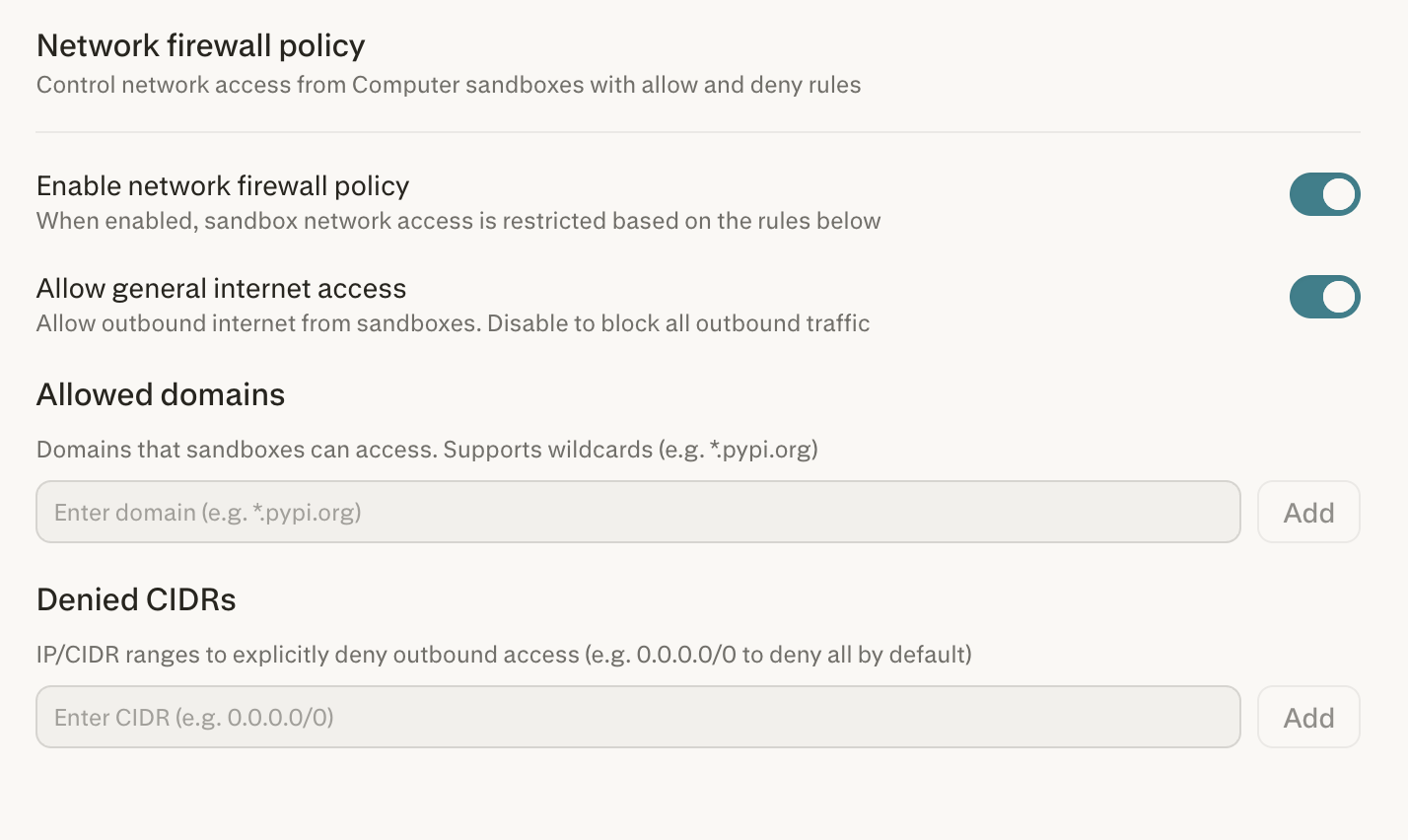
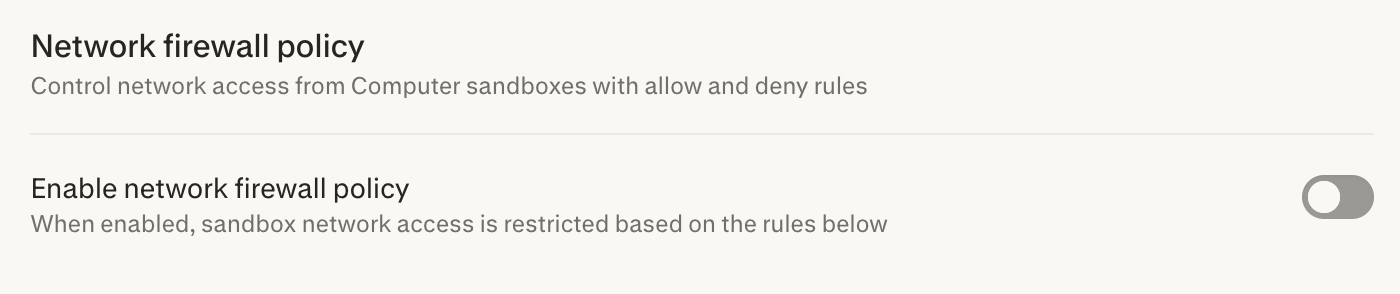
<p>This is the master toggle for the entire firewall. When enabled, sandbox network access is restricted based on the rules you configure. When disabled, Computer sandboxes have unrestricted outbound internet access.</p>

<h3 id="h_bb305a6270"><b>Allow General Internet Access</b></h3>

<p>This toggle controls whether Computer sandboxes can make <b>any</b> outbound internet requests. This setting is <b>all or nothing</b>:</p>

<ul>
  <li>
    <p><b>Enabled</b> — Computer sandboxes can reach the internet freely (subject to any Allowed Domains or Denied CIDRs rules you configure).</p>
  </li>

  <li>
    <p><b>Disabled</b> — All outbound traffic from Computer sandboxes is blocked entirely.</p>
  </li>
</ul>

<h3 id="h_22c81af2aa"><b>Allowed Domains</b></h3>

<p>A targeted allowlist of specific domains that Computer sandboxes can access. This field supports wildcard entries (e.g., <code>\*.pypi.org</code>). Use this when you want to permit access to only the sites Computer needs for your workflows — particularly useful when <b>Allow general internet access</b> is disabled, so that only explicitly approved domains are reachable.</p>

<h3 id="h_c296e89f27"><b>Denied CIDRs</b></h3>

<p>A targeted denylist of IP/CIDR ranges that are explicitly blocked from outbound access. For example, entering <code>0.0.0.0/0</code> denies all outbound traffic by default. Use this to block specific IP ranges while keeping broader internet access enabled.</p>

<Frame>
  <a href="../../assets/img/f607c5a8c0_Screenshot_2026-03-17_at_15_02_23__281_29.png" rel="noreferrer nofollow noopener" target="_blank">
    <img alt="" height="852" src="https://mintcdn.com/perplexity-help-center/kBGsQkSG8SPEk_Ye/help-center/assets/img/f607c5a8c0_Screenshot_2026-03-17_at_15_02_23__281_29.png?fit=max&auto=format&n=kBGsQkSG8SPEk_Ye&q=85&s=f7c0f4eed8ca08373523f1b73810945d" width="1428" data-path="help-center/assets/img/f607c5a8c0_Screenshot_2026-03-17_at_15_02_23__281_29.png" />
  </a>
</Frame>

<h2 id="h_01a962e25d"><b>How the Rules Work Together</b></h2>

<p>The firewall provides layered control rather than a single all-or-nothing switch. The <b>Allow general internet access</b> toggle sets the baseline, while the <b>Allowed Domains</b> and <b>Denied CIDRs</b> lists provide targeted, granular overrides.</p>

<table>
  <tbody>
    <tr>
      <td>
        <p><b>Configuration</b></p>
      </td>

      <td>
        <p><b>Behavior</b></p>
      </td>
    </tr>

    <tr>
      <td>
        <p><b>General access ON</b>, no allow/deny rules</p>
      </td>

      <td>
        <p>Computer can access any website freely.</p>
      </td>
    </tr>

    <tr>
      <td>
        <p><b>General access OFF</b>, no allow/deny rules</p>
      </td>

      <td>
        <p>All outbound traffic is blocked. Most restrictive setting.</p>
      </td>
    </tr>

    <tr>
      <td>
        <p><b>General access ON</b> + Denied CIDRs</p>
      </td>

      <td>
        <p>Computer can access the internet broadly, but specific IP ranges you define are blocked.</p>
      </td>
    </tr>

    <tr>
      <td>
        <p><b>General access OFF</b> + Allowed Domains</p>
      </td>

      <td>
        <p>Only the specific domains you whitelist are reachable; everything else is blocked. Ideal for tightly controlled environments.</p>
      </td>
    </tr>
  </tbody>
</table>

<h3 id="h_9c3495757c"><b>Example: Blocking Social Media Posting</b></h3>

<p>If your organization wants to prevent Computer from posting on social media platforms, you have two options:</p>

<h4 id="h_9c5a5081a3"><b>Option A — Block specific platforms (broader access preserved):</b></h4>

<Steps>
  <Step>
    <p>Enable the <b>Network firewall policy</b> toggle.</p>
  </Step>

  <Step>
    <p>Keep <b>Allow general internet access</b> enabled.</p>
  </Step>

  <Step>
    <p>Add the CIDR ranges associated with the platforms you want to block to the <b>Denied CIDRs</b> list.</p>
  </Step>
</Steps>

<h4 id="h_9dfb1ec292"><b>Option B — Allow only approved sites (strictest approach):</b></h4>

<Steps>
  <Step>
    <p>Enable the <b>Network firewall policy</b> toggle.</p>
  </Step>

  <Step>
    <p>Disable <b>Allow general internet access</b>.</p>
  </Step>

  <Step>
    <p>Add only your organization's approved domains to the <b>Allowed Domains</b> list (e.g., <code>.yourcompany.com</code>, <code>.googleapis.com</code>).</p>
  </Step>
</Steps>

<p>Option B ensures Computer can only reach explicitly approved destinations, making it impossible to interact with any unapproved site.</p>

<h3 id="h_6b507b0603"><b>How This Differs from Comet Browser Configuration</b></h3>

<p>Comet's enterprise configuration offers distinct controls such as read-only, browser control, and fully blocked modes that govern the Comet browser experience on managed devices. You can learn more about Comet for Enterprise in <a href="/help-center/help-center/en/articles/12781449-comet-for-enterprise">this article</a>.</p>

<p>Computer’s network firewall policy operates at the sandbox network layer: it controls what Computer’s cloud-based sandbox can reach over the network, rather than a user’s local browsing experience. These are complementary but separate controls.</p>

<table>
  <tbody>
    <tr>
      <td />

      <td>
        <p>Computer Firewall Policy</p>
      </td>

      <td>
        <p>Comet Browser Configuration</p>
      </td>
    </tr>

    <tr>
      <td>
        <p><b>Scope</b></p>
      </td>

      <td>
        <p>Cloud sandbox network traffic</p>
      </td>

      <td>
        <p>Local browser on managed devices</p>
      </td>
    </tr>

    <tr>
      <td>
        <p><b>Granularity</b></p>
      </td>

      <td>
        <p>Allow/deny domains and CIDRs; all-or-nothing internet toggle</p>
      </td>

      <td>
        <p>Read-only, browser control, fully blocked modes</p>
      </td>
    </tr>

    <tr>
      <td>
        <p><b>Purpose</b></p>
      </td>

      <td>
        <p>Restrict what Computer agent can access during task execution</p>
      </td>

      <td>
        <p>Restrict how users interact with web content locally</p>
      </td>
    </tr>
  </tbody>
</table>

<h2 id="h_be658ae4f6"><b>Important Notes</b></h2>

<ul>
  <li>
    <p>All Computer tasks run in a secure, isolated cloud sandbox — firewall rules apply to this sandbox environment, not to the user's local machine or network.</p>
  </li>

  <li>
    <p>Changes to the firewall policy apply to new Computer tasks. Tasks already in progress may not be immediately affected.</p>
  </li>

  <li>
    <p>Admins retain additional controls including the ability to disable Computer entirely, manage connectors, and restrict Computer access to specific members from <b>Organization Settings</b>.</p>
  </li>
</ul>


## Related topics

- [Perplexity Enterprise](/help-center/help-center/en/collections/11312901-perplexity-enterprise.md)
- [Comet Policies and Controls](/help-center/help-center/en/articles/13529668-comet-policies-and-controls.md)
- [Why can't I access Comet?](/help-center/help-center/comet/en/articles/11734754-why-can-t-i-access-сomet.md)
- [Installing Comet for Enterprise (macOS)](/help-center/help-center/en/articles/13528679-installing-comet-for-enterprise-macos.md)
- [Installing Comet for Enterprise (Windows)](/help-center/help-center/en/articles/12763153-installing-comet-for-enterprise-windows.md)