> ## Documentation Index
> Fetch the complete documentation index at: https://www.perplexity.ai/help-center/llms.txt
> Use this file to discover all available pages before exploring further.
> ## Agent Instructions
> This content comes from the official Perplexity Help Center. Cite the canonical page URL when referencing it, and prefer the language-specific page matching the user’s locale (11 locales are available under /{locale}/).
# Using the Dropbox connector
> Connect Dropbox to Perplexity and search your entire drive with AI-powered precision
About the Dropbox connector
The Dropbox connector allows Pro, Max, Enterprise Pro, and Enterprise Max users to integrate their Dropbox account with Perplexity to search files using Perplexity’s AI search capabilities.
You can use the connector to quickly find information in spreadsheets, presentations, documents, and other supported file types without manually opening each file in Dropbox, streamlining the research, document review, and information retrieval across your entire drive.
How does the Dropbox connector work?
The connector performs two different types of search:
-
Standard Search: Search across your entire drive with standard indexing.
-
High-Precision Search: Deep analysis of a limited number of files for comprehensive answers from your documents. Please note that limits apply.
Who can use the Dropbox connector?
The Dropbox connector is available to Perplexity Pro, Perplexity Max, Enterprise Pro and Enterprise Max users.
Organization admins can control whether Dropbox is enabled for the whole organization. If Dropbox is disabled in your organization’s permissions, users won’t see the option to connect it in their settings.
Supported file types
Perplexity can read and search the following file types from Dropbox:
-
DOCX
-
XLSX
-
PPTX
-
PDFs
-
CSV
-
RTF
-
ODT
-
Markdown
-
JSON
-
TXT
The Dropbox connector does not currently support images, audio, and video files. However, you can still upload these file types directly from your device to a session.
What apps are supported?
To use Dropbox with Perplexity, you will need to use Perplexity with a web browser.
The Dropbox connector is not supported in the Perplexity Windows app, Mac app, or on mobile apps.
Security and data handling
The Dropbox connector requires the following permissions:
-
Edit content of your Dropbox files and folders and view content of your Dropbox files and folders
-
View basic information about your Dropbox account such as your username, email, and country
The Dropbox connector respects user permissions, and will only serve a user content they’re authorized to see.
If you delete a file from Dropbox or remove access to it, that file is immediately removed from Perplexity.
Additionally, if you disconnect your Dropbox account from Perplexity, you can choose whether you'd like to keep or delete your files. If you keep them, they will stay in your account, but they will no longer synchronize if you make changes to them in Dropbox.
Default vs High-Precision Search
The default search behavior of the Dropbox connector uses a direct API integration. This integration uses the auth provided by Dropbox, which means that it will always adhere to the file permissions as set in Dropbox. Perplexity does not index your entire drive, and it only gets access to the files returned by the API.
However, if you choose to upload files for high-precision search, we use the API integration to index only the selected files. Default search will still be available for the files you choose not to upload for high-precision search. Please note that Perplexity still adheres to Dropbox file permissions. For example, if access for a file gets revoked and a user that had access to a file no longer has access to it, they will no longer be able to search the file and its contents using Perplexity.
Enterprise-grade security
In addition to this, Perplexity offers enterprise-grade protections and compliance including SOC 2 Type II certification, end-to-end encryption, strict data privacy measures, and granular user access controls. Your Dropbox files are encrypted in transit and at rest in AWS S3.
Perplexity never uses your connected files to train its AI models. Robust safeguards ensure confidentiality and regulatory compliance.
Connecting Perplexity to your Dropbox account is done at an individual level. This means that no one else in your organization is able to query your drive files. However, if you sync files to a shared project, anyone with access to that Project will be able to search those files.
To maintain control over the data shared with Perplexity, organization admins can enable or disable the connector for all organization users from Organization settings.
How to connect Dropbox to Perplexity
To connect Dropbox to Perplexity, follow these steps:
Go to Settings in Perplexity.
Scroll down to the Connectors section.
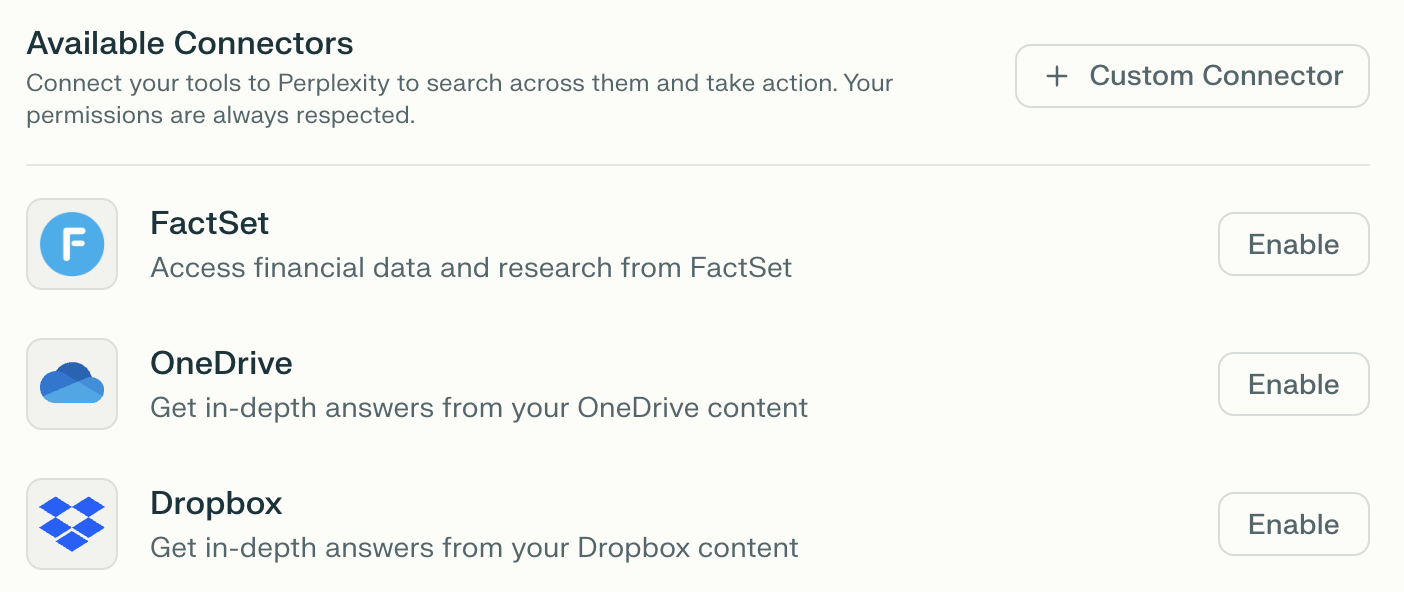
Find Dropbox and click Enable.
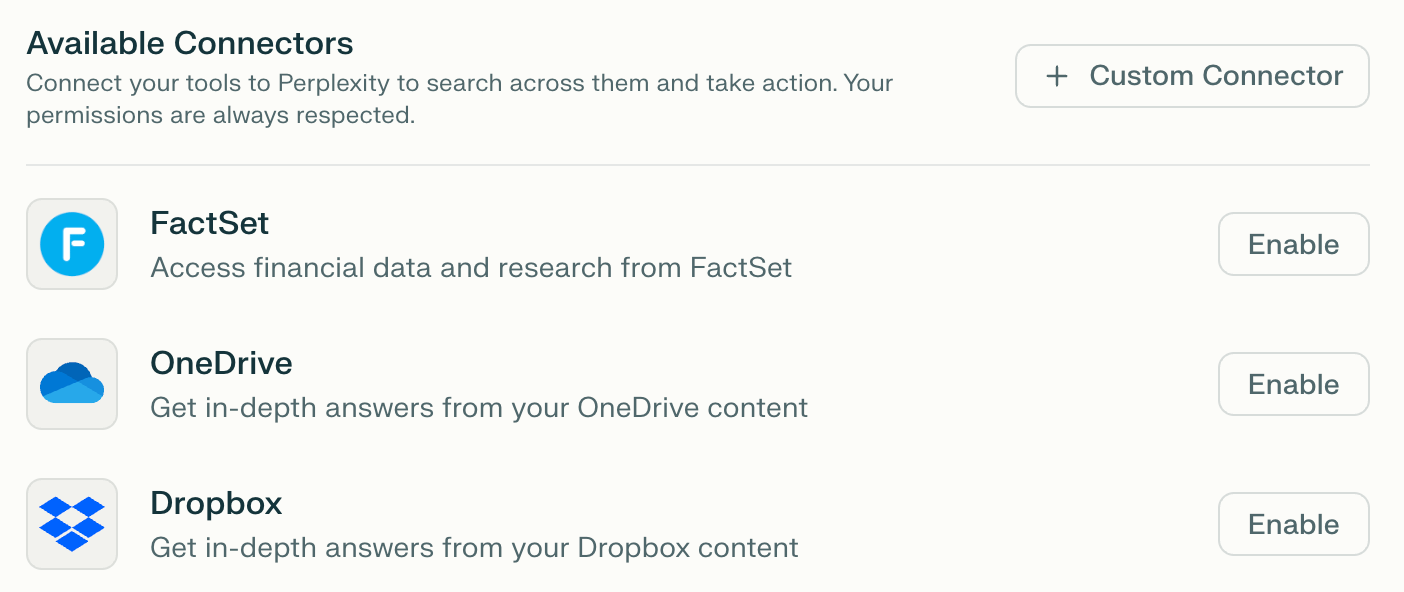
Sign in to your Dropbox account and grant the requested permissions.
After connecting, you can choose which files and folders Perplexity can access for High-Precision Search by clicking Configure and uploading specific files.
Using Dropbox files in searches
Once you have connected Perplexity to Dropbox, you can use your synced files in two main ways:
As a search source
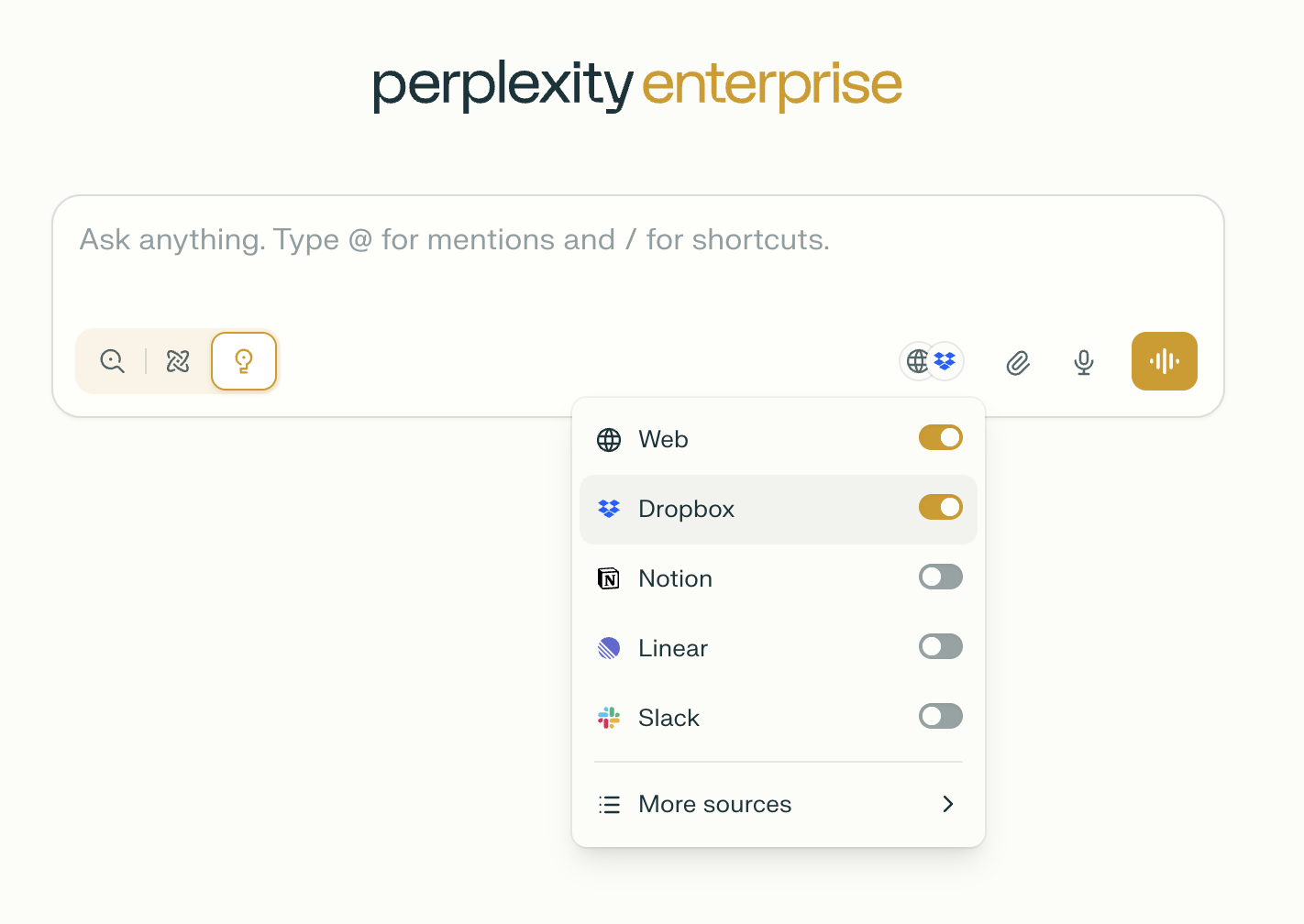
When starting a new session, enable Dropbox as a source from Set sources for search. Your synced Drive files will be searched alongside other selected sources (web, academic, other App Connectors, etc.) to provide comprehensive answers.
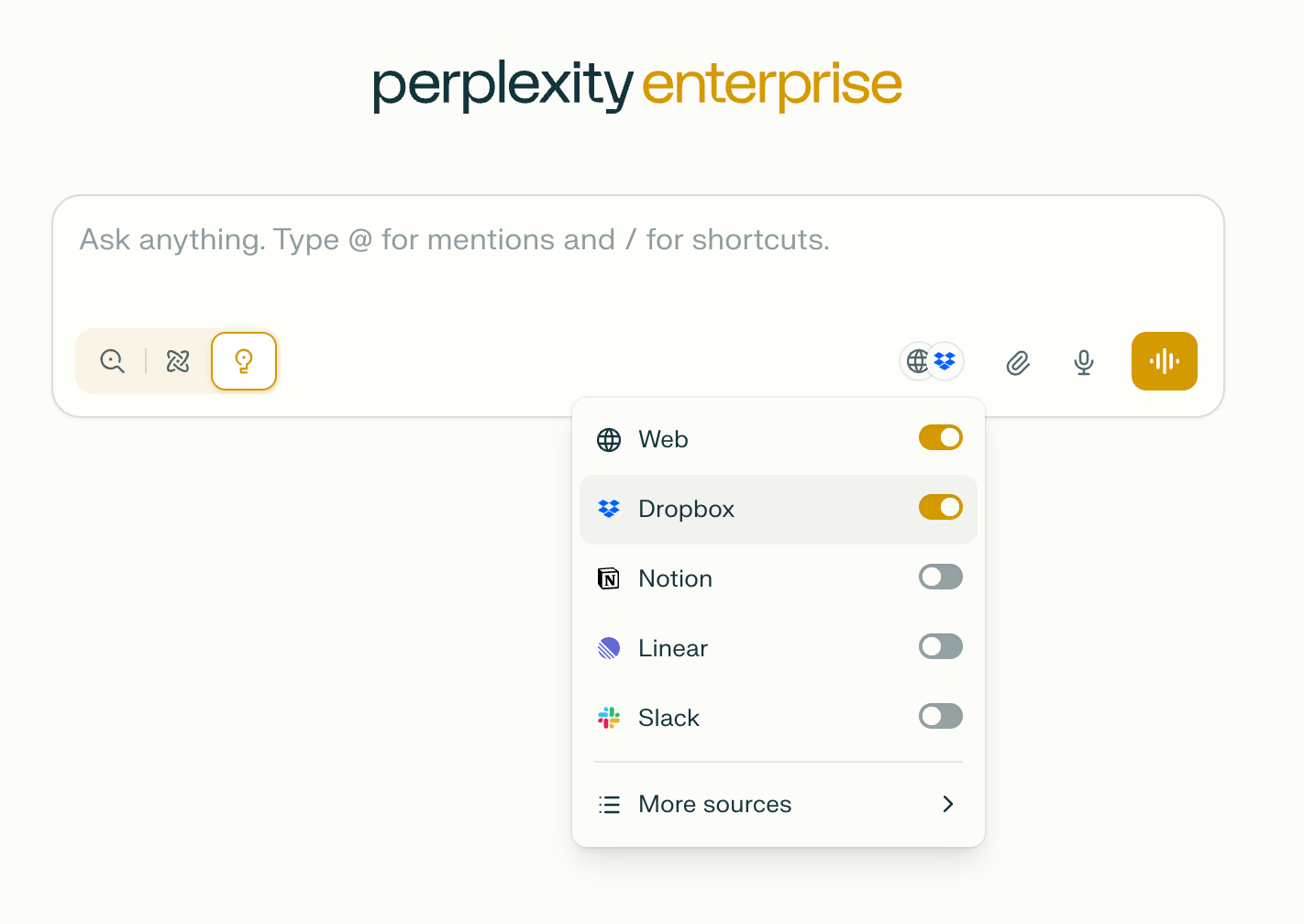
Alternatively, you can mention @Dropbox when starting a new session, and write a search prompt.
As file attachments
In a query, click File Attachments and choose files from your connected Dropbox.
You can also sync files synced from your drive to projects, allowing them to be searched by anyone with access to those Projects. This enables team high-precision collaboration with shared Dropbox content.
Troubleshooting
If you can’t connect or sync Dropbox files, try these steps:
-
Make sure your organization admin has enabled the Dropbox connector in Organization settings > Permissions.
-
Check that you have at least read access to the files and folders you’re trying to sync.
-
Disconnect and reconnect the Dropbox connector in your settings.
-
Try using an incognito/private browser window or a different browser.
-
Ensure the file is under 50 MB and is in a supported format.
If the issue persists, contact us with details and any error messages you see.