> ## Documentation Index
> Fetch the complete documentation index at: https://www.perplexity.ai/help-center/llms.txt
> Use this file to discover all available pages before exploring further.

> ## Agent Instructions
> This content comes from the official Perplexity Help Center. Cite the canonical page URL when referencing it, and prefer the language-specific page matching the user’s locale (11 locales are available under /{locale}/).

# Setting up SSO with Okta

> Step-by-step instructions for setting up Single Sign-On (SSO) integration between Okta and Perplexity Enterprise using SAML 2.0 authentication

<p><b>Before starting you will need:</b></p>

<ul>
  <li>
    <p>Administrative permissions in Okta Admin Console</p>
  </li>

  <li>
    <p>Perplexity Enterprise organization and an active subscription with admin role</p>
  </li>

  <li>
    <p>Verified organizational domain in Perplexity</p>
  </li>

  <li>
    <p>Basic understanding of SAML concepts – Okta <a href="https://www.apple.com/watch" rel="nofollow noopener noreferrer" target="_blank">has published a guide</a> covering the basic concepts</p>
  </li>
</ul>

<p><b>Expected Setup Time:</b> 15-25 minutes</p>

<p><b>Skill Level:</b> Intermediate</p>

<h2 id="h_e63a379151">Requirements</h2>

<h2 id="h_09aad3e6bc">Perplexity</h2>

<ul>
  <li>
    <p><b>Admin Role:</b> Must have administrator permissions in your Perplexity organization</p>
  </li>

  <li>
    <p><b>Enterprise Access:</b> Active Enterprise subscription (includes SSO capabilities)</p>
  </li>
</ul>

<h2 id="h_8c39929aa9">Okta</h2>

<ul>
  <li>
    <p><b>Super Admin Access:</b> Administrative privileges in Okta Admin Console</p>
  </li>

  <li>
    <p><b>SAML Application Creation:</b> Ability to create custom SAML 2.0 integrations</p>
  </li>

  <li>
    <p><b>User Management Permissions:</b> Rights to assign applications to users/groups</p>
  </li>

  <li>
    <p><b>Provisioning Access:</b> Optional SCIM provisioning capabilities for automated user management</p>
  </li>
</ul>

<h2 id="h_0ae422a872">Other requirements</h2>

<ul>
  <li>
    <p>Ensure firewall allows HTTPS traffic to Perplexity endpoints</p>
  </li>

  <li>
    <p>No proxy interference with SAML authentication flows</p>
  </li>

  <li>
    <p>Have at least one test user account in Okta directory, with a Perplexity Enterprise license</p>
  </li>

  <li>
    <p>Consider creating dedicated SSO test group in Okta for initial testing</p>
  </li>

  <li>
    <p>Consider having a backup admin account with non-SSO access for emergencies</p>
  </li>
</ul>

<h2 id="h_10a185004b">Configuring SSO in Perplexity</h2>

<h2 id="h_438c2ff979">Step 1: Navigate to Organization Settings</h2>

<Steps>
  <Step>
    <p>Sign in to Perplexity Enterprise with your admin account</p>
  </Step>

  <Step>
    <p>Click on your organization in the bottom left corner</p>
  </Step>

  <Step>
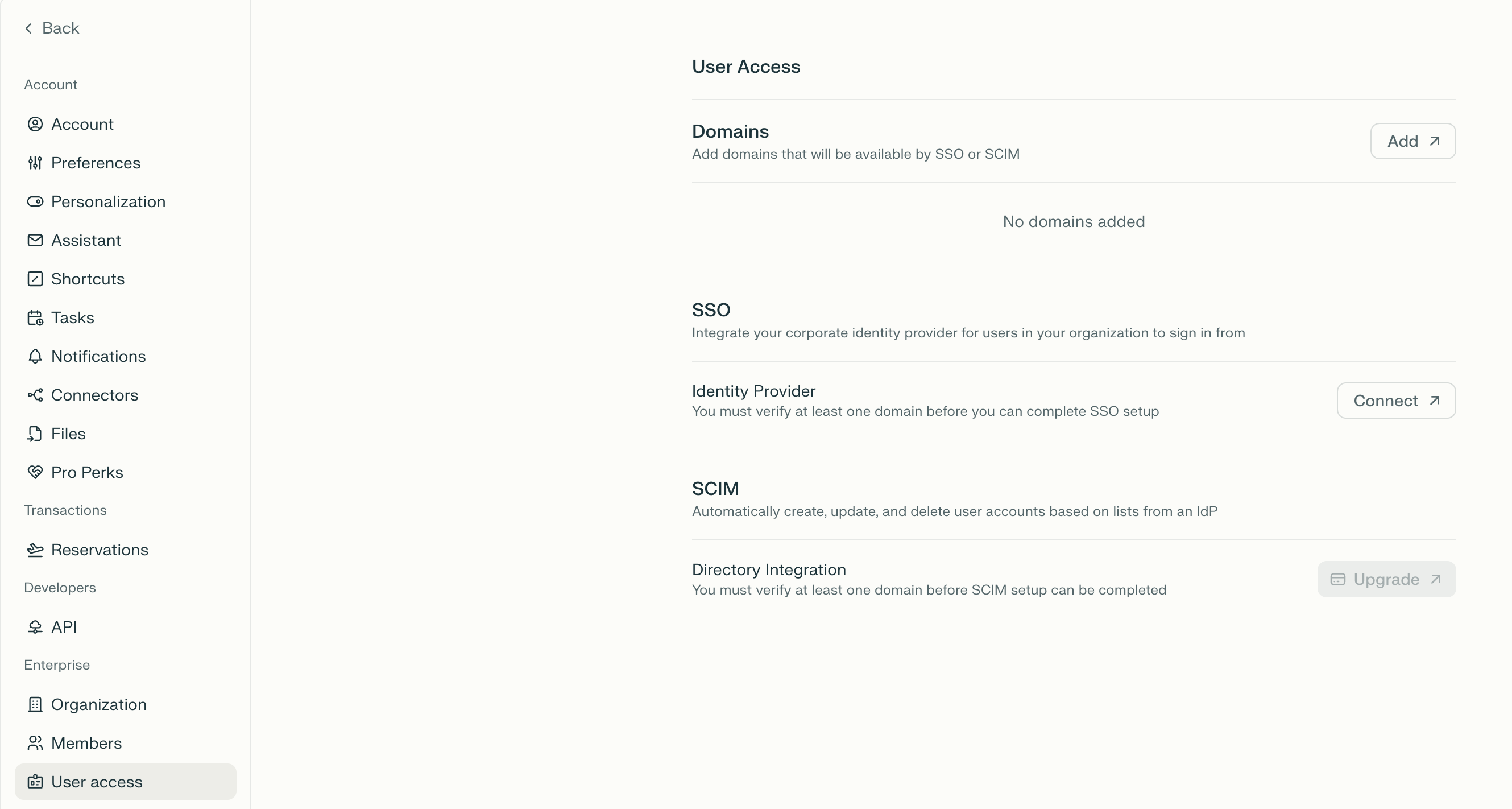
    <p>Navigate to <b><a href="https://www.perplexity.ai/account/org/identity" rel="nofollow noopener noreferrer" target="_blank">Identity</a></b> in Organization settings</p>

    <Frame>
      <a href="../../assets/img/3e65a67504_Screenshot_2025-10-30_at_11_47_24.png" rel="noreferrer nofollow noopener" target="_blank">
        <img alt="" height="1422" src="https://mintcdn.com/perplexity-help-center/Qv3d0vQE9qMlZrQx/help-center/assets/img/3e65a67504_Screenshot_2025-10-30_at_11_47_24.png?fit=max&auto=format&n=Qv3d0vQE9qMlZrQx&q=85&s=9853e1e3b6b759760b1698bf7370cad5" width="2659" data-path="help-center/assets/img/3e65a67504_Screenshot_2025-10-30_at_11_47_24.png" />
      </a>
    </Frame>
  </Step>

  <Step>
    <p>Click <b>Begin setup</b> in <b>SSO and SCIM</b></p>
  </Step>
</Steps>

<h2 id="h_1e9e27736f">Step 2: Add and verify organizational domain</h2>

<Steps>
  <Step>
    <p>Click <b>Add</b> next to the <b>Domains</b> option</p>
  </Step>

  <Step>
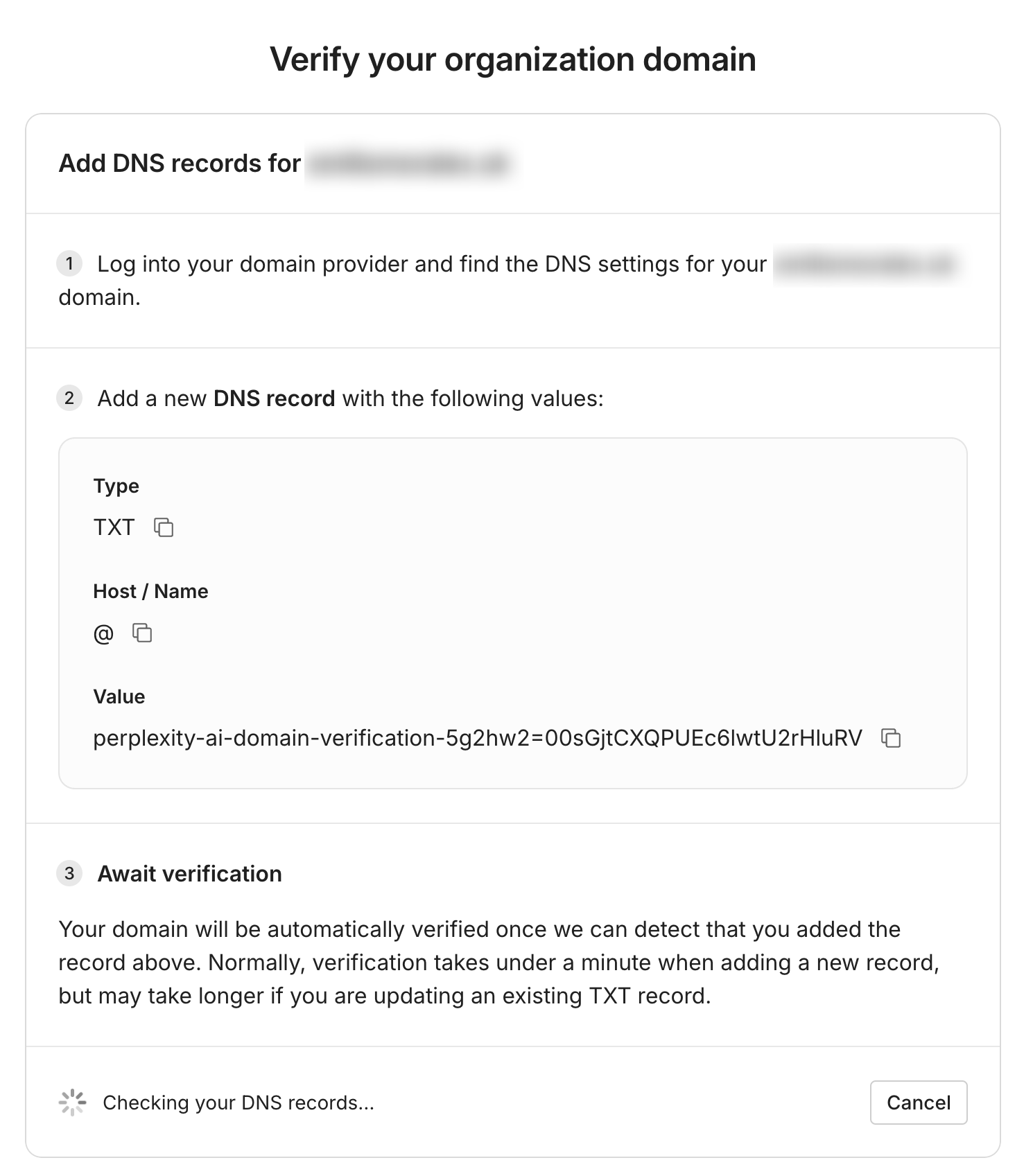
    <p>Enter your organization's domain (e.g., <code>yourcompany.com</code>) and click continue</p>
  </Step>

  <Step>
    <p>Copy the provided DNS TXT record</p>
  </Step>

  <Step>
    <p>Add the TXT record to your domain's DNS configuration</p>

    <Frame>
      <a href="../../assets/img/05c9fe7763_image__2833_29.png" rel="noreferrer nofollow noopener" target="_blank">
        <img alt="" height="1697" src="https://mintcdn.com/perplexity-help-center/Qv3d0vQE9qMlZrQx/help-center/assets/img/05c9fe7763_image__2833_29.png?fit=max&auto=format&n=Qv3d0vQE9qMlZrQx&q=85&s=9e90ce75209492d60a5cec15bff8ac45" width="1490" data-path="help-center/assets/img/05c9fe7763_image__2833_29.png" />
      </a>
    </Frame>
  </Step>
</Steps>

<p>Your domain will be automatically verified once we can detect that you added the record above. Normally, verification takes under a minute when adding a new record, but may take longer if you are updating an existing TXT record. If that’s the case, you can set a TTL of 60 seconds.</p>

<h2 id="h_89a00616bf">Step 3: Select Identity Provider</h2>

<Steps>
  <Step>
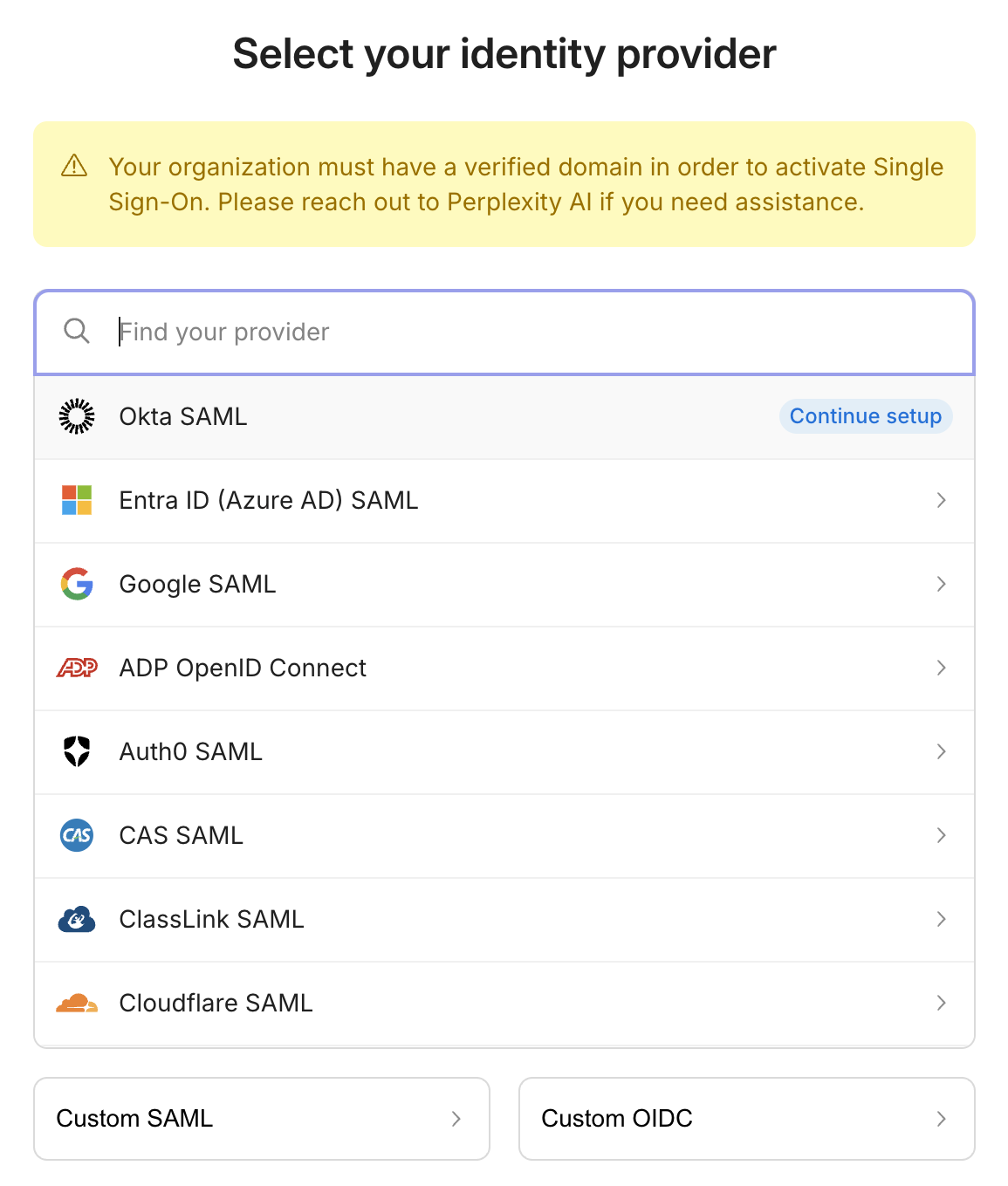
    <p>In Organization Settings, navigate to the <b>Identity Provider</b> section</p>
  </Step>

  <Step>
    <p>Click <b>Connect</b> to begin setup</p>
  </Step>

  <Step>
    <p>Select <b>Okta</b> from the available identity provider options</p>

    <Frame>
      <a href="../../assets/img/d88ada0a7d_Screenshot_2025-10-30_at_11_51_37.png" rel="noreferrer nofollow noopener" target="_blank">
        <img alt="" height="1359" src="https://mintcdn.com/perplexity-help-center/kBGsQkSG8SPEk_Ye/help-center/assets/img/d88ada0a7d_Screenshot_2025-10-30_at_11_51_37.png?fit=max&auto=format&n=kBGsQkSG8SPEk_Ye&q=85&s=00079860f214c2a7a305c046ea31126c" width="1155" data-path="help-center/assets/img/d88ada0a7d_Screenshot_2025-10-30_at_11_51_37.png" />
      </a>
    </Frame>
  </Step>
</Steps>

<h2 id="h_0013cec395">Step 4: Record integration parameters</h2>

<p>Perplexity will display the following required parameters for configuring Okta:</p>

<ul>
  <li>
    <p><b>IdP SSO URL</b> - The endpoint where Okta will post SAML responses</p>
  </li>

  <li>
    <p><b>Entity ID (Audience URI)</b> - Unique identifier for Perplexity service</p>
  </li>

  <li>
    <p><b>Required Attributes:</b></p>

    <ul>
      <li>
        <p>Email address (primary identifier)</p>
      </li>

      <li>
        <p>Full name (first name + last name)</p>
      </li>

      <li>
        <p>Organization name (optional)</p>
      </li>
    </ul>
  </li>
</ul>

<h2 id="h_7641b968cb">Step 5: Prepare for IdP configuration</h2>

<p>Keep the Perplexity configuration page open in a separate tab as you'll need to reference these values during Okta setup. Note down the exact values for easy copy-paste into Okta.</p>

<h3 id="h_72fe1f07ce"><b>1. Access Okta Admin Console:</b></h3>

<Frame>
  <a href="../../assets/img/45a19e3020_Screenshot_2025-10-30_at_12_05_16.png" rel="noreferrer nofollow noopener" target="_blank">
    <img alt="" height="1416" src="https://mintcdn.com/perplexity-help-center/Qv3d0vQE9qMlZrQx/help-center/assets/img/45a19e3020_Screenshot_2025-10-30_at_12_05_16.png?fit=max&auto=format&n=Qv3d0vQE9qMlZrQx&q=85&s=4ee924a8aa44a4875f0d7d173e989795" width="3398" data-path="help-center/assets/img/45a19e3020_Screenshot_2025-10-30_at_12_05_16.png" />
  </a>
</Frame>

<Steps>
  <Step>
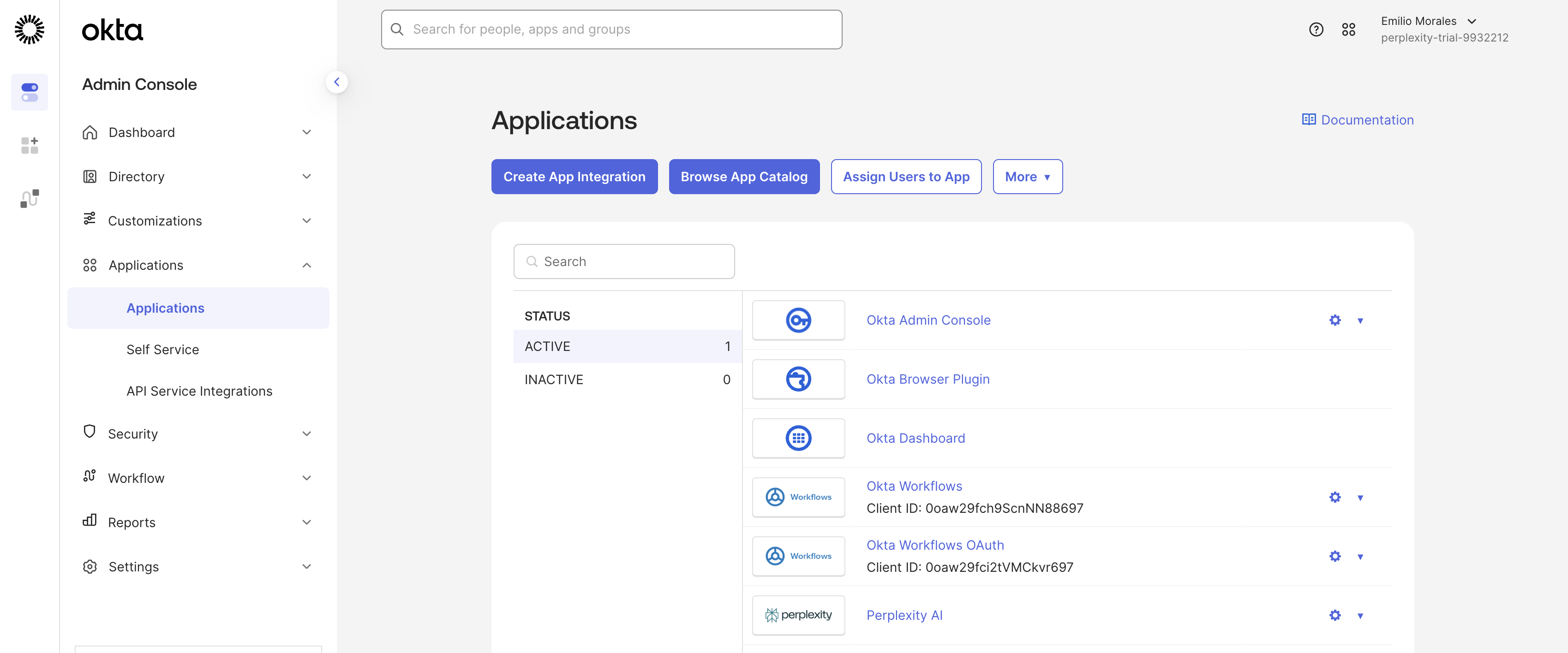
    <p>Navigate to your Okta Admin Console (typically <code>{"https://yourcompany.okta.com/admin"}</code>)</p>
  </Step>

  <Step>
    <p>Sign in with your Okta Super Admin account credentials</p>
  </Step>

  <Step>
    <p>From the <b>Admin Console</b> home page, navigate to <b>Applications</b> > <b>Applications</b></p>
  </Step>
</Steps>

<h3 id="h_cd79eb2060"><b>2. Create SAML Integration</b></h3>

<p>We will present you with step-by-step documentation that will explain how to create a SAML integration for Perplexity in Okta. Read it carefully and follow every step.</p>

<Steps>
  <Step>
    <p>Click <b>Create App Integration</b> button</p>
  </Step>

  <Step>
    <p>Select <b>SAML 2.0</b> as the sign-in method</p>
  </Step>

  <Step>
    <p>Click <b>Next</b> to proceed to app configuration</p>
  </Step>
</Steps>

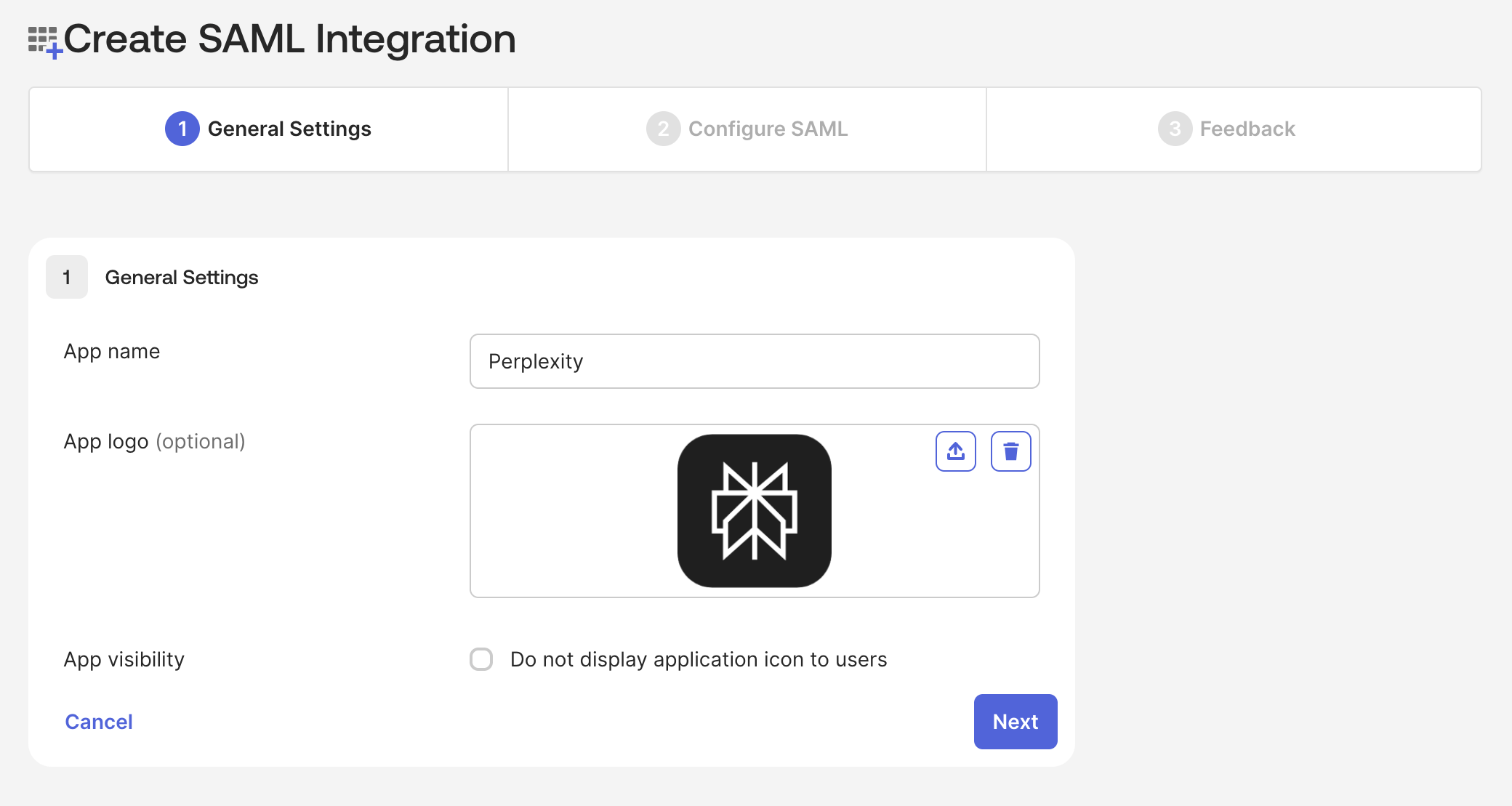
<h3 id="h_1d5f0cbcff"><b>3. Configure General Settings</b></h3>

<Frame>
  <a href="../../assets/img/1e6f9aac5d_Screenshot_2025-10-30_at_12_07_07.png" rel="noreferrer nofollow noopener" target="_blank">
    <img alt="" height="1109" src="https://mintcdn.com/perplexity-help-center/Qv3d0vQE9qMlZrQx/help-center/assets/img/1e6f9aac5d_Screenshot_2025-10-30_at_12_07_07.png?fit=max&auto=format&n=Qv3d0vQE9qMlZrQx&q=85&s=b228e7c9728e4da11155f36b7a6d3c8a" width="2080" data-path="help-center/assets/img/1e6f9aac5d_Screenshot_2025-10-30_at_12_07_07.png" />
  </a>
</Frame>

<Steps>
  <Step>
    <p><b>App name:</b> Enter "Perplexity Enterprise" or other descriptive name</p>
  </Step>

  <Step>
    <p><b>App logo:</b> Upload Perplexity logo (optional but recommended for user recognition)</p>
  </Step>

  <Step>
    <p><b>App visibility:</b> Check <b>"Do not display application icon to users"</b> if you prefer icon-less experience</p>
  </Step>

  <Step>
    <p>Click <b>Next</b> to proceed to SAML configuration</p>
  </Step>
</Steps>

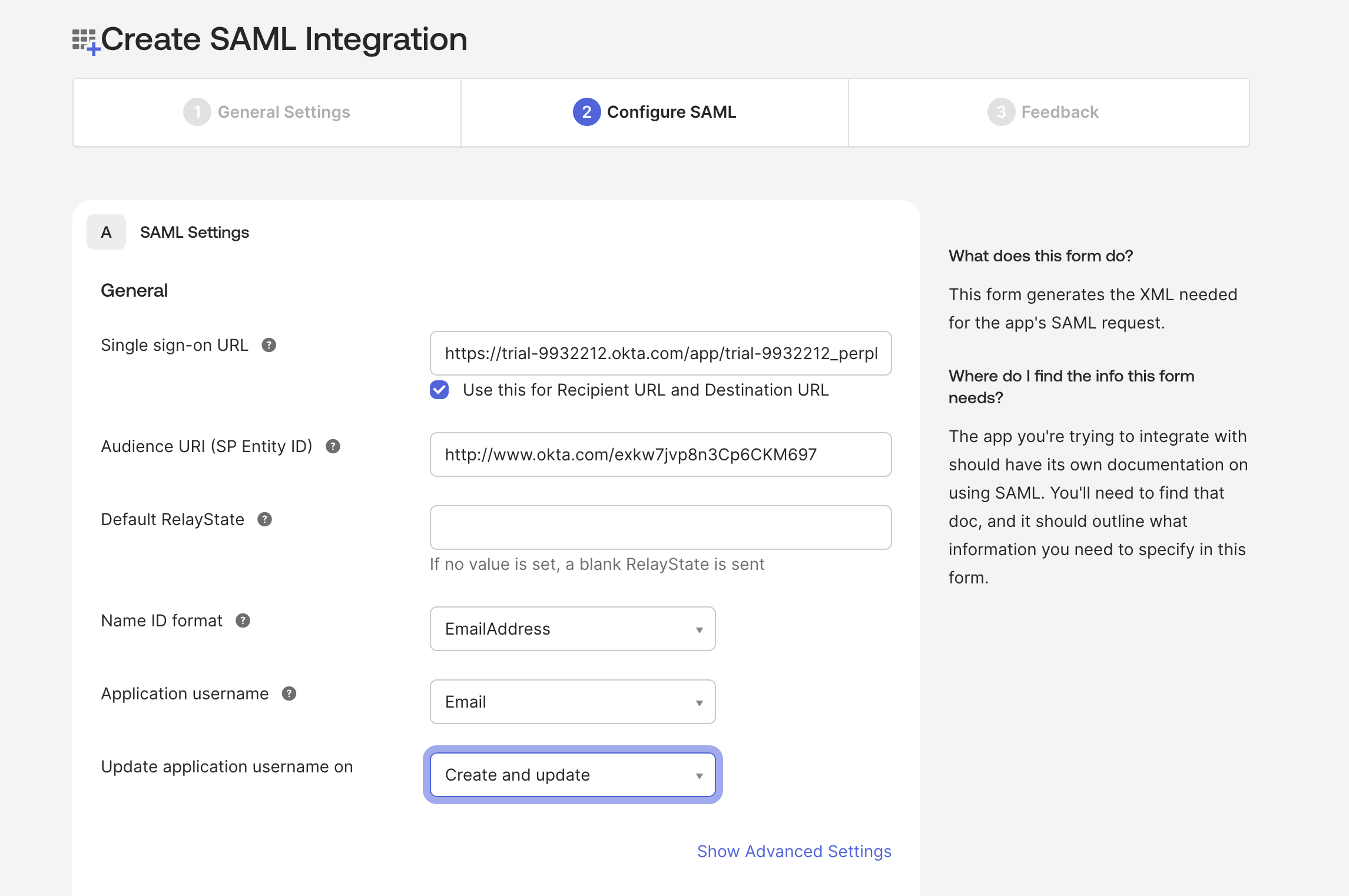
<h3 id="h_f32fe916af"><b>4. Configure SAML Settings</b></h3>

<Frame>
  <a href="../../assets/img/662add8424_Screenshot_2025-10-30_at_12_10_21.png" rel="noreferrer nofollow noopener" target="_blank">
    <img alt="" height="1522" src="https://mintcdn.com/perplexity-help-center/VSbT8XXdqBYCrHHo/help-center/assets/img/662add8424_Screenshot_2025-10-30_at_12_10_21.png?fit=max&auto=format&n=VSbT8XXdqBYCrHHo&q=85&s=bc389b537147164e8b078d040bc5960f" width="2291" data-path="help-center/assets/img/662add8424_Screenshot_2025-10-30_at_12_10_21.png" />
  </a>
</Frame>

<p>Enter the Perplexity parameters you recorded earlier:</p>

<p><b>Single Sign-On URL Configuration:</b></p>

<ul>
  <li>
    <p><b>Single sign-on URL:</b> Enter the <b>ACS URL/IdP SSO URL</b> from Perplexity configuration page</p>
  </li>

  <li>
    <p><b>Use this for Recipient URL and Destination URL:</b> Check this box</p>
  </li>
</ul>

<p><b>Audience URI Configuration:</b></p>

<ul>
  <li>
    <p><b>Audience URI (SP Entity ID):</b> Enter the <b>Entity ID</b> from Perplexity configuration page. Ensure this matches exactly with the value from Perplexity</p>
  </li>
</ul>

<p><b>Additional SAML Configuration</b></p>

<ul>
  <li>
    <p><b>Default Relay State:</b> Leave blank unless specified by Perplexity support</p>
  </li>

  <li>
    <p><b>Name ID format:</b> Select <b>EmailAddress</b></p>
  </li>

  <li>
    <p><b>Application username:</b> Select <b>Email</b></p>
  </li>

  <li>
    <p><b>Update application username on:</b> Select <b>Create and update</b></p>
  </li>
</ul>

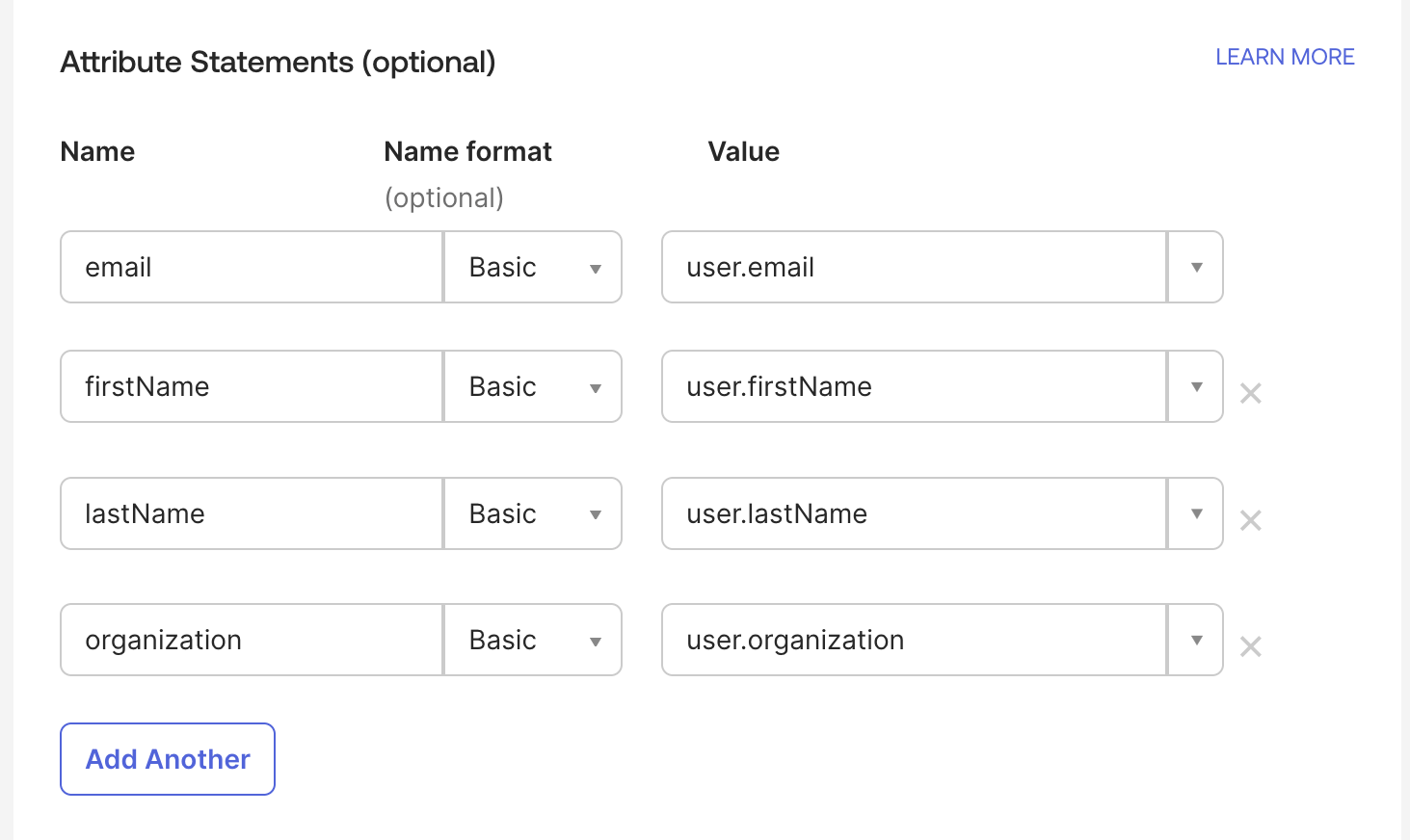
<h3 id="h_febaa00fb6"><b>5. Configure Attribute Statements</b></h3>

<Frame>
  <a href="../../assets/img/6e11695690_Screenshot_2025-10-30_at_12_11_38.png" rel="noreferrer nofollow noopener" target="_blank">
    <img alt="" height="872" src="https://mintcdn.com/perplexity-help-center/VSbT8XXdqBYCrHHo/help-center/assets/img/6e11695690_Screenshot_2025-10-30_at_12_11_38.png?fit=max&auto=format&n=VSbT8XXdqBYCrHHo&q=85&s=4d762f3c4d588105aac0f254b1eee8e4" width="1463" data-path="help-center/assets/img/6e11695690_Screenshot_2025-10-30_at_12_11_38.png" />
  </a>
</Frame>

<p>Map the following Okta attributes to Perplexity requirements:</p>

<table>
  <tbody>
    <tr>
      <td>
        <p><b>Attribute Name</b></p>
      </td>

      <td>
        <p><b>Name Format</b></p>
      </td>

      <td>
        <p><b>Value</b></p>
      </td>
    </tr>

    <tr>
      <td>
        <p>email</p>
      </td>

      <td>
        <p>Basic</p>
      </td>

      <td>
        <p>user.email</p>
      </td>
    </tr>

    <tr>
      <td>
        <p>firstName</p>
      </td>

      <td>
        <p>Basic</p>
      </td>

      <td>
        <p>user.firstName</p>
      </td>
    </tr>

    <tr>
      <td>
        <p>lastName</p>
      </td>

      <td>
        <p>Basic</p>
      </td>

      <td>
        <p>user.lastName</p>
      </td>
    </tr>

    <tr>
      <td>
        <p>organization</p>
      </td>

      <td>
        <p>Basic</p>
      </td>

      <td>
        <p>user.organization (or user.department)</p>
      </td>
    </tr>
  </tbody>
</table>

<ul>
  <li>
    <p>In the <b>Attribute Statements</b> section, click <b>Add Another</b></p>
  </li>

  <li>
    <p>Enter <b>email</b> as Name, leave Name format as <b>Basic</b>, enter <b>user.email</b> as Value</p>
  </li>

  <li>
    <p>Add <b>firstName</b> attribute with <b>user.firstName</b> value</p>
  </li>

  <li>
    <p>Add <b>lastName</b> attribute with <b>user.lastName</b> value</p>
  </li>

  <li>
    <p>Add <b>organization</b> attribute with <b>user.organization</b> or <b>user.department</b> value</p>
  </li>
</ul>

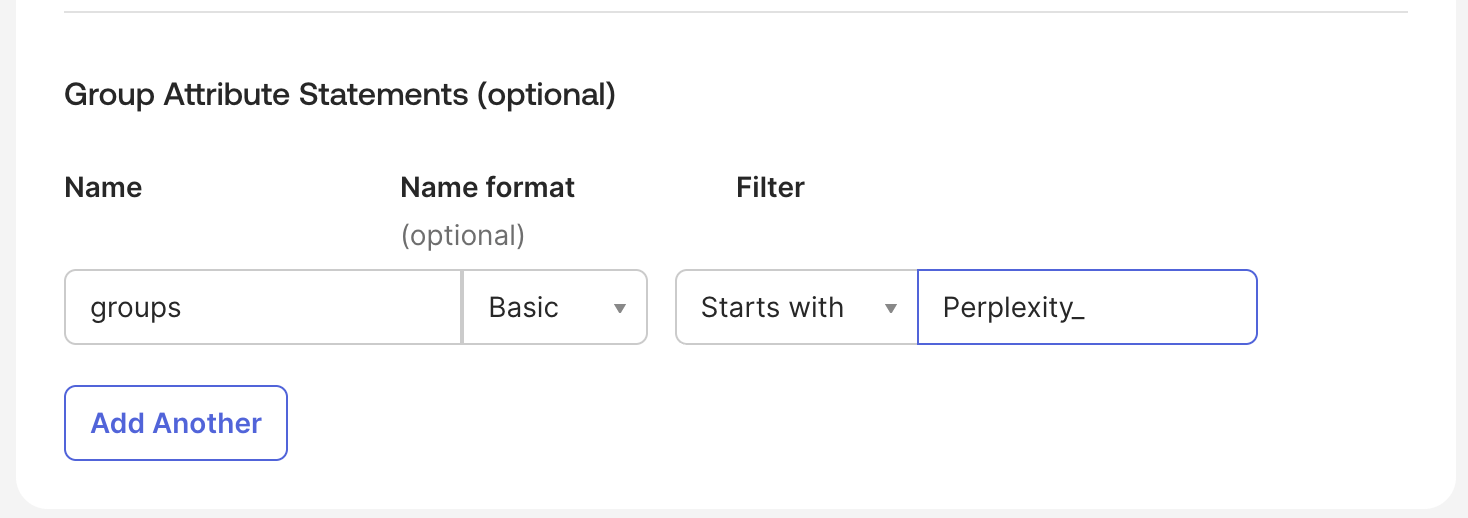
<h3 id="h_e7eeed6912"><b>6: Configure Group Attribute Statements (Optional)</b></h3>

<Frame>
  <a href="../../assets/img/341b39dfc7_Screenshot_2025-10-30_at_12_13_28.png" rel="noreferrer nofollow noopener" target="_blank">
    <img alt="" height="518" src="https://mintcdn.com/perplexity-help-center/Qv3d0vQE9qMlZrQx/help-center/assets/img/341b39dfc7_Screenshot_2025-10-30_at_12_13_28.png?fit=max&auto=format&n=Qv3d0vQE9qMlZrQx&q=85&s=78b0c4c8d4d3b911a812caa3d84f7ec4" width="1468" data-path="help-center/assets/img/341b39dfc7_Screenshot_2025-10-30_at_12_13_28.png" />
  </a>
</Frame>

<p>For advanced group-based access control, fill out the <b>Group Attribute Statements</b> section:</p>

<ul>
  <li>
    <p><b>Name:</b> groups</p>
  </li>

  <li>
    <p><b>Name format:</b> Basic</p>
  </li>

  <li>
    <p><b>Filter:</b> Select relevant filter (e.g., "Starts with" and enter "Perplexity\_")</p>
  </li>
</ul>

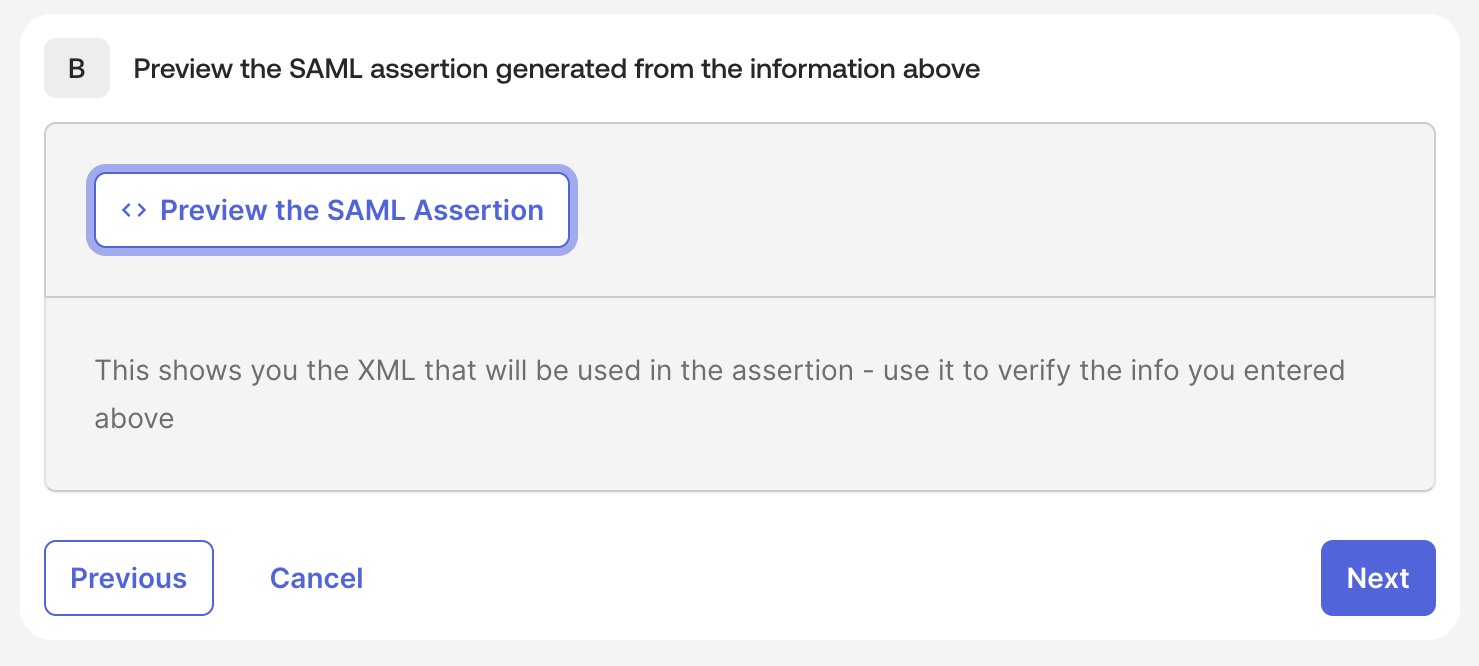
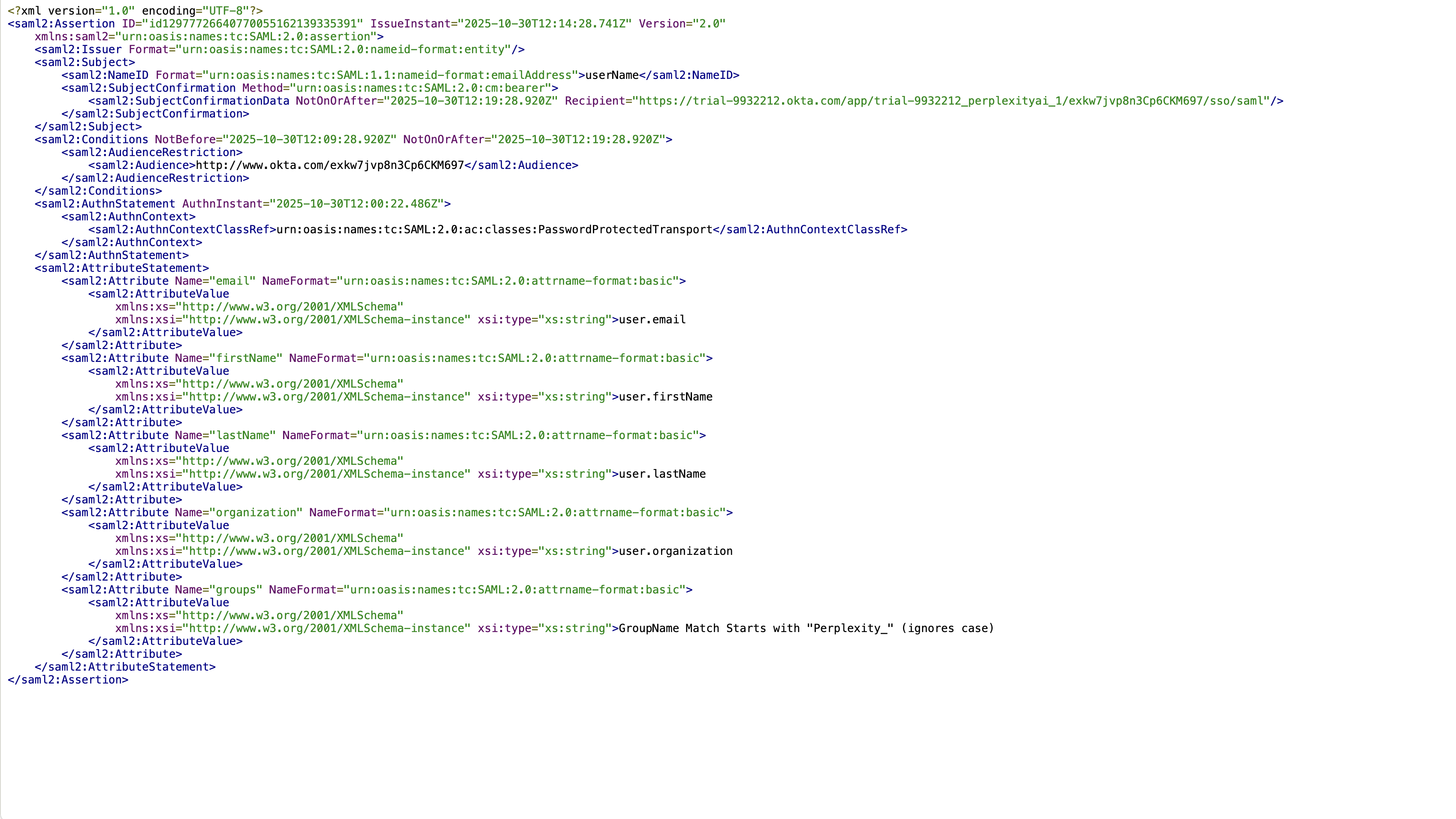
<h3 id="h_324b6939d1"><b>7. Optional: Preview the SAML assertion</b></h3>

<Frame>
  <a href="../../assets/img/10a0a95b4f_Screenshot_2025-10-30_at_12_14_06.png" rel="noreferrer nofollow noopener" target="_blank">
    <img alt="" height="666" src="https://mintcdn.com/perplexity-help-center/Qv3d0vQE9qMlZrQx/help-center/assets/img/10a0a95b4f_Screenshot_2025-10-30_at_12_14_06.png?fit=max&auto=format&n=Qv3d0vQE9qMlZrQx&q=85&s=22eff98bf95a153369f4917b07644230" width="1479" data-path="help-center/assets/img/10a0a95b4f_Screenshot_2025-10-30_at_12_14_06.png" />
  </a>
</Frame>

<p>Click <b>Preview the SAML Assertion</b> to see the XML that will be used in the assertion, and to verify the information you entered.</p>

<Frame>
  <a href="../../assets/img/a36eaa2493_Screenshot_2025-10-30_at_12_14_33.png" rel="noreferrer nofollow noopener" target="_blank">
    <img alt="" height="1910" src="https://mintcdn.com/perplexity-help-center/VSbT8XXdqBYCrHHo/help-center/assets/img/a36eaa2493_Screenshot_2025-10-30_at_12_14_33.png?fit=max&auto=format&n=VSbT8XXdqBYCrHHo&q=85&s=6f5b6f87d41809006b4cbed9af77fb43" width="3394" data-path="help-center/assets/img/a36eaa2493_Screenshot_2025-10-30_at_12_14_33.png" />
  </a>
</Frame>

<h3 id="h_b4c8c8e5d1"><b>8. Feedback and Finish</b></h3>

<p>You can provide to Okta more information about the SAML app. This section is optional.</p>

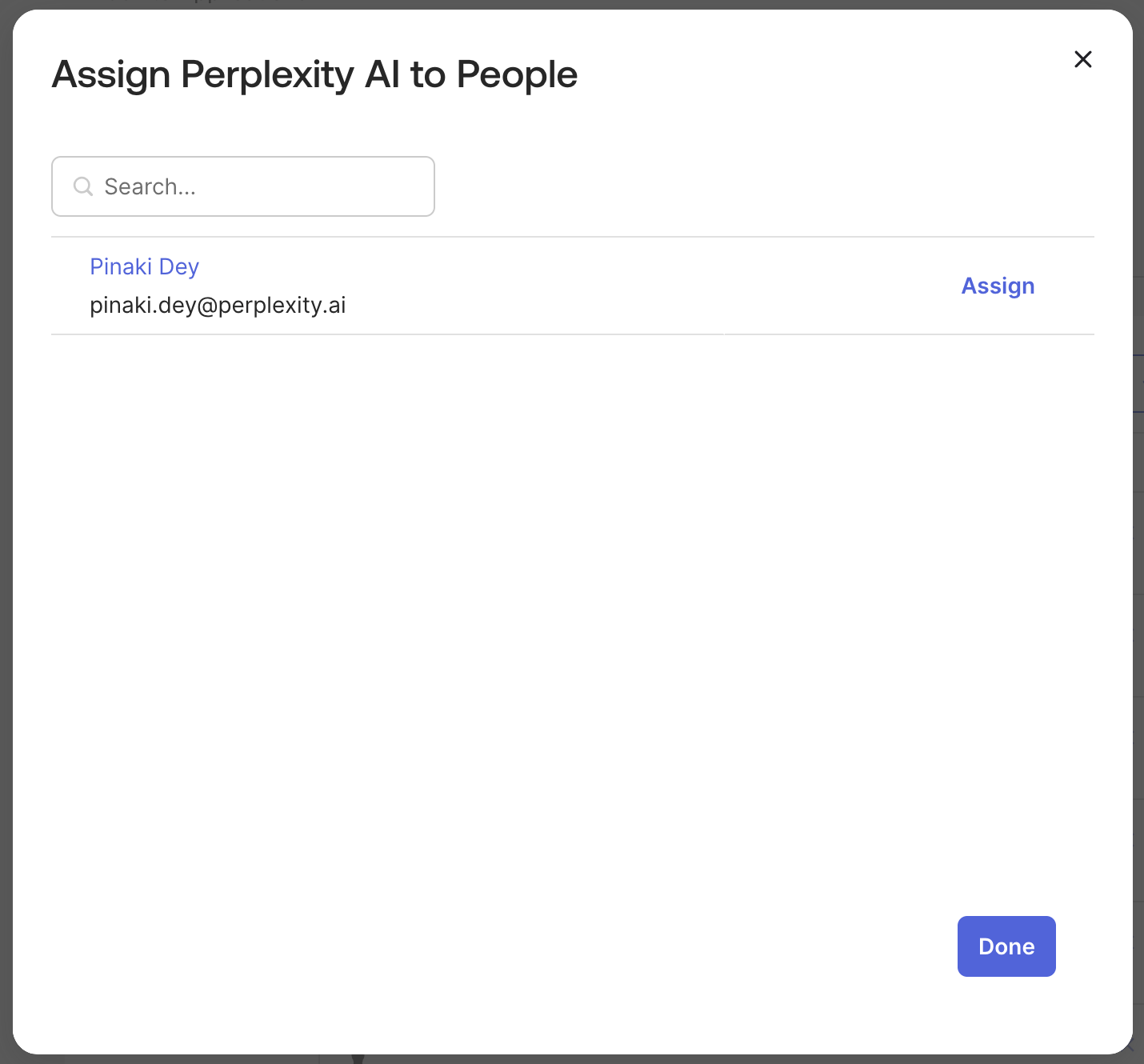
<h3 id="h_16439cb25d"><b>9. Assign Users and Groups</b></h3>

<p>Once you have created the Perplexity app, it’s time to assign users and/or groups to it.</p>

<Frame>
  <a href="../../assets/img/9b8d4bb536_Screenshot_2025-10-30_at_12_17_14.png" rel="noreferrer nofollow noopener" target="_blank">
    <img alt="" height="1330" src="https://mintcdn.com/perplexity-help-center/VSbT8XXdqBYCrHHo/help-center/assets/img/9b8d4bb536_Screenshot_2025-10-30_at_12_17_14.png?fit=max&auto=format&n=VSbT8XXdqBYCrHHo&q=85&s=6d24596043992b5cb2222594bb172a5b" width="1430" data-path="help-center/assets/img/9b8d4bb536_Screenshot_2025-10-30_at_12_17_14.png" />
  </a>
</Frame>

<Steps>
  <Step>
    <p>Navigate to the <b>Assignments</b> tab in your newly created Perplexity app</p>
  </Step>

  <Step>
    <p>Click <b>Assign</b> > <b>Assign to People</b> for individual user assignment</p>
  </Step>

  <Step>
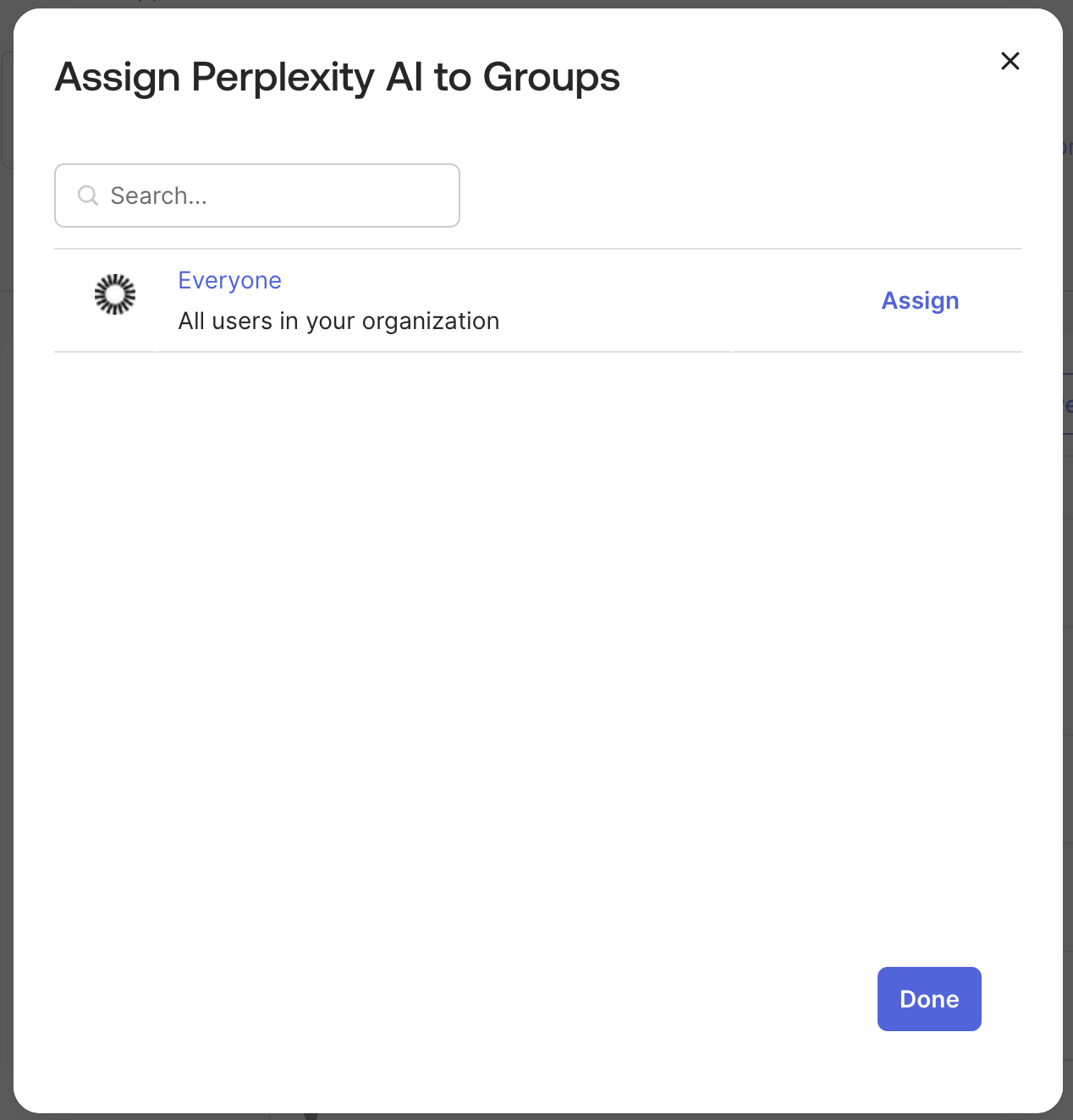
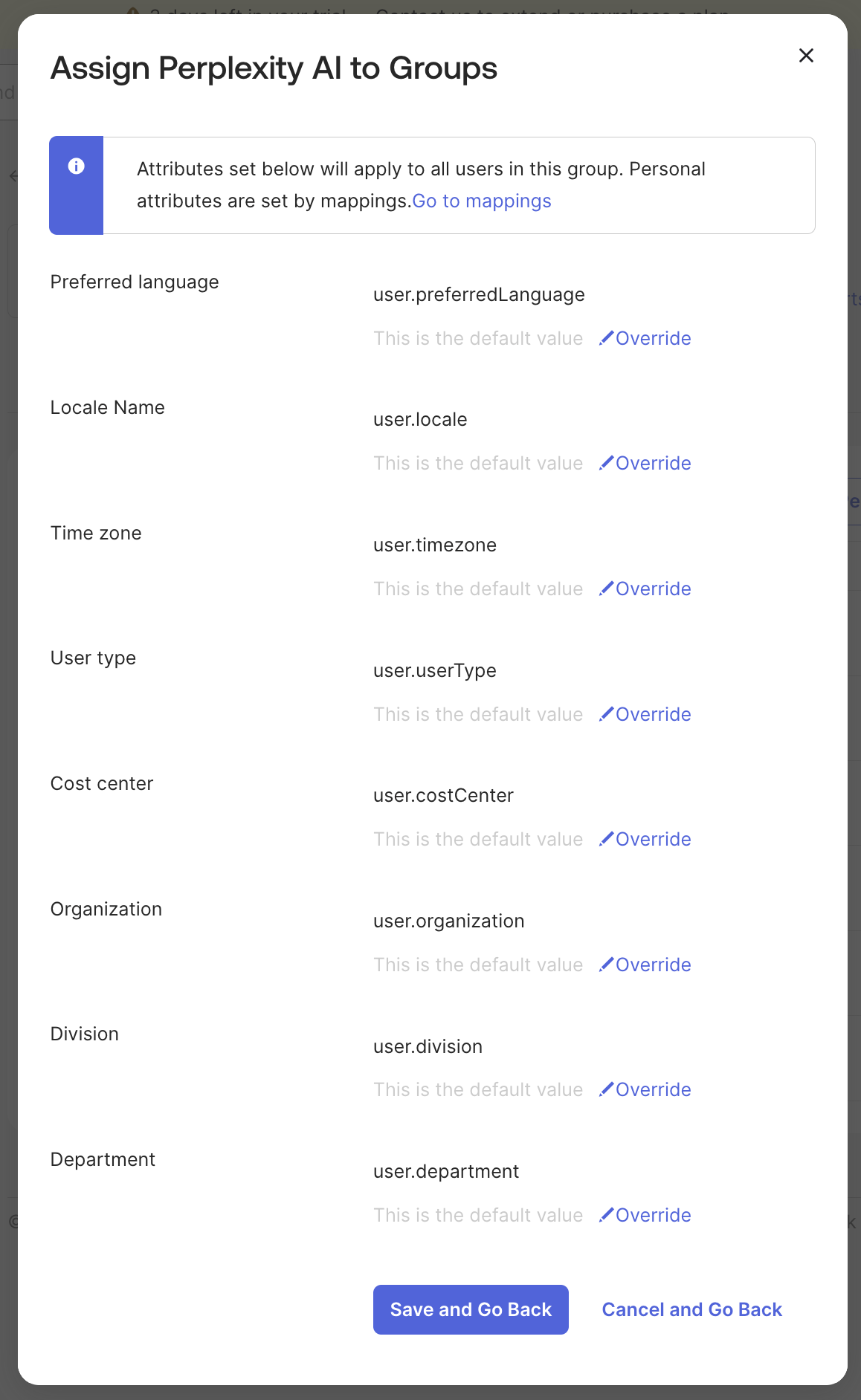
    <p>Or click <b>Assign</b> > <b>Assign to Groups</b> for group-based assignment</p>

    <p><i>It’s a good idea to create two groups (e.g., PPLX\_Admin and PPLX\_Members) before this step, and add users to these groups. You can then assign access to those groups in the Perplexity app in Okta.</i><br />​</p>

    <Frame>
      <a href="../../assets/img/3299b143ce_Screenshot_2025-10-30_at_12_17_30.png" rel="noreferrer nofollow noopener" target="_blank">
        <img alt="" height="1324" src="https://mintcdn.com/perplexity-help-center/Qv3d0vQE9qMlZrQx/help-center/assets/img/3299b143ce_Screenshot_2025-10-30_at_12_17_30.png?fit=max&auto=format&n=Qv3d0vQE9qMlZrQx&q=85&s=7f11fc290b01b23719d52322fcc48a56" width="1268" data-path="help-center/assets/img/3299b143ce_Screenshot_2025-10-30_at_12_17_30.png" />
      </a>
    </Frame>
  </Step>

  <Step>
    <p>For initial testing, you can assign only your test users or a test group</p>
  </Step>

  <Step>
    <p>Click <b>Save and Go Back</b> after making assignments</p>

    <Frame>
      <a href="../../assets/img/90d9ea87c6_Screenshot_2025-10-30_at_12_17_57.png" rel="noreferrer nofollow noopener" target="_blank">
        <img alt="" height="1884" src="https://mintcdn.com/perplexity-help-center/VSbT8XXdqBYCrHHo/help-center/assets/img/90d9ea87c6_Screenshot_2025-10-30_at_12_17_57.png?fit=max&auto=format&n=VSbT8XXdqBYCrHHo&q=85&s=ece42cb2525de2c6f53481be5d7101ed" width="1158" data-path="help-center/assets/img/90d9ea87c6_Screenshot_2025-10-30_at_12_17_57.png" />
      </a>
    </Frame>

    <p><br />​</p>
  </Step>
</Steps>

<h3 id="h_ffd1ee8a01"><b>10. Optional: Configure Automated Provisioning (SCIM)</b></h3>

<p>For automated user provisioning and deprovisioning:</p>

<Steps>
  <Step>
    <p>Navigate to the <b>Provisioning</b> tab</p>
  </Step>

  <Step>
    <p>Click <b>Configure API Integration</b></p>
  </Step>

  <Step>
    <p>Check <b>Enable API integration</b></p>
  </Step>

  <Step>
    <p>Follow the steps you’ll find in <a href="/help-center/help-center/en/articles/11652604-scim-based-user-account-management">this article</a>, and configure provisioning features as needed.</p>
  </Step>
</Steps>

<h2 id="h_ab96e885e8">Step 5: Testing and verification</h2>

<Steps>
  <Step>
    <p><b>Logout</b> from your current Perplexity session completely</p>
  </Step>

  <Step>
    <p><b>Clear browser cache and cookies</b> to ensure clean testing environment, or use an Incognito browser window</p>
  </Step>

  <Step>
    <p><b>Close all browser tabs</b> related to Perplexity</p>
  </Step>

  <Step>
    <p>Navigate to Perplexity sign-in, and <b>enter email address</b> from verified domain (e.g., <code>{"testuser@yourcompany.com"}</code>)</p>
  </Step>

  <Step>
    <p><b>Verify that you’re redirected</b> to Okta authentication page with your organization branding</p>
  </Step>

  <Step>
    <p><b>Complete Okta authentication</b> using test account credentials and any required MFA</p>
  </Step>

  <Step>
    <p><b>Verify that you’re successfully redirected</b> back to the Perplexity Enterprise dashboard</p>
  </Step>
</Steps>

<p>Currently, Perplexity does not support Identity Provider (IdP) initiated sessions.</p>

<p>However, there is a workaround: organizations can simulate IdP-initiated sessions by setting the URL target of their IdP's Perplexity tile to an organization-specific URL that initiates the SSO flow. If you need this org-specific URL, please get in touch.</p>

<h2 id="h_b1af51d87b">Troubleshooting common issues</h2>

<h2 id="h_86e2e1284f"><b>SAML authentication failing</b></h2>

<ul>
  <li>
    <p><b>Symptoms:</b> Users redirected to error page after Okta authentication</p>
  </li>

  <li>
    <p><b>Solutions:</b></p>

    <ul>
      <li>
        <p>Verify ACS URL and Entity ID are correctly entered in Okta SAML settings</p>
      </li>

      <li>
        <p>Check that attribute mapping includes required email, firstName, and lastName fields</p>
      </li>

      <li>
        <p>Ensure Name ID format is set to "EmailAddress" in Okta</p>
      </li>

      <li>
        <p>Validate Okta certificate hasn't expired</p>
      </li>

      <li>
        <p>Review SAML response in browser developer tools for specific errors</p>
      </li>
    </ul>
  </li>
</ul>

<h2 id="h_37e0926d17"><b>Attribute mapping errors</b></h2>

<ul>
  <li>
    <p><b>Symptoms:</b> User information not displaying correctly in Perplexity</p>
  </li>

  <li>
    <p><b>Solutions:</b></p>

    <ul>
      <li>
        <p>Review Okta attribute statements configuration</p>
      </li>

      <li>
        <p>Ensure all required attributes (email, firstName, lastName) are mapped correctly</p>
      </li>

      <li>
        <p>Verify test user has necessary information populated in Okta profile</p>
      </li>

      <li>
        <p>Check attribute names match exactly between Okta and Perplexity requirements</p>
      </li>
    </ul>
  </li>
</ul>

<h2 id="h_7f9097fb5a"><b>Invalid domain error</b></h2>

<ul>
  <li>
    <p><b>Symptoms:</b> "Domain not verified" message during login</p>
  </li>

  <li>
    <p><b>Solutions:</b></p>

    <ul>
      <li>
        <p>Confirm DNS TXT record is properly configured in domain DNS settings</p>
      </li>

      <li>
        <p>Allow 24-48 hours for DNS propagation globally</p>
      </li>

      <li>
        <p>Use DNS lookup tools to verify TXT record visibility from multiple locations</p>
      </li>

      <li>
        <p>Contact domain administrator if DNS changes are restricted</p>
      </li>
    </ul>
  </li>
</ul>

<h2 id="h_cb0744df37"><b>User assignment problems</b></h2>

<ul>
  <li>
    <p><b>Symptoms:</b> Users cannot access Perplexity app despite SSO configuration</p>
  </li>

  <li>
    <p><b>Solutions:</b></p>

    <ul>
      <li>
        <p>Verify users are assigned to Perplexity application in Okta</p>
      </li>

      <li>
        <p>Check group memberships if using group-based assignment</p>
      </li>

      <li>
        <p>Ensure users have appropriate Perplexity Enterprise Pro licenses</p>
      </li>

      <li>
        <p>Review Okta application assignment policies and rules</p>
      </li>
    </ul>
  </li>
</ul>

<h2 id="h_5723a7ada3">Other resources</h2>

<h2 id="h_7845da1a5c">Perplexity Enterprise support</h2>

<ul>
  <li>
    <p><b>Email:</b> <a href="mailto:enterprise@perplexity.ai" rel="nofollow noopener noreferrer" target="_blank">[enterprise@perplexity.ai](mailto:enterprise@perplexity.ai)</a> - this is out primary support channel for Enterprise customers</p>
  </li>

  <li>
    <p><b>In-Product Chat:</b> In Perplexity, you can <b>Contact Support</b> through the <b>Learn More</b> (’<b>?</b>’) button in the bottom-right corner.</p>
  </li>

  <li>
    <p><b>LinkedIn:</b> Follow <a href="https://linkedin.com/company/perplexityai" rel="nofollow noopener noreferrer" target="_blank">@perplexityai</a> for product announcements and updates</p>
  </li>
</ul>

<h2 id="h_ef84fdb675">Perplexity documentation and resources</h2>

<ul>
  <li>
    <p><b>Help Center:</b> <a href="/help-center/help-center/en/collections/11312901-perplexity-enterprise">perplexity.ai/collections/11312901-perplexity-enterprise</a></p>
  </li>

  <li>
    <p><b>Trust Center:</b> <a href="https://trust.perplexity.ai/" rel="nofollow noopener noreferrer" target="_blank">trust.perplexity.ai</a> - Security and compliance information</p>
  </li>

  <li>
    <p><b>API Documentation:</b> <a href="https://docs.perplexity.ai/home" rel="nofollow noopener noreferrer" target="_blank">docs.perplexity.ai</a> for developers</p>
  </li>
</ul>

<h2 id="h_5572e03122">Okta resources</h2>

<ul>
  <li>
    <p><b>Okta Admin Documentation:</b> <a href="https://help.okta.com/" rel="nofollow noopener noreferrer" target="_blank">help.okta.com</a> for comprehensive Okta configuration guides</p>
  </li>

  <li>
    <p><b>SAML Configuration Guide:</b> Okta's official SAML 2.0 setup documentation</p>
  </li>

  <li>
    <p><b>Okta Community:</b> developer.okta.com/community for peer support and best practices</p>
  </li>

  <li>
    <p><b>Okta Status:</b> <a href="https://status.okta.com/" rel="nofollow noopener noreferrer" target="_blank">status.okta.com</a> for service status and incident notifications</p>
  </li>
</ul>


## Related topics

- [Enterprise admin hub](/help-center/help-center/en/enterprise.md)
- [Perplexity Enterprise](/help-center/help-center/en/collections/11312901-perplexity-enterprise.md)
- [SSO Integration: Getting Started](/help-center/help-center/en/articles/11200832-sso-integration-getting-started.md)
- [Single Sign-On (SSO) Troubleshooting](/help-center/help-center/en/articles/11199936-single-sign-on-sso-troubleshooting.md)
- [User Management for Enterprise organizations](/help-center/help-center/en/articles/10352978-user-management-for-enterprise-organizations.md)