

This article walks Perplexity users through connecting Microsoft 365 to Perplexity so you can search and act on your SharePoint sites and OneDrive files without leaving Perplexity.
Important: SharePoint and OneDrive are now part of the Microsoft 365 connector. Connect Microsoft 365 to keep searching those files from Perplexity. Microsoft 365 uses a new authorization grant, so you will need to reconnect to Microsoft 365, and sign in to Microsoft again the first time you connect.
Overview
The Microsoft 365 connector is Perplexity’s in-house Microsoft integration. Today it supports SharePoint (sites, document libraries, files, versions, sharing, Lists, and site pages), your OneDrive personal drive, and Excel workbook reads.
Once you connect it, you can:
Search SharePoint and OneDrive with natural language, across every site and document library your Microsoft account has access to.
Read and update files, list rows, and site pages from inside Perplexity, using your existing Microsoft permissions.
Manage sharing on any item — create share links, invite users, and review or revoke access.
Browse Excel workbooks, file versions, and folder contents without opening SharePoint.
Use SharePoint and OneDrive as sources in Perplexity Computer tasks, including automations.
Outlook, Microsoft Teams, Planner, and Power BI are not part of the Microsoft 365 connector today, but Perplexity offers dedicated connectors for them. Connect Outlook to search your mail and calendar, Microsoft Teams to search and message across your chats and channels, and Microsoft 365 Planner and Microsoft Power BI from your Plugins page. Find each connector on Discover or search by name, open its page, and select Connect. Word and PowerPoint files can still be searched and downloaded through SharePoint like any other file.
The Microsoft 365 connector is available for Pro, Max, Enterprise Pro, and Enterprise Max users, in the Perplexity web app on desktop browsers. It is not supported in the Perplexity Windows app, Mac app, or on mobile.
Note: On Enterprise plans, your organization administrator can disable the connector for the whole organization. If they have disabled it, the Microsoft 365 tile will not appear on Discover on the Plugins page.
Privacy and data security
The Microsoft 365 connector respects your Microsoft permissions at every step. Perplexity only surfaces content you already have access to in SharePoint or OneDrive. If you lose access to a file, that file is immediately removed from your Perplexity results. If you delete a file in SharePoint or OneDrive, it is removed from Perplexity too.
On Enterprise plans, your organization administrator can enable or disable Microsoft 365 for the whole organization and control what the connector’s tools are allowed to do. Files accessed through the Microsoft 365 connector are never used to train Perplexity’s models or any third-party model.
For the full breakdown of OAuth scopes, tool permissions, data handling, sub-processors, and administrator controls, see Microsoft 365 connector: security, permissions, and administrator controls.
Adding Microsoft 365 to a shared Project shares the source selection and any connector-specific instructions with every Project member — it does not share your own Microsoft sign-in. Each member who wants Microsoft 365 results in that Project must connect their own Microsoft 365 account, unless your organization has separately provisioned an organization-wide connector. See What are Projects? for how connector sharing works inside a Project.
How to activate it
Before you start
You are on Pro, Max, Enterprise Pro, or Enterprise Max.
You have a Microsoft account with access to the SharePoint sites or OneDrive files you want to use.
For Enterprise: your organization administrator has not disabled the Microsoft 365 connector for your organization.
Step-by-step
Open Plugins in the sidebar (or Customize → Connectors if you don’t see Plugins yet). Find the Microsoft 365 connector on Discover or search for it by name, then open its page.
Select Connect.
Sign in to your Microsoft account when prompted.
If Microsoft asks for permission, review the requested scopes and click Accept.
When the connection completes, Microsoft 365 shows Connected.
This connector can also appear inside a plugin. Connecting it anywhere connects it for your account everywhere, and your connection and your organization’s connector settings apply inside every plugin. See What are plugins?
Note: Depending on your Microsoft tenant and browser session, you may not see a Microsoft permissions screen. If your organization administrator has already granted tenant-wide consent for Perplexity and you are signed in to Microsoft in the same browser, the connection can complete silently. If you see a “Needs admin approval” message, follow the guidance under Troubleshooting below.
How to verify it worked
Open a new session and mention @Microsoft 365, then run a query like “Summarize my most recent document in SharePoint or OneDrive.” Your SharePoint and OneDrive results should appear with citations that link back to the source files.
Managing tool permissions
The Microsoft 365 connector exposes 55 tools grouped as Read-only tools and Write / delete tools. Because the connector can also update SharePoint and OneDrive content — including uploading files, updating list items, publishing site pages, and creating share links — review how each tool group is allowed to behave before using it.
Open the Installed tab on the Plugins page (or Customize → Connectors if you don’t see Plugins yet) and open the Microsoft 365 connector’s page.
Under Tools, use the group-level control at the top of Read-only tools or Write / delete tools to set every tool in that group to Allow, Always ask, or Disable in one click.
Override individual tools within a group by setting their own control to Allow, Always ask, or Disable. Individual settings take precedence over the group default.
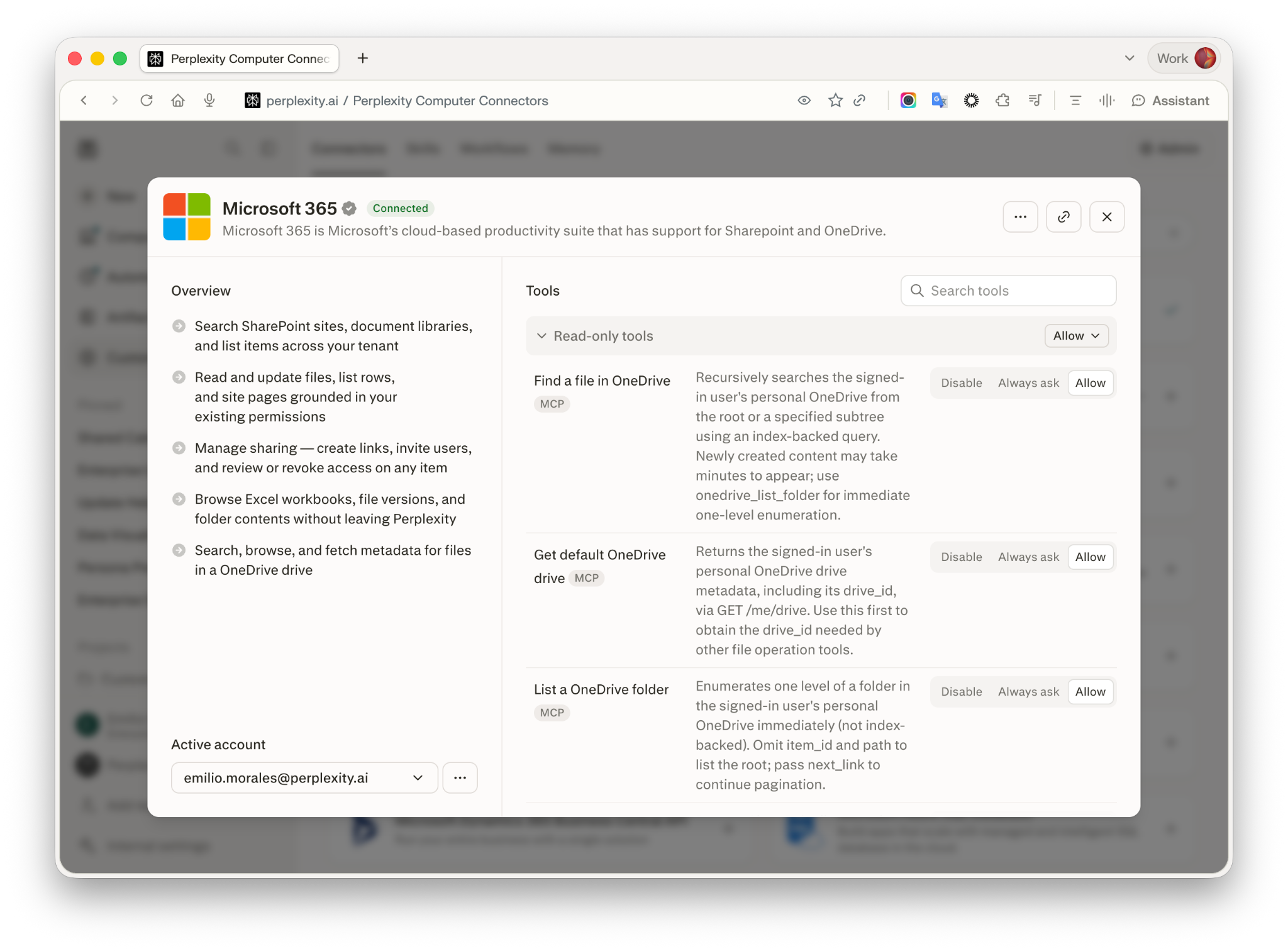
Figure 1 — Manage Microsoft 365 tool permissions from its connector page on Plugins.
Note: On Enterprise plans, your organization administrator can set organization-wide defaults for these groups and lock individual tools so members cannot override them. See Microsoft 365 connector: security, permissions, and administrator controls.
What each state does:
Allow — Perplexity can call the tool without asking you first.
Always ask — Perplexity asks for your confirmation before every call.
Disable — Perplexity cannot call the tool at all.
Trying it out
Once Microsoft 365 is connected, try one of these example queries in a new session:
@Microsoft 365Summarize the latest project brief in the Marketing site’s Shared Documents library@Microsoft 365List the Excel workbooks I have access to and show the sheet names in each@Microsoft 365Show me every SharePoint file shared with me in the last 7 days and who shared it
You can also select Microsoft 365 as a source when creating a Perplexity Computer task so Computer can search and act on your SharePoint or OneDrive content when the task runs.
Note: Mentioning @Microsoft 365 is only required in Ask. In Perplexity Computer, mentioning it is optional — Computer picks up the connector automatically when your query mentions SharePoint, OneDrive, Word or Excel files, or Microsoft 365 in general. Type the mention as shown — starting a query with an opening quotation mark right before it, like “@Microsoft 365 …, prevents Perplexity from recognizing it as a connector mention, and the query can run without Microsoft 365 attached as a source.
Permissions and scopes
The Microsoft 365 connector requests the following delegated scopes from Microsoft Entra ID (formerly Azure AD).
Scope | Why Perplexity requests it |
| Sign you in with OpenID Connect. |
| Keep the connection alive with a refresh token. |
| Read your own Microsoft profile to identify the connected account. |
| Look up basic profile info for other users when you invite them to a file or list. |
| Read and update files in OneDrive and shared drives. |
| Read and update SharePoint site content you have access to. |
| Create SharePoint items and manage sharing on items you have access to. |
Microsoft consent applies to the requested bundle. Individual scopes cannot be removed while keeping the connector functional.
Troubleshooting
Symptom you see | Most likely cause | How to fix it |
”Needs admin approval” from Microsoft when connecting | Your Microsoft Entra ID administrator has not granted tenant-wide consent for Perplexity. | Request approval through the on-screen prompt. Your administrator can grant consent by following the Enterprise Connector Troubleshooting Guide. |
”Microsoft is not responding” during sign-in | Pending admin consent, a tenant policy issue, an authentication timeout, or a Microsoft-side disruption. | Try an incognito browser window or a different browser. If the issue continues, contact support. |
Some users can connect, others cannot | Microsoft-side permission differences or missing user assignment in Microsoft Entra ID. | Confirm tenant-wide admin consent has been granted, that affected users are assigned to the Perplexity application in Entra ID, and that they have the SharePoint or OneDrive access you expect. Sign out and back in to refresh permissions. |
A specific SharePoint site is missing from results | The site is excluded from Microsoft search results, or you lack SharePoint permissions. | In SharePoint, go to Site Settings → Search and set “Allow this site to appear in search results” to Yes. Check with the site owner that you have access. |
The connector shows connected but returns no results | Microsoft 365 is not selected as a source for your session, or your refresh token expired after long inactivity. | Select Microsoft 365 as a source and try again. If it still returns nothing, refresh the grant as follows: Open the Installed tab on the Plugins page (or Customize → Connectors if you don’t see Plugins yet) and open the Microsoft 365 connector’s page. Select Disconnect. Select Reconnect. |
Microsoft 365 works for one member of a shared Project but not another | The Project shares the source selection, not sign-in. The other member hasn’t connected their own Microsoft 365 account, or is still on a legacy SharePoint/OneDrive connection from before the Microsoft 365 migration. | Have that member open Plugins in the sidebar (or Customize → Connectors if you don’t see Plugins yet), find Microsoft 365 on Discover or by search, open its page, select Connect, and sign in with their own Microsoft account — the new grant does not carry over legacy SharePoint/OneDrive credentials. Then verify with |
The answer says sources were not retrievable, even though Microsoft 365 shows connected | The matching files were skipped during retrieval — either they’re larger than your plan’s attachment limit, or they’re a format Microsoft 365 doesn’t currently retrieve as a source, such as video files, macro-enabled Excel workbooks (.xlsm), Outlook .msg files, or other unrecognized file types. | Check the file size and format. Try a smaller file or a supported format (PDF, Word, PowerPoint, non-macro Excel, CSV, Markdown, or plain text). |
Typing | A quotation mark immediately before | Select Microsoft 365 from the source picker as it appears while typing, rather than including it inside quoted text. |
Still not working?
Open the Installed tab on the Plugins page (or Customize → Connectors if you don’t see Plugins yet) and open the Microsoft 365 connector’s page. Select Disconnect. Select Reconnect. If the issue continues, contact support with the exact error message, the time it occurred, and your account email.
Enterprise users can also check the Enterprise Connector Troubleshooting Guide for admin-consent and permission issues.
Frequently asked questions
I used to connect SharePoint or OneDrive separately. What do I do now?
SharePoint and OneDrive are now part of the Microsoft 365 connector. Open Plugins in the sidebar (or Customize → Connectors if you don’t see Plugins yet). Find the Microsoft 365 connector on Discover or search for it by name, then open its page. Select Connect. You can then keep searching those files from Perplexity. Update any saved sessions or scheduled Perplexity Computer tasks to use Microsoft 365 as their source.
Do I need to reconnect if I already had SharePoint or OneDrive connected before?
Yes. Microsoft 365 uses a new authorization grant; it does not carry over any previous SharePoint or OneDrive credentials.
Which file types can I search?
Microsoft 365 searches SharePoint and OneDrive through Microsoft Graph, so anything indexed by your Microsoft tenant can be surfaced — including .docx, .xlsx, .pptx, and .pdf files, plus plain-text formats. Perplexity does not apply its own file-type allowlist.
Are there file-size or file-type limits?
Yes. When Microsoft 365 retrieves a matched file as a source, files larger than your plan’s attachment limit are skipped — 50 MiB by default for Pro, Max, Enterprise Pro, and Enterprise Max, and 25 MiB on Free. Your organization may set a different limit.
Microsoft 365 source retrieval also currently supports common text, PDF, Word, PowerPoint, and non-macro Excel formats. Video files, macro-enabled Excel workbooks (.xlsm), Outlook .msg files, and other unrecognized formats are skipped even if Microsoft Graph returns them in search results — if every matching file is skipped this way, your answer will say the sources weren’t retrievable.
Uploads to SharePoint or OneDrive through the connector are capped at 64 MB per file from a Perplexity Computer workspace, and 4 MB for inline content.
Does everyone in a shared Project need to connect Microsoft 365 themselves?
Yes. Adding Microsoft 365 as a Project source shares the source selection and instructions, not your sign-in. Each member who wants Microsoft 365 results in that Project needs their own connected account. See What are Projects? for details.
Are my files used to train Perplexity’s models?
No. Files accessed through the Microsoft 365 connector are never used to train Perplexity’s models or any third-party model.
Can my administrator restrict what the connector can do?
Yes. On Enterprise plans, your organization administrator can enable or disable Microsoft 365 for the whole organization, set organization-wide defaults for tool permissions, and lock individual tools so members cannot override them. See Microsoft 365 connector: security, permissions, and administrator controls.
Need more help?
Contact us via Help > Contact Support or open the Help Center from the ? icon at the bottom-right corner of Perplexity. Enterprise users can also reach out to their account team. Visit the Trust Center for security and compliance documentation.