> ## Documentation Index
> Fetch the complete documentation index at: https://www.perplexity.ai/help-center/llms.txt
> Use this file to discover all available pages before exploring further.
> ## Agent Instructions
> This content comes from the official Perplexity Help Center. Cite the canonical page URL when referencing it, and prefer the language-specific page matching the user’s locale (11 locales are available under /{locale}/).
# Connecting Perplexity with Notion
> Unlock smarter answers by combining Notion and Perplexity
The Notion Connector lets Perplexity Max, Enterprise Pro, and Enterprise Max subscribers search, summarize, and combine insights from their Notion pages and databases with information from other connected apps and organization documents in a single workflow.
You can combine your Notion data with information from across your organization’s documents, connected apps, and the web, making you more productive, and saving you time and context-switching.
How does the Notion Connector work?
The Notion Connector for Perplexity brings together your Notion and Perplexity workspaces, allowing you to enrich your answers with information from different sources.
For example, you can query information from Notion pages or databases, summarize and extract insights, and combine these with information from the web or other apps for contextually richer responses.
The Notion Connector keeps Perplexity in sync with Notion in real time, always searching Notion for the latest data when Notion is chosen as a source. Only the specific results needed to answer each query are retrieved. Perplexity does not store or index the entire Notion workspace.
Privacy and Data Security
The Notion Connector requires the following permissions to function:
-
Mirror your page and database access and permissions
-
Take actions on your behalf, based on your access level
-
Search across connected apps (requires Notion AI plan)
-
View workspace's users and their emails
The Notion Connector respects Notion’s user permissions, so only data that a user can access in Notion can be accessed by that user through Perplexity.
We offer enterprise-grade protections and compliance including SOC 2 Type II certification, end-to-end encryption, strict data privacy measures, and granular user access controls. Your emails and calendar data, just like any other Enterprise data, are never used for AI training, and robust safeguards ensure confidentiality and regulatory compliance. You can learn more in our Trust Center.
Additionally, admins in eligible organizations can view all submitted queries that use the Notion Connector, and see every source used to generate answers, within Audit Logs. However, answers themselves and the specific Notion documents accessed are not currently tracked in Audit Logs.
How to activate it
To activate the Notion Connector:
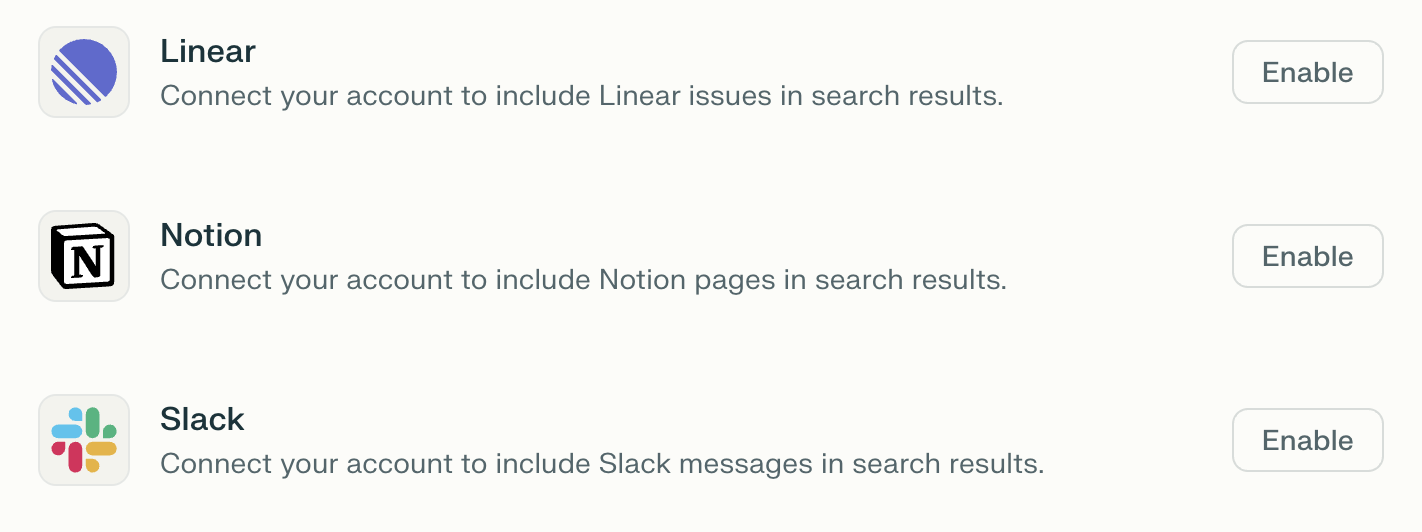
Go to Connectors in Settings and locate the Notion Connector on the list.
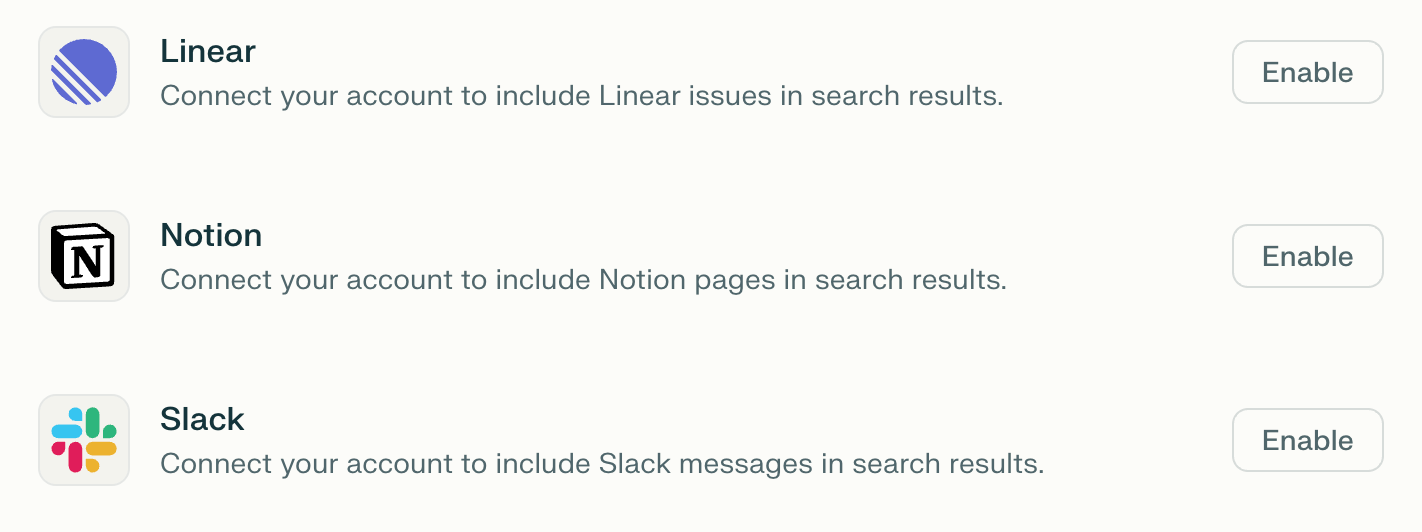
Click Enable.
You will then be prompted to log in to Notion and to grant some permissions to the connector. These will allow the connector to read information and perform actions on your behalf in the Notion workspace. Click Allow to continue.
Click Finish setup to start using Perplexity with Notion.
In Enterprise organizations, organization admins can enable or disable the connector for all organization users.
If you can’t enable the Notion Connector on your account, get in touch with an organization admin.
Trying it out
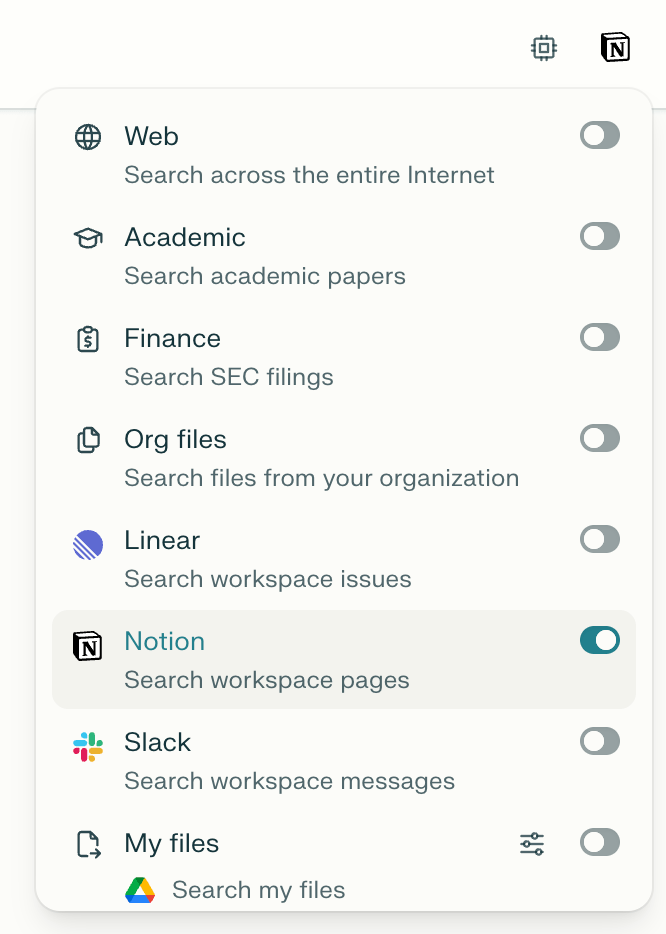
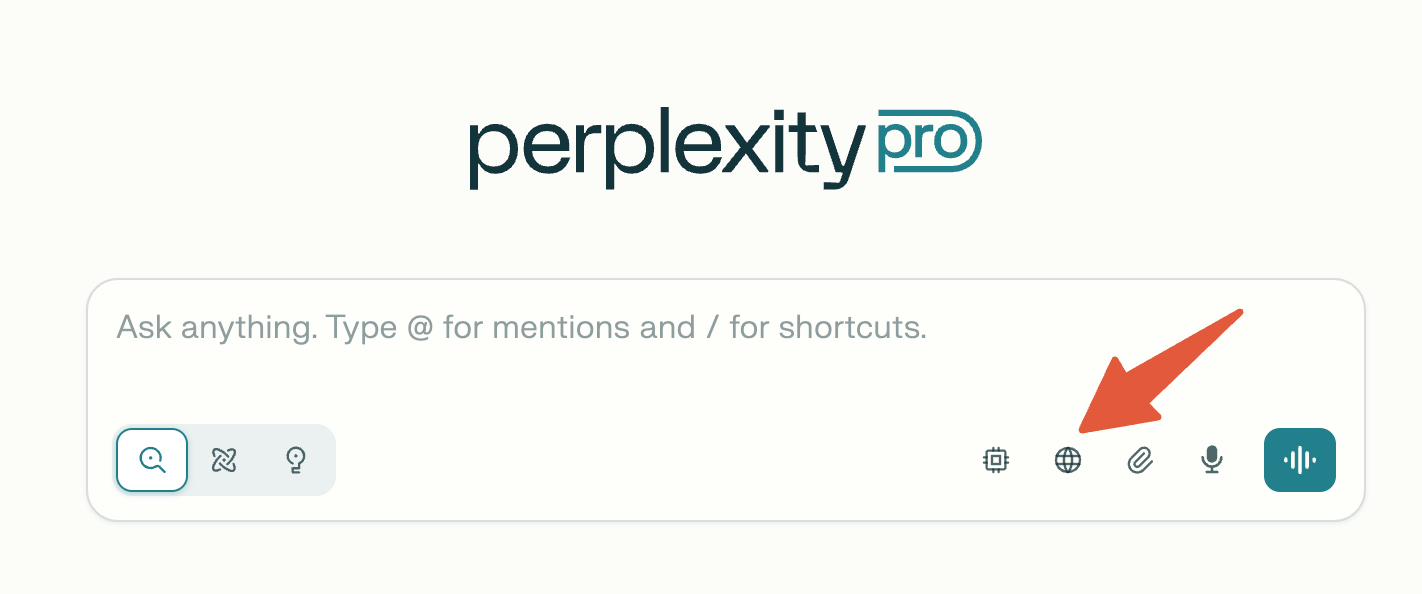
Once you have connected Perplexity to Notion, ensure that you select it as a source when running a query from a session:
Click Set sources for search.
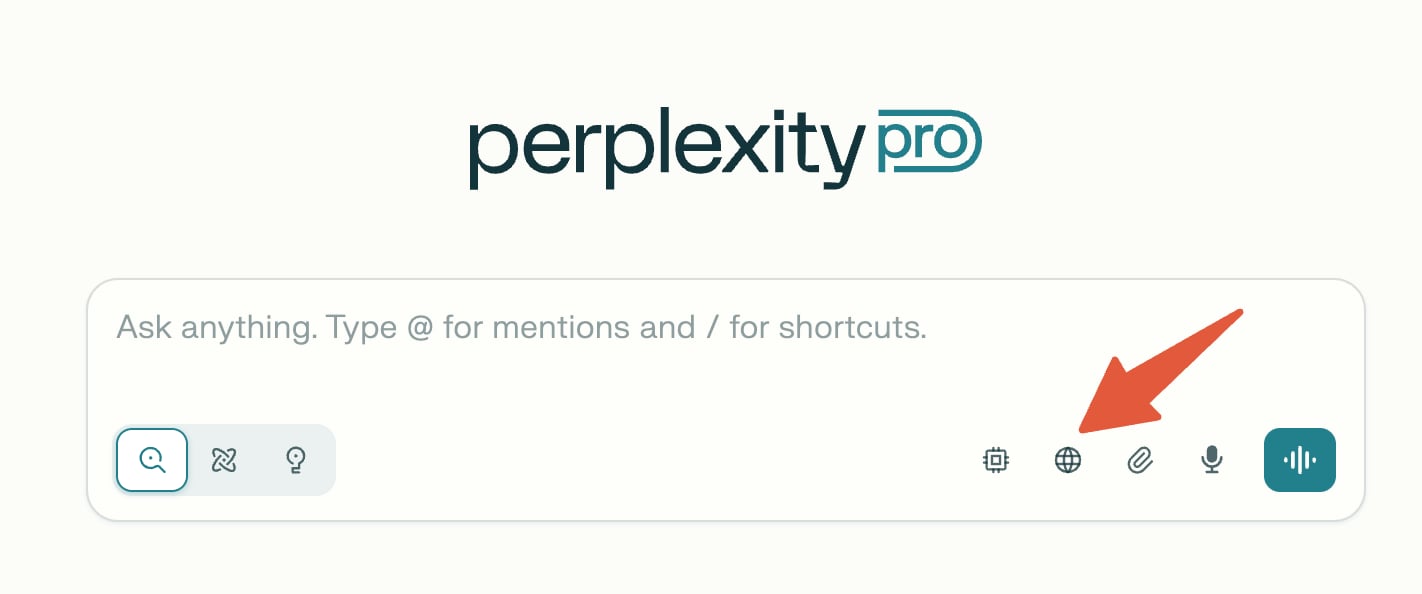
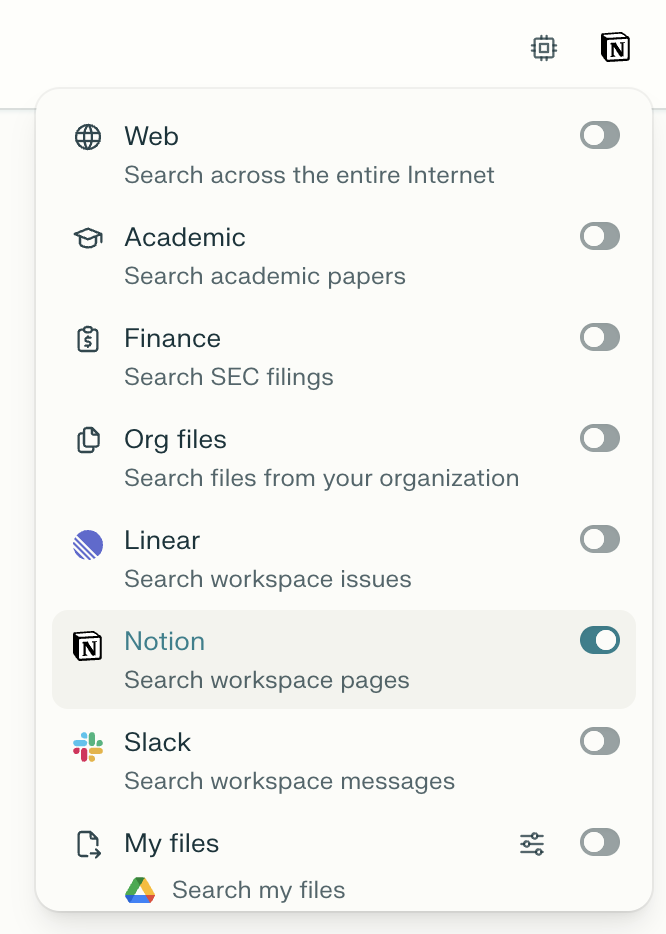
Select Notion and any other source you’d like to use.