> ## Documentation Index
> Fetch the complete documentation index at: https://www.perplexity.ai/help-center/llms.txt
> Use this file to discover all available pages before exploring further.

> ## Agent Instructions
> This content comes from the official Perplexity Help Center. Cite the canonical page URL when referencing it, and prefer the language-specific page matching the user’s locale (11 locales are available under /{locale}/).

# Comet Shortcuts

> Create & trigger prompts through shortcuts for repetitive use cases

<h2 id="h_f40825d3d2">Introducing Shortcuts: Your Fast Lane to Prompts in Comet</h2>

<p>Meet <b>Shortcuts</b>, a new feature in Comet designed to further enable your productivity by turning your favorite and most-used workflows into quick prompts you can call up anywhere in Comet.</p>

<h2 id="h_cf01ada530">What are Shortcuts?</h2>

<p>Shortcuts in Comet are like <i>mini AI agents</i>—custom, reusable prompts that handle everything from simple tasks to complex workflows. Instead of typing out a big instruction (or multitasking between sites and tools), you can:</p>

<ul>
  <li>
    <p>Trigger pre-written commands in seconds</p>
  </li>

  <li>
    <p>Combine multiple steps into one easy prompt</p>
  </li>

  <li>
    <p>Point prompts at specific sources or data (use @ mentions, files, or tabs)</p>
  </li>

  <li>
    <p>Boost productivity by letting the AI handle repetitive stuff for you</p>
  </li>
</ul>

<iframe allowfullscreen="allowfullscreen" frameborder="0" referrerpolicy="strict-origin-when-cross-origin" src="https://www.youtube.com/embed/8Q3_UPKAe1Y" title="Embedded youtube video" />

<p><b>Example Shortcuts:</b></p>

<ul>
  <li>
    <p><code>/update-tabs</code>: “Close all tabs I haven’t used in the past day. Sort all remaining tabs by app.”</p>
  </li>

  <li>
    <p><code>/fact-check</code> : “Examine the claims in the tab and check credible sources to fact check the claims. Put results in an easy-to-read tabular format.”</p>
  </li>

  <li>
    <p><code>/order-lunch</code>: “Go to DoorDash and order my usual Wednesday lunch with a \$1 tip—no approvals needed.”</p>
  </li>

  <li>
    <p><code>/demoprep tomorrow’s meetings</code>: “Prepare a personalized demo briefing for all relevant meetings tomorrow.”</p>
  </li>

  <li>
    <p><code>/yesterdays-product-performance</code>: “Report key performance stats from your favorite analytics dashboard for yesterday.”</p>
  </li>
</ul>

<p>Start using shortcuts and let Comet’s AI handle your daily workflows. Just type <code>/</code>, choose your shortcut, add any extra info if needed, and watch shortcuts boost your productivity</p>

<h2 id="h_75d3d53d49">How do shortcuts work?</h2>

<ul>
  <li>
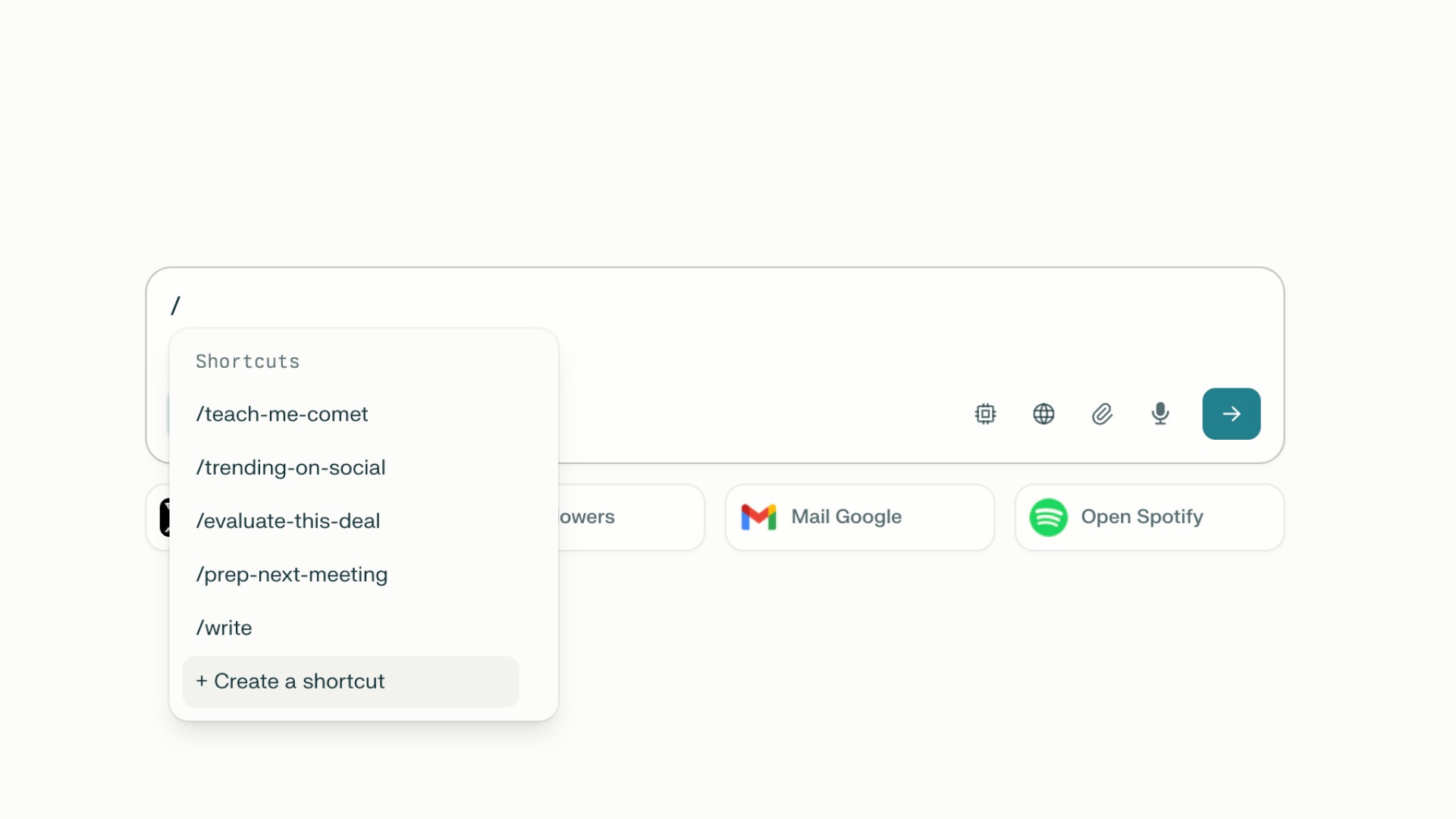
    <p><b>Trigger Anywhere:</b> Type <code>/</code> to see your shortcuts in the search bar or sidecar</p>
  </li>
</ul>

<Frame>
  <a href="../../assets/img/8ee20ec436_Frame_2.jpg" rel="noreferrer nofollow noopener" target="_blank">
    <img alt="" height="1080" src="https://mintcdn.com/perplexity-help-center/VSbT8XXdqBYCrHHo/help-center/assets/img/8ee20ec436_Frame_2.jpg?fit=max&auto=format&n=VSbT8XXdqBYCrHHo&q=85&s=a4d91fe3c693a1b563fc10f575792e47" width="1920" data-path="help-center/assets/img/8ee20ec436_Frame_2.jpg" />
  </a>
</Frame>

<ul>
  <li>
    <p><b>No Auto-Execute:</b> Entering a shortcut won’t auto-run it. You can add extra details or context after the shortcut before submitting. When ready, click submit and the shortcut will expand into its full prompt.</p>
  </li>

  <li>
    <p><b>Combine shortcuts:</b> Use multiple shortcuts together, building layered, complex workflows in a single command.</p>
  </li>

  <li>
    <p><b>Smart Inputs:</b> As you type <code>/</code>, a selector with your available shortcuts pops up, so you can quickly find, edit, or use the prompt you need.</p>
  </li>

  <li>
    <p><b>Configuration-Friendly:</b> Set up shortcuts with custom research modes, data sources, or fact-checking steps—tailor each prompt to your workflow.</p>
  </li>

  <li>
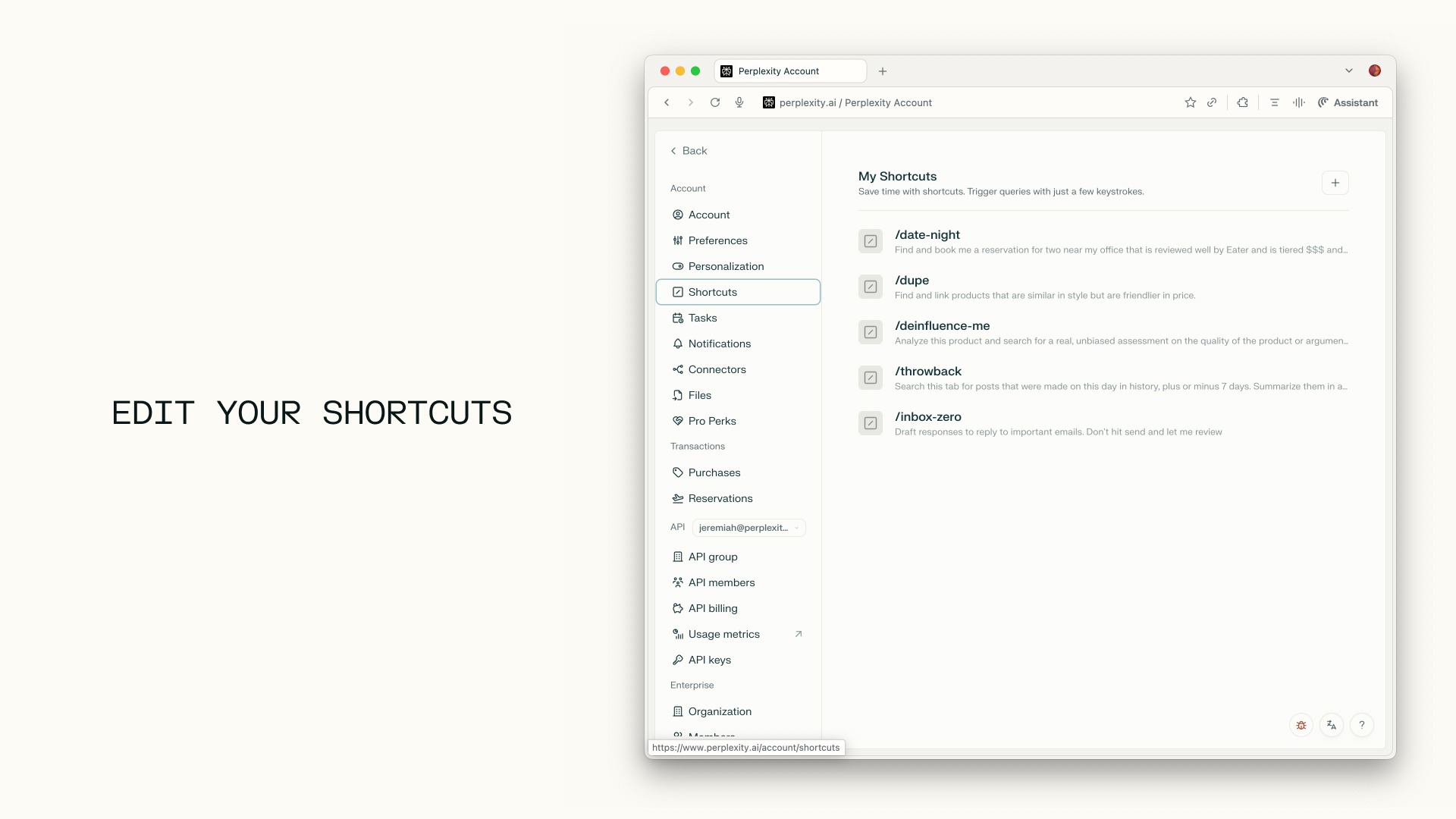
    <p><b>Easy Management:</b> Find and edit all your shortcuts on your Settings screen.</p>
  </li>

  <li>
    <p><b>Default + Custom:</b> You’ll have a basic set of shortcuts by default, with more available in our library (coming soon) and the option to create your own custom triggers.</p>
  </li>
</ul>

<h2 id="h_9e197b21d9">How to create and edit a shortcut:</h2>

<Steps>
  <Step>
    <p>Type <code>/</code> in the search bar or in the sidecar</p>
  </Step>

  <Step>
    <p>Click <b>“Create a shortcut”</b></p>
  </Step>

  <Step>
    <p>The shortcuts modal will open up where you can <b>enter your instructions (prompt), select a Search Mode, Model, Source</b></p>
  </Step>

  <Step>
    <p>Name your Shortcut and <b>click Save</b></p>

    <video autoPlay loop muted playsInline width="800" height="555" style={{ aspectRatio: "800 / 555" }} src="https://mintcdn.com/perplexity-help-center/Qv3d0vQE9qMlZrQx/help-center/assets/img/321516605b_CleanShot_2025-07-31_at_18_40_46__281_29.mp4?fit=max&auto=format&n=Qv3d0vQE9qMlZrQx&q=85&s=e77414a679b5a2cd5d09afccecf56670" data-path="help-center/assets/img/321516605b_CleanShot_2025-07-31_at_18_40_46__281_29.mp4" />
  </Step>
</Steps>

<p><b>To edit:</b></p>

<Steps>
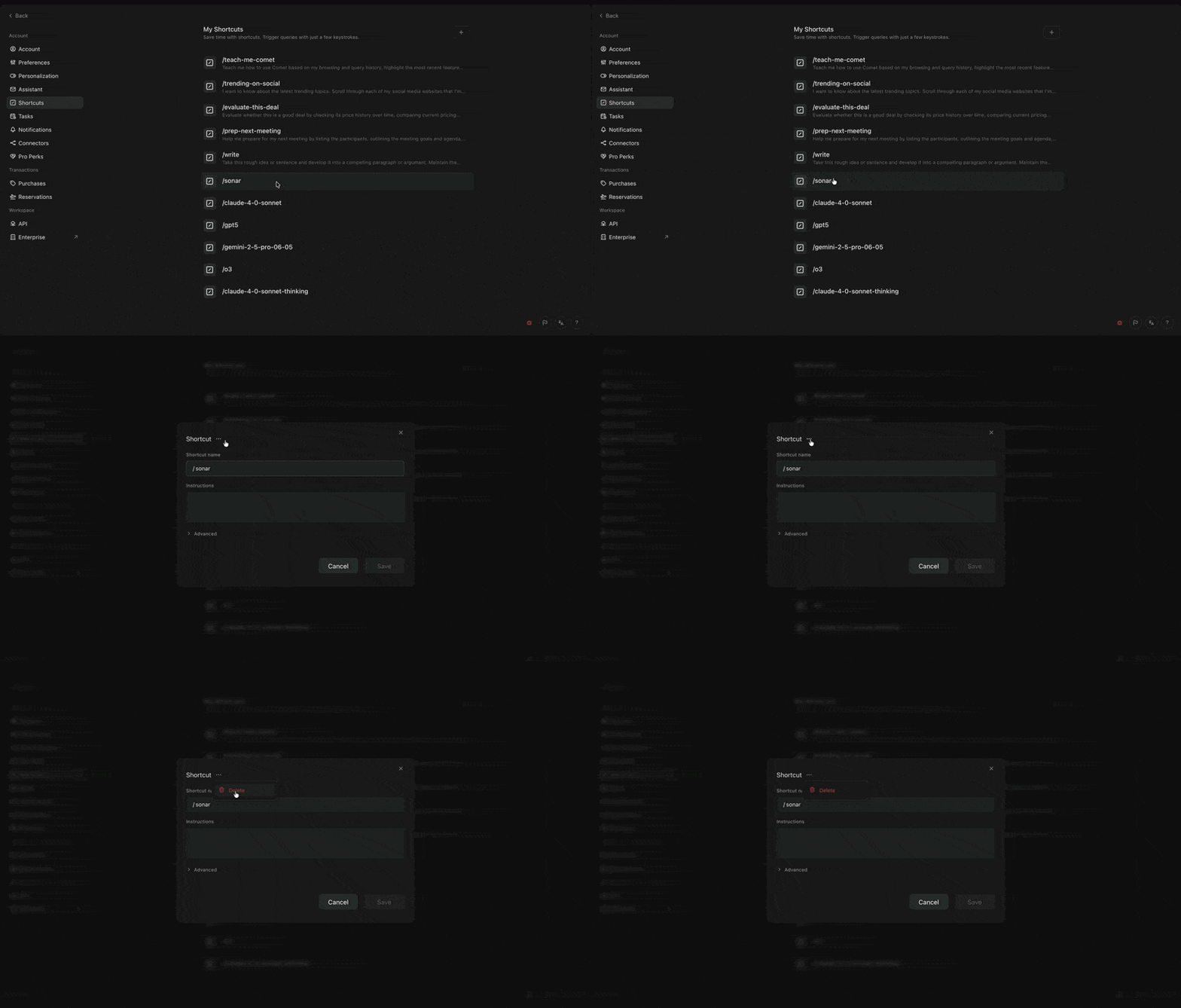
  <Step title="Open your Settings bar and go to Shortcuts" />

  <Step title="Click on the shortcut you want to edit and the modal will open up" />

  <Step title="Make changes in the modal and click Save" />
</Steps>

<Frame>
  <a href="../../assets/img/3baa2e2ded_Frame_21.jpg" rel="noreferrer nofollow noopener" target="_blank">
    <img alt="" height="1080" src="https://mintcdn.com/perplexity-help-center/Qv3d0vQE9qMlZrQx/help-center/assets/img/3baa2e2ded_Frame_21.jpg?fit=max&auto=format&n=Qv3d0vQE9qMlZrQx&q=85&s=e31cea59cbef12a240168cfd10e37277" width="1920" data-path="help-center/assets/img/3baa2e2ded_Frame_21.jpg" />
  </a>
</Frame>

<h2 id="h_ef212dac80">How to delete a shortcut:</h2>

<Steps>
  <Step title="Open your Settings bar and go to Shortcuts" />

  <Step title="Select the shortcut you would like to delete" />

  <Step title="In the modal, click the three dots at the top and click &#x22;Delete&#x22; to confirm." />
</Steps>

<Frame>
  <a href="../../assets/img/40846c5ac0_CleanShot_2025-11-25_at_14_49_29.gif" rel="noreferrer nofollow noopener" target="_blank">
    <img alt="" height="456" src="https://mintcdn.com/perplexity-help-center/Qv3d0vQE9qMlZrQx/help-center/assets/img/40846c5ac0_CleanShot_2025-11-25_at_14_49_29.gif?s=9f6fbaf9e4d64980881ca67248a5bda6" width="800" data-path="help-center/assets/img/40846c5ac0_CleanShot_2025-11-25_at_14_49_29.gif" />
  </a>
</Frame>

<p><br />​<br />​</p>

<h2 id="h_da2fd34338">Frequently Asked Questions</h2>

<p><b>Q: Will my shortcut execute as soon as I enter it?</b></p>

<p>A: No—this is intentional! You can add more input after the shortcut and then submit.</p>

<p><b>Q: Can I use shortcuts anywhere in Comet?</b></p>

<p>A: Yes, whether you’re in the search bar, sidecar, or in a new tab, shortcuts work across all inputs. Enter your prompt where it makes sense for you.</p>

<p><b>Q: Will shortcuts show up in the prompt title or chat?</b></p>

<p>A: Nope, when you click submit, the shortcut “code” transforms into the full prompt behind the scenes, so your workspace stays readable.</p>

<p><b>Q: Can I use more than one shortcut in a single prompt?</b></p>

<p>A: Yes, mix and match to stack workflows. Each shortcut translates to its designated task.</p>

<p><b>Q: How advanced can shortcuts be?</b></p>

<p>A: Shortcuts can run simple text commands, trigger smart research, interact with human-in-the-loop steps, or pull from apps/files you specify.</p>

<p><b>Q: Where do I manage my shortcuts?</b></p>

<p>A: Head to your<b> Account Settings </b>screen to find, organize, and edit your shortcuts.</p>


## Related topics

- [Comet](/help-center/help-center/en/collections/18799298-comet.md)
- [Comet Query Shortcuts](/help-center/help-center/comet/en/articles/11906981-comet-query-shortcuts.md)
- [Accessibility on Comet](/help-center/help-center/comet/en/articles/11583833-accessibility-on-comet.md)
- [Work with Browsers and Apps](/help-center/help-center/en/articles/19800006-work-with-browsers-and-apps.md)
- [Personalizing Comet](/help-center/help-center/comet/en/articles/11583910-personalizing-comet.md)