> ## Documentation Index
> Fetch the complete documentation index at: https://www.perplexity.ai/help-center/llms.txt
> Use this file to discover all available pages before exploring further.

> ## Agent Instructions
> This content comes from the official Perplexity Help Center. Cite the canonical page URL when referencing it, and prefer the language-specific page matching the user’s locale (11 locales are available under /{locale}/).

# Sign in with your Apple Relay email on Android and Windows

> Find your Apple Hide My Email relay address and use it to log in to Perplexity on devices that do not support Sign in with Apple, like Android.

<p>If you created your Perplexity account with “Sign in with Apple” and used the Hide My Email feature, your registered email is a private relay address (it looks like random letters and numbers ending in @privaterelay.appleid.com). <br />​<br />If you're using an Apple device you can use the "Sign in with Apple" option however, since Android does not support “Sign in with Apple,” you’ll need to log in using your Apple relay email directly.<br />​</p>

<h2 id="h_96a5fff068"><br />How to find your Hide My Email address:</h2>

<ul>
  <li>
    <p>Go to your Apple device.</p>
  </li>

  <li>
    <p>Open Settings > \[your name] > iCloud > iCloud+ Features > Hide My Email.</p>
  </li>

  <li>
    <p>Look for "Perplexity" and note the private relay email address listed.</p>
  </li>

  <li>
    <p>Your email will be located here, click and hold to copy.</p>
  </li>

  <li>
    <p><b>Keep "Forward to" on</b> to ensure emails get delivered. <br />​</p>
  </li>
</ul>

<h2 id="h_2ae9fa4ab3">Steps to log in:</h2>

<ul>
  <li>
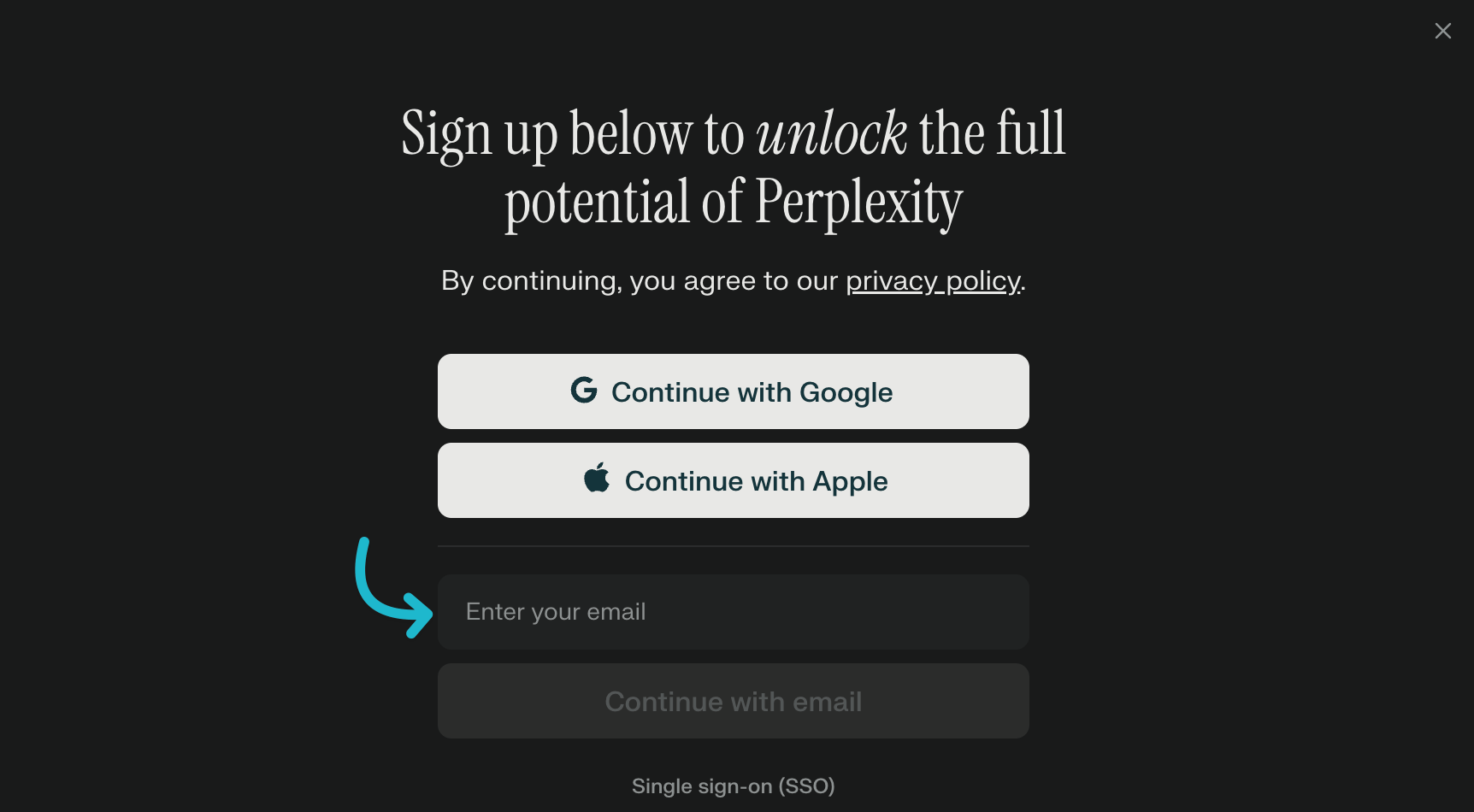
    <p>Choose “Sign in with Email” on your Android or Windows device. (See image)</p>
  </li>

  <li>
    <p>Enter your private Apple relay email address (the @privaterelay.appleid.com one).</p>
  </li>
</ul>

<p>
  <img alt="" src="https://mintcdn.com/perplexity-help-center/Qv3d0vQE9qMlZrQx/help-center/assets/img/394f96026e_CleanShot_2025-06-01_at_22_31_23_402x.png?fit=max&auto=format&n=Qv3d0vQE9qMlZrQx&q=85&s=9ef30d01c1e0d1ad2d4fc93c3632fcd5" width="1724" data-path="help-center/assets/img/394f96026e_CleanShot_2025-06-01_at_22_31_23_402x.png" />
</p>

<p><br />Following these steps will help ensure you can log in with your Apple-based account, and receive necessary emails for verification or support.<br />​<br />​<br />​</p>
