> ## Documentation Index
> Fetch the complete documentation index at: https://www.perplexity.ai/help-center/llms.txt
> Use this file to discover all available pages before exploring further.

> ## Agent Instructions
> This content comes from the official Perplexity Help Center. Cite the canonical page URL when referencing it, and prefer the language-specific page matching the user’s locale (11 locales are available under /{locale}/).

# Managing Users and Access Control

> Understand owner, admin, member, and billing admin roles in your Perplexity Enterprise organization and invite or remove users by email or invite link.

<h2 id="h_0f55b96d0b"><b>Understanding user roles</b></h2>

<Steps>
  <Step>
    <p><b>Owner of organization</b>: The user who creates the organization. This person has full control over inviting others and can request the deletion of the organization.</p>

    <p><i>Note: This role cannot be transferred or changed.</i></p>
  </Step>

  <Step>
    <p><b>Admin</b>: Admins can manage billing, add/remove users, enable SSO, and access the <a href="https://trust.perplexity.ai/" rel="nofollow noopener noreferrer" target="_blank">Trust Center</a>. There can be multiple admins within an organization.</p>
  </Step>

  <Step>
    <p><b>Member</b>: Standard user without special permissions.</p>
  </Step>

  <Step>
    <p><b>Billing Admin</b>: Not an admin but can manage payments through the Stripe portal in the <a href="https://www.perplexity.ai/settings/account" rel="nofollow noopener noreferrer" target="_blank">settings page</a>.</p>
  </Step>
</Steps>

<h2 id="h_212adea93b"><b>Inviting team members</b></h2>

<p>Admins have two ways to invite new users to the organization: directly via email or by generating a shareable link.</p>

<p>Note: members can't other members, only administrators can add and remove users.</p>

<h2 id="h_ad6a6475b7"><b>How to invite someone via the admin portal</b></h2>

<h3 id="h_7146cdda58">Invite via email</h3>

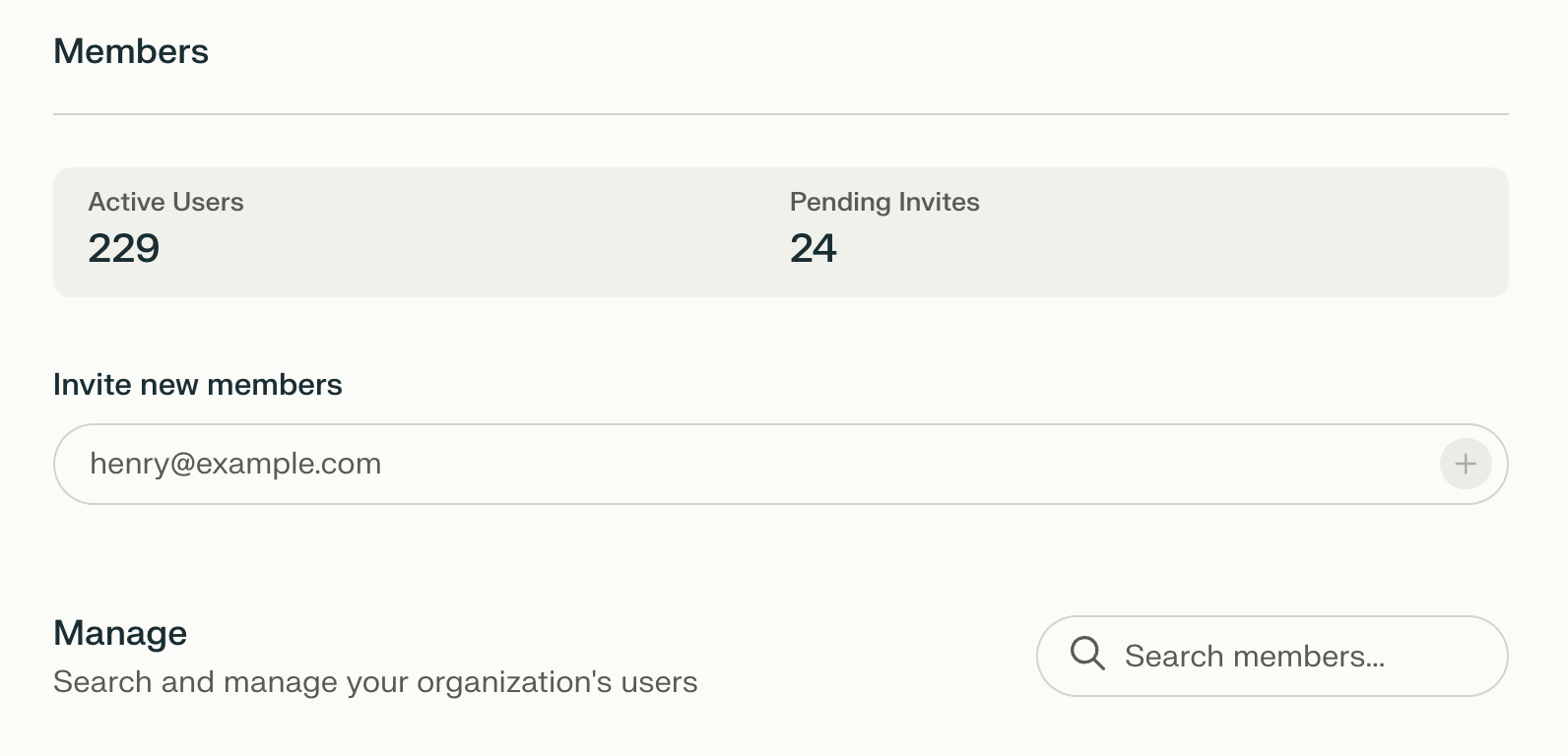
<p>Visit <a href="https://www.perplexity.ai/account/org/members" rel="nofollow noopener noreferrer" target="_blank">this</a> page found in your settings that reads Members under your Organization. Enter the user’s email in the “<b>Invite new members</b>” field.</p>

<Frame>
  <a href="../../assets/img/d29839c463_Screenshot_2025-05-02_at_11_34_58_E2_80_.png" rel="noreferrer nofollow noopener" target="_blank">
    <img alt="" height="768" src="https://mintcdn.com/perplexity-help-center/kBGsQkSG8SPEk_Ye/help-center/assets/img/d29839c463_Screenshot_2025-05-02_at_11_34_58_E2_80_.png?fit=max&auto=format&n=kBGsQkSG8SPEk_Ye&q=85&s=af9c699b1914b9f0adfc9f9d21fc969e" width="1592" data-path="help-center/assets/img/d29839c463_Screenshot_2025-05-02_at_11_34_58_E2_80_.png" />
  </a>
</Frame>

<p>2. The user will show as <b>Invited</b>. Once they accept the invite from their email inbox, their status changes to <b>Member</b>.</p>

<Frame>
  <a href="../../assets/img/6c14de11e0_Screenshot_2025-05-02_at_11_35_43_E2_80_.png" rel="noreferrer nofollow noopener" target="_blank">
    <img alt="" height="112" src="https://mintcdn.com/perplexity-help-center/VSbT8XXdqBYCrHHo/help-center/assets/img/6c14de11e0_Screenshot_2025-05-02_at_11_35_43_E2_80_.png?fit=max&auto=format&n=VSbT8XXdqBYCrHHo&q=85&s=b22cd55517f4f57886ab746dab8c14e5" width="1032" data-path="help-center/assets/img/6c14de11e0_Screenshot_2025-05-02_at_11_35_43_E2_80_.png" />
  </a>
</Frame>

<h2 id="h_dbcc498904">Invite link</h2>

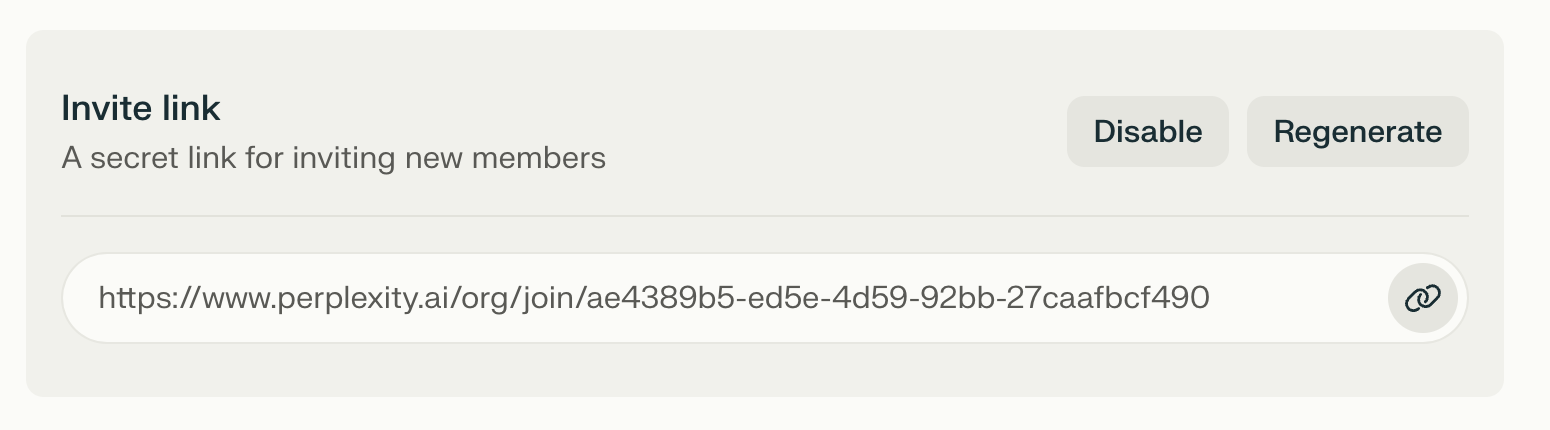
<p>Alternatively, you can generate a link to invite users. This link can be regenerated or disabled as needed.</p>

<Frame>
  <a href="../../assets/img/98caf4463c_Screenshot_2025-05-02_at_11_35_14_E2_80_.png" rel="noreferrer nofollow noopener" target="_blank">
    <img alt="" height="430" src="https://mintcdn.com/perplexity-help-center/VSbT8XXdqBYCrHHo/help-center/assets/img/98caf4463c_Screenshot_2025-05-02_at_11_35_14_E2_80_.png?fit=max&auto=format&n=VSbT8XXdqBYCrHHo&q=85&s=ec10475f259570a1a8ba04e8ecb5c469" width="1550" data-path="help-center/assets/img/98caf4463c_Screenshot_2025-05-02_at_11_35_14_E2_80_.png" />
  </a>
</Frame>