With the Perplexity iOS Voice Assistant you can perform a wide range of voice-activated tasks on your Apple device, from asking simple questions and taking simple actions, to completing complex tasks end-to-end.
It is a Perplexity layer on top of your device, integrating with many of your apps. This enables you to get assistance without the need to navigate between apps and services.
To begin using the assistant, update your Perplexity app to the latest version of the iOS app.
To start a conversation session, tap the voice icon in the input box and the voice assistant will appear. Make sure Microphone access is enabled in your Settings.
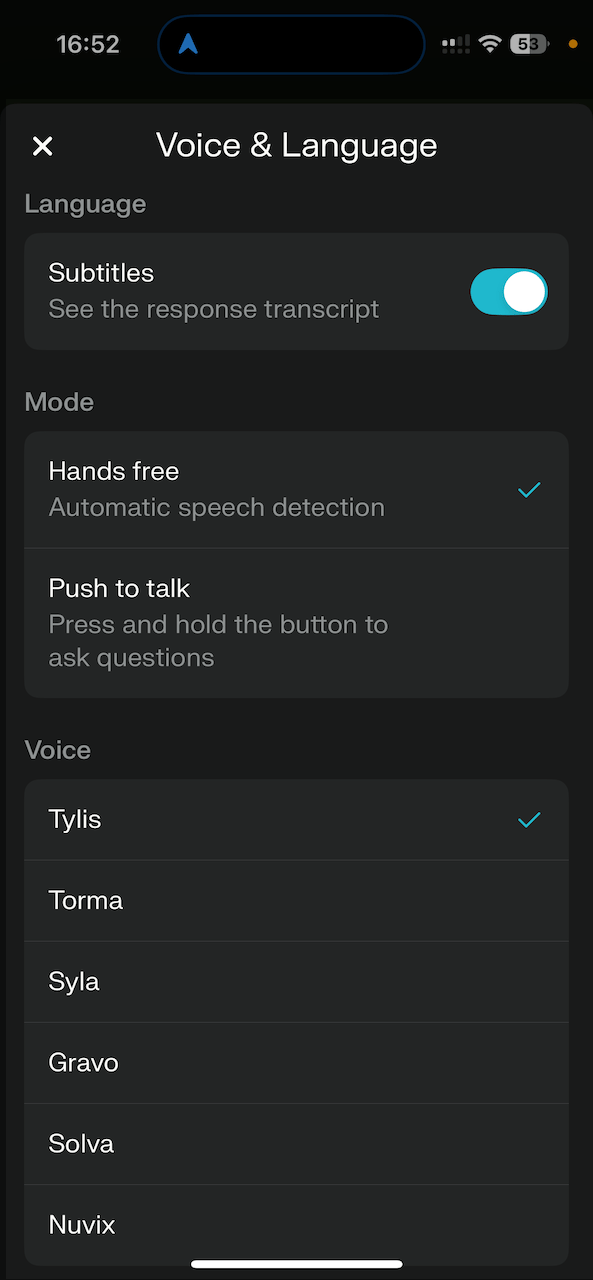
To change the Voice and other settings, tap the cog at the top of the screen:
All voice sessions will be saved to your sessions History once you're done.
Adding shortcuts to your iPhone can significantly enhance your user experience by providing quick access to frequently used apps.
To add the iOS voice Assistant as a shortcut to your home and lock screen:
Open the Shortcuts app on your iPhone
Tap on the three dots on the Perplexity Voice Mode shortcut
Tap on the arrow on the right side of "Start Voice Mode"
This will open a dropdown menu where you can select "Add to Home Screen"
A shortcut will be added to your Home Screen for easier navigation to the iOS voice Assistant
Setting Up Lock Button Shortcuts on iOS 18 (Accessibility Shortcut)
Instructions below are for the latest iOS, please check Apple instructions for earlier iOS versions
Lock your device and wake the display.
Hold the screen and tap "Customize"
Tap "Lock Screen"
Tap the minus button next to the existing shortcuts (typically camera and flashlight).
Tap the plus button to add new shortcuts
Choose from available options, including "Open App" and "Shortcuts" which allow you to place any app or shortcut directly on the lock screen.
Setting up Perplexity AI as your Action Button shortcut on your iPhone can significantly streamline your access to AI-powered search and conversation capabilities. This feature is available on iPhone models with the Action Button.
To configure Perplexity AI as your Action Button shortcut, follow these steps:
Go to your iPhone's Settings app.
Scroll down and tap on "Action Button".
You'll see an image of your iPhone with icons representing different actions you can assign to the Action Button. Swipe through the options until you reach "Shortcut"
Tap on "Choose a Shortcut" or the button below the Shortcut action
From the list of apps, select "Perplexity"
You'll be presented with several Perplexity-specific options:
"Ask Perplexity" - Prompts you to ask a question
"Start a new chat" - Opens a fresh conversation
"Start voice conversation" - Immediately activates voice mode
"Open Perplexity" - Simply launches the app
"Open Perplexity Search" - Takes you directly to search
For the most seamless voice assistant experience, select "Start voice conversation"
Once configured, you can access Perplexity by simply pressing and holding the Action Button on your iPhone. Depending on which option you selected during setup, the app will either:
Launch directly into voice mode, ready to listen to your query
Open a new chat window
Present a prompt for you to type your question
Simply open the app