How to Use/Create Spaces
This video introduces Perplexity Spaces within Perplexity Enterprise, demonstrating how to create a new Space, connect files, and run queries using the platform.
Intro to Spaces
You can think of it as a place where you can organize threads, upload files, and tailor Perplexity's responses for specific projects or topics. Spaces are perfect for long-term research, repetitive tasks, or teamwork where you're looking for a place to collaborate. Everything you need is in one place, and it's streamlined and easy to access.
Creating Your First Space
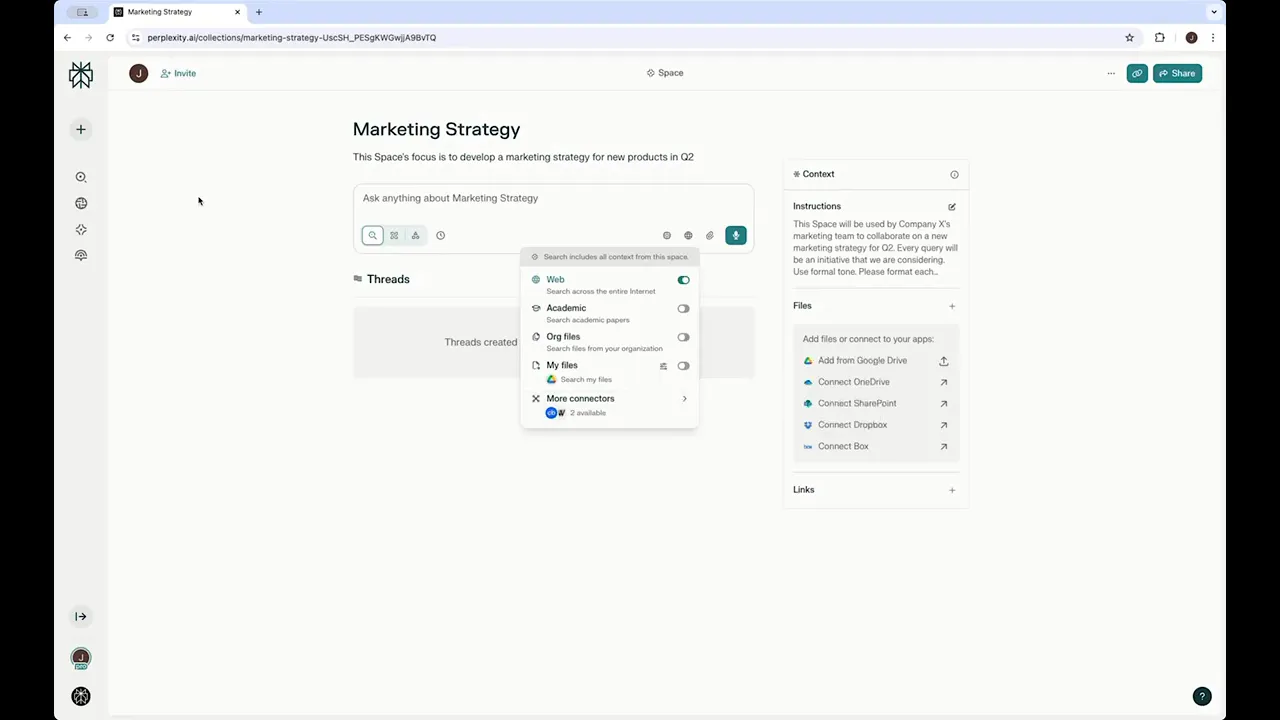
On the left-hand menu, you'll see the third widget, which is Spaces. Once you click that, hit "Create a Space." Enter a title that reflects your project's purpose—here, I wrote "marketing strategy." Next, there's an optional field for description—here, I put the space's focus is to develop a marketing strategy for new products in Q2. There's also an optional field for custom instructions where you can include tone preferences or formatting guidelines, and these apply to all threads within the space. Once you hit save, your space is created.
Collaboration & Permissions
Now that your space has been created, you can see in the upper left corner a tab for inviting others to collaborate. Invite your teammates through their email address and set permissions on how you want to share the space. By default, it’s private to yourself, but you can open the space up to your organization or make it shareable with anyone who has the link.
Queries and Sources
You can start writing queries within the space itself. There are different modes for search, research, and studio depending on how you want your output to be. You can set the recency for your search and also set the sources: toggle on web, connect your own organizational files or personal files, and select connectors that your organization might have already connected. Additionally, you have the option to add files through connectors like SharePoint, OneDrive, or Google Drive, if available. You can also specify certain links as resources for your queries.
When you write your first query—this is just an example—Perplexity will give you the output. After your query completes, you have the options to keep it private, share within the space and your organization, or anyone with the link.
Managing Your Spaces
To go back to your space, use the top menu where you’ll see your space (e.g., "marketing strategy"). All your threads will appear, and you’ll have options to make a thread private or delete it. When you go back to Spaces, you'll have a full repository of all the spaces you've created.
Try out spaces today: https://perplexity.coolkeypoint.com/__p/perplexity.ai/space/templates