Connecting your Data: How to ingest Google Drive, SharePoint, OneDrive, Box
This video explains how to enable and use file app connectors within Perplexity Enterprise, allowing users to integrate services like SharePoint, OneDrive, Google Drive, Box, and Dropbox for enhanced search capabilities. It shows how to connect, search, and disconnect file sources, while staying secure.
Enabling Connectors
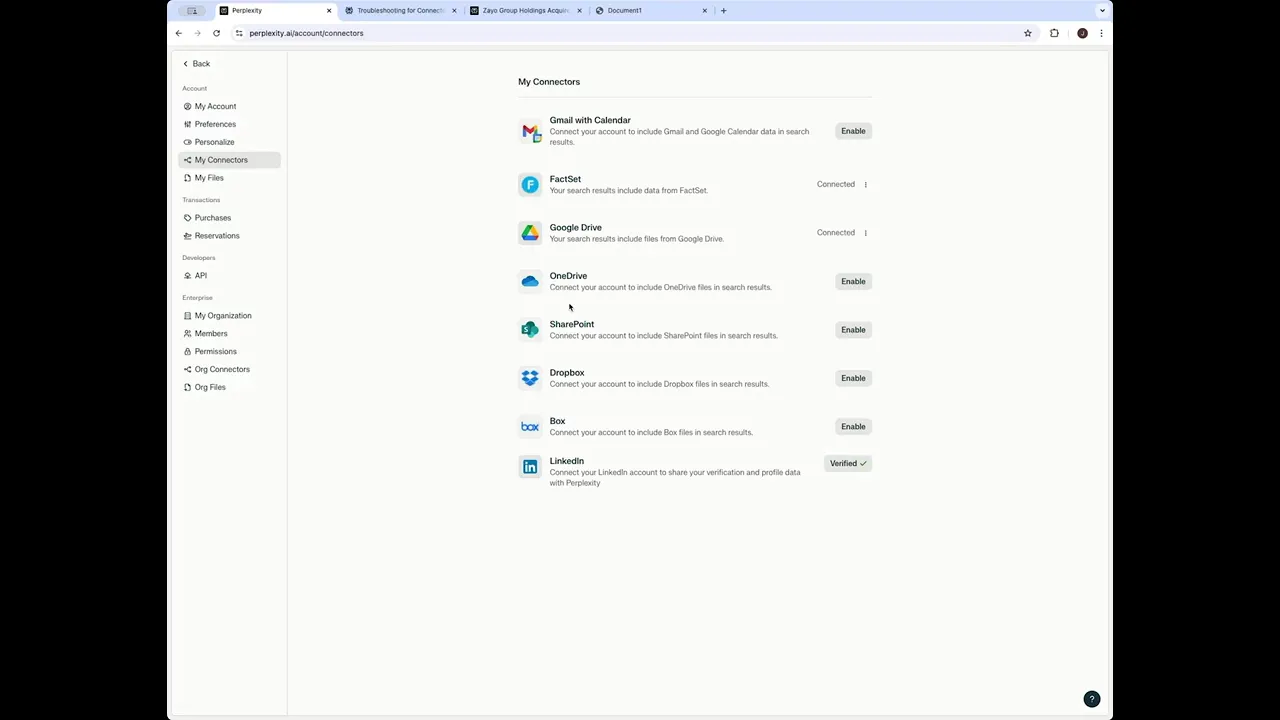
First, go to My Settings. Click on the icon with your name and go to My Account. Then go to My Connectors, and you'll see the list of all the available connectors. For example, if you were enabling SharePoint, you would click on Enable, and it would take you to a sign-in page where you'd enter your new account credentials. Once you've signed in, you'll be able to review and grant the requested permissions. This allows Perplexity to search, read, and summarize files only when you request it. Remember, your data stays private and is never used for AI training.
Using Files in Queries
Once you've enabled the connector, we'll show you how to use them in a query. First, go to your query itself. You can click on File Attachments. You can also set the source for your searches here. Under the source, click on My Files and toggle that on. Then you can search the files that you've connected. Once you find the source to add files, click that and select your connector. Similarly, within a space, you can connect files just by clicking on Add Files, and you can add local files or connector files.
Disconnecting & Getting Support
If you're ever looking to disconnect your account, go back to My Account, My Connectors, and then click on Disconnect. If you have any other troubleshooting questions, you can reach out to Perplexity support, your admin, or our help center at perplexity.ai/help-center, and just search for connectors.