An introduction to Queries
This video provides a quick guide to using Perplexity Enterprise, highlighting the different search modes, model selection, data sources, and how to run and share queries. It also covers options for customizing answers, including exporting results, attaching files, and using advanced features like voice mode and follow-up questions.
Search Modes
First, when you're on the home page, you'll notice three widgets at the bottom. These represent the types of modes you'll use for your search. The first option is for pro searches. The next mode is deep research, which you should leverage for deep dives on specific topics, multi-step reasoning, or queries with many different layers. The last mode is labs, ideal for generating documentation, slides, dashboards, charts, and visualizations. These queries can take up to ten minutes to run but provide detailed information.
Model Selection
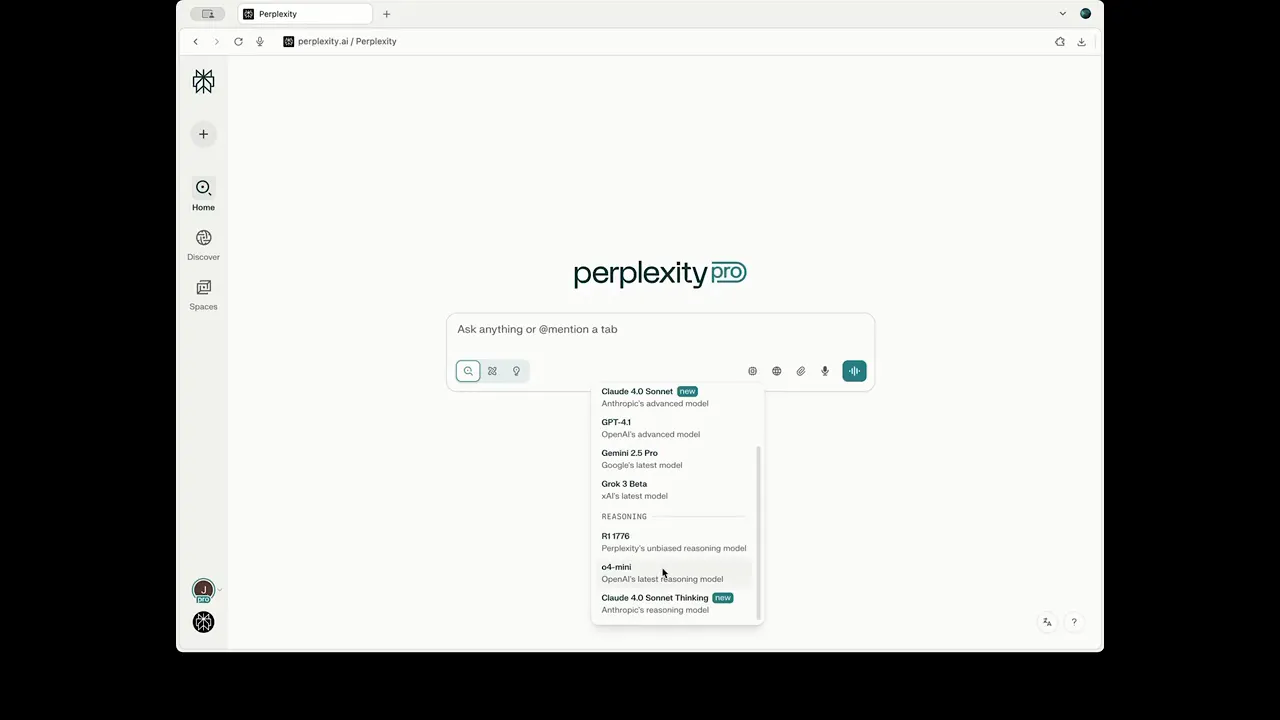
Next, you'll see the ability to choose your own model. While we recommend modes as the primary path for running queries, you can also select a specific model based on your preference. Perplexity offers all the latest and greatest models: Sonar (Perplexity's fine-tuned model optimized for search), Anthropic’s Claude, GPT, Google’s Gemini, and some reasoning models for more thorough research.
Data Sources
You can also set the sources for your search. With the data source button, you can turn web search on or off. Academic papers can be added as a data source, and SEC filings are available for finance-oriented searches. As mentioned in other videos, you can connect organizational files—either local files or files from repositories like Google Drive, SharePoint, OneDrive, Box, or Dropbox. Other connectors are available too: if you have subscriptions to Crunchbase or FactSet, you can enable that data here. Wiley, calendar, and Gmail connections are also possible. You can attach files from various sources and even use dictation and voice mode to speak your questions.
Running a Query
When you submit your query, Perplexity shows you the sources being used to pull the answer. You can click to see which sources are used for your question. Each answer section displays the sources pulled for that section. You can highlight a specific area, add it to a follow-up question, or check the sources for that area.
Sharing and More
For sharing and downloading your answers, you might see a chart as an output, which you can download as a CSV. You have sharing options at the bottom and in the top right. Threads can be private, shared in your organization, or shared outside with anyone that has the link. You can bookmark answers, add them to a space, convert them to a public web page, and export as PDF, markdown, or docx files. You can also rewrite the query using a different model, provide feedback on the answer, or copy the full content for use elsewhere.
Perplexity offers five sample follow-up questions, but you can always ask your own follow-ups using any mode, data source, attachment, or the voice mode.